WorkLedger guide
Worker advances
Enter advances when money is issued and assign them to the correct worker. Review outstanding advances before final wage payment.
Category Workers & payroll
Track worker advances
Open Worker Advances
Open the navigation menu and select Advances.
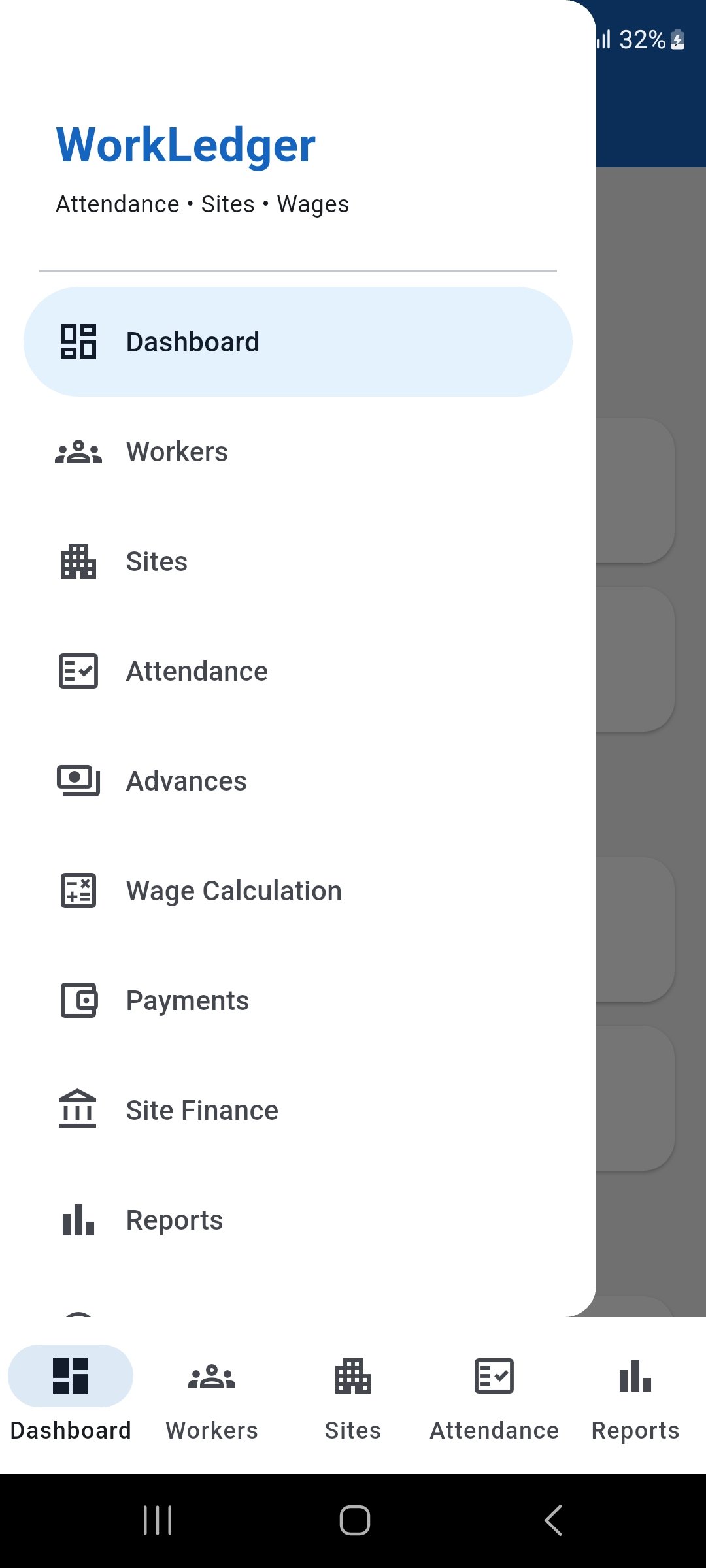
Select Advances from the navigation menu to open Worker Advances. Review advances and filters
Review the advance summary and use the date, worker, site, status, and Outstanding Only filters when needed.
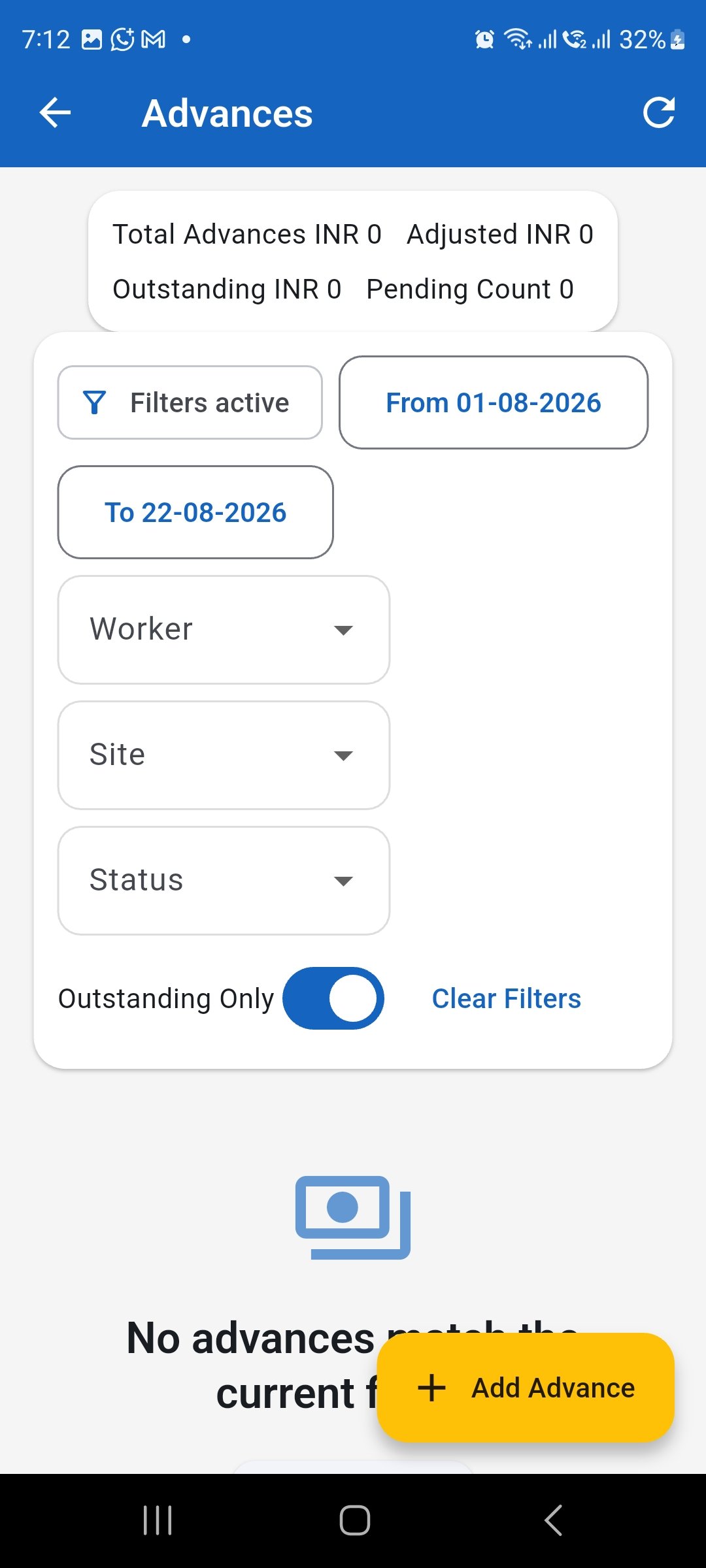
Review the summary and apply filters to focus the advances list. Add a worker advance
Tap Add Advance. Select the worker, advance date, amount, payment method, and related site. Add a reason or notes when applicable.
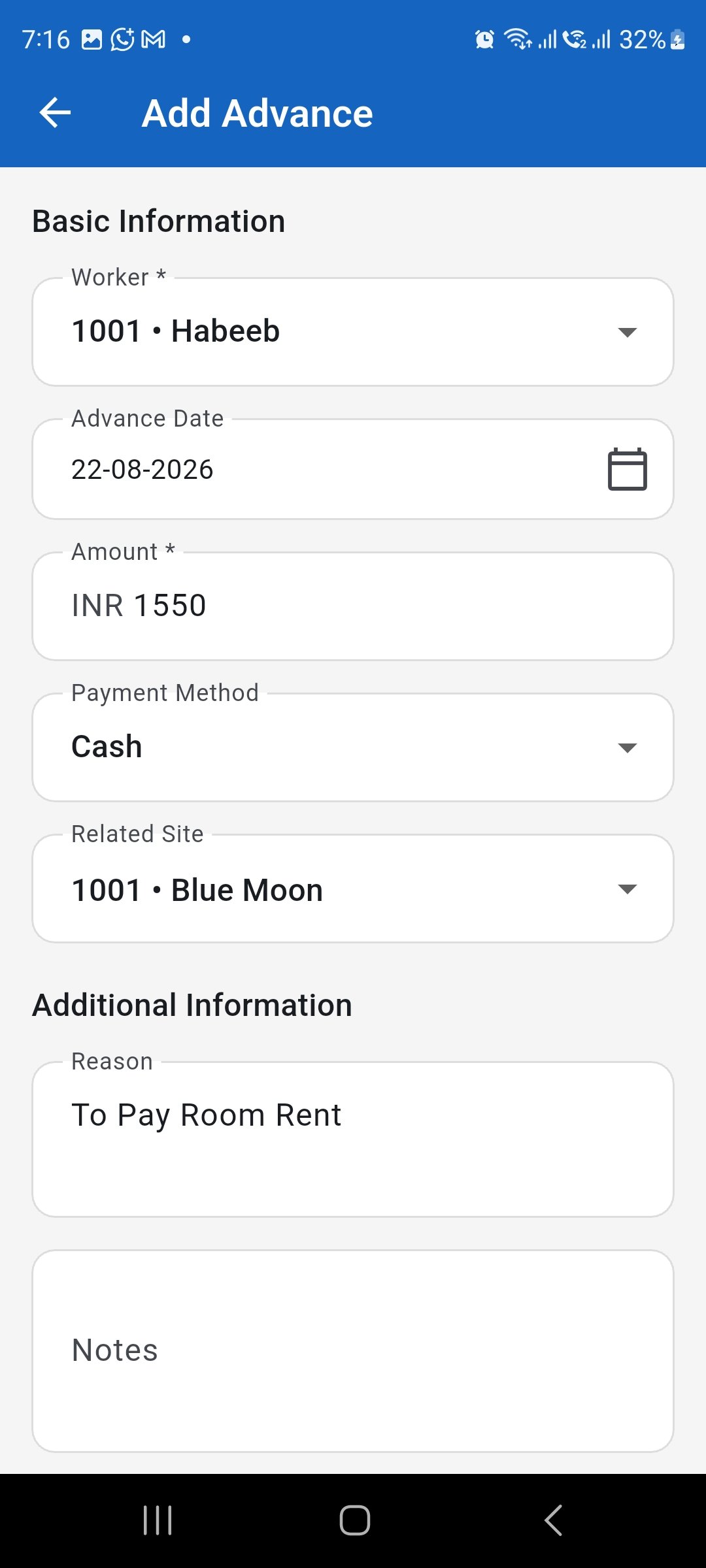
Enter the worker advance details and add a reason or notes when applicable. Confirm the recorded advance
After saving, verify that the advance appears in the list with the correct worker, amount, site, outstanding amount, and status.
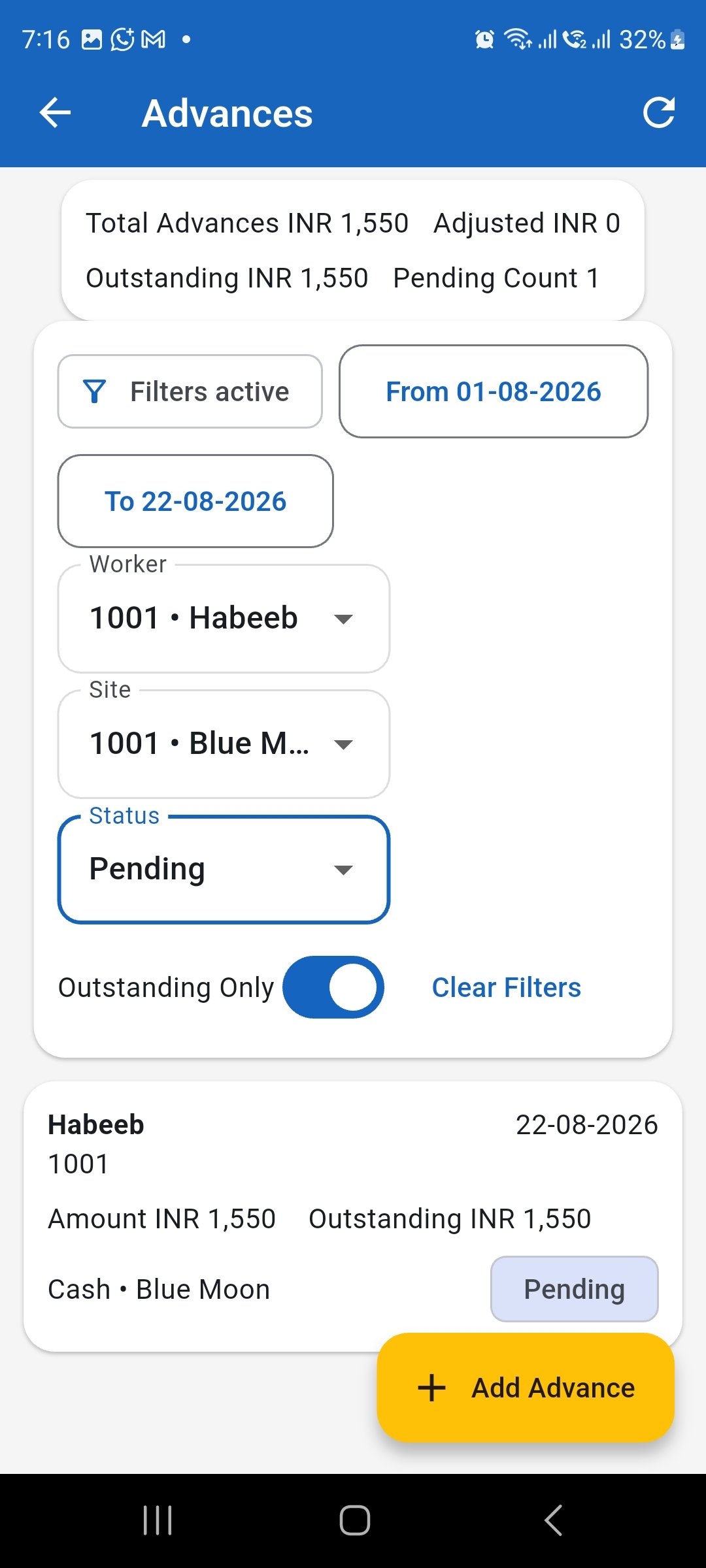
Confirm the saved advance and its key details in the list. Review or edit an advance
Open the advance to review its amount, adjusted amount, outstanding amount, payment method, site, and reason. Use Edit Advance when a correction is required.
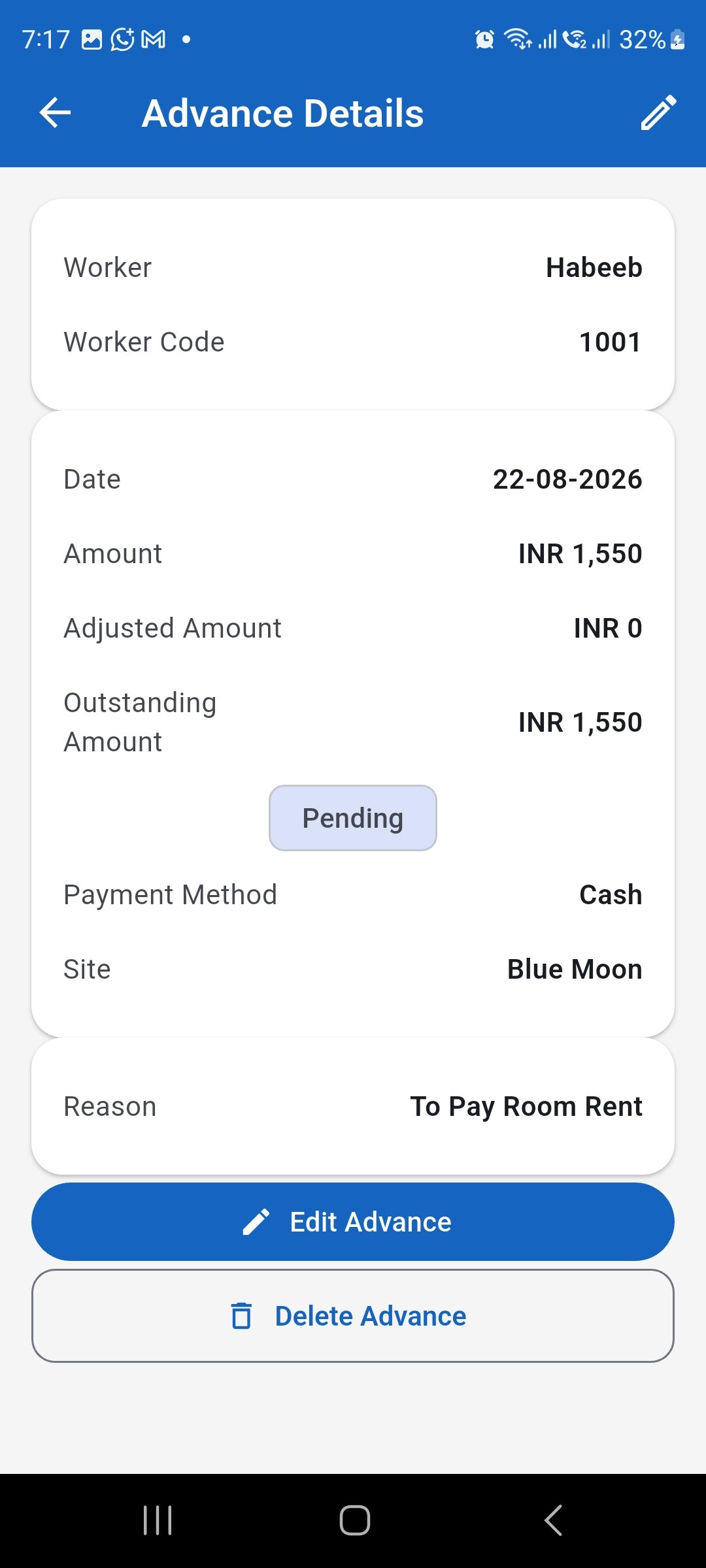
Review the advance details and use Edit Advance only when a correction is needed. Review advance reports
Use the Advance Payment Report to review advances by site, worker, date range, and status, including advance amount, adjusted amount, and outstanding amount.
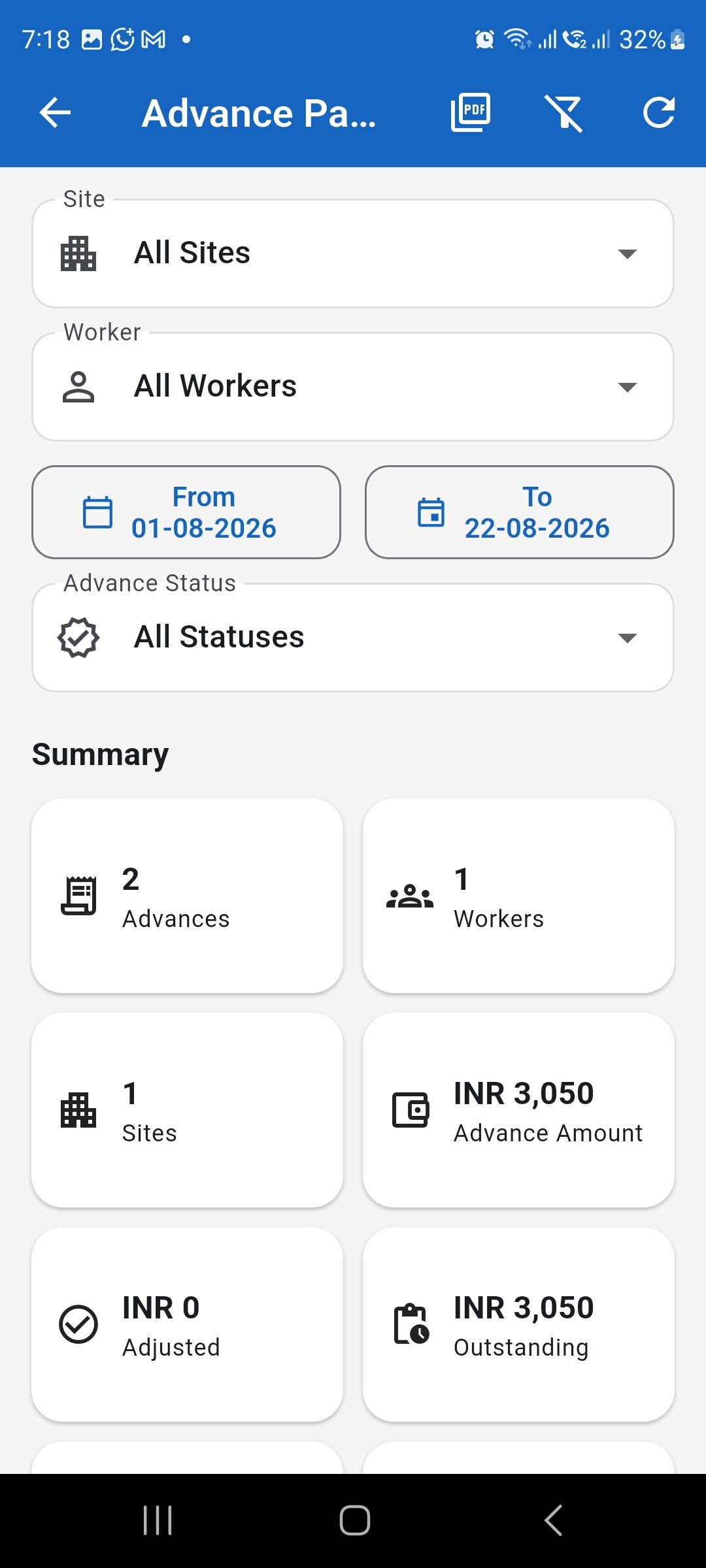
Use the Advance Payment Report to filter and review advance balances.