WorkLedger guide
Workers
Create one worker record per person and verify wage details before recording attendance. Avoid duplicate worker records because they can split attendance and payment history.
Category Workers & payroll
Maintain reliable worker records
Open Workers and add a worker
Open the Workers section to view the worker list, search workers, and filter Active, Inactive, or All records. Tap Add Worker when creating a new worker.
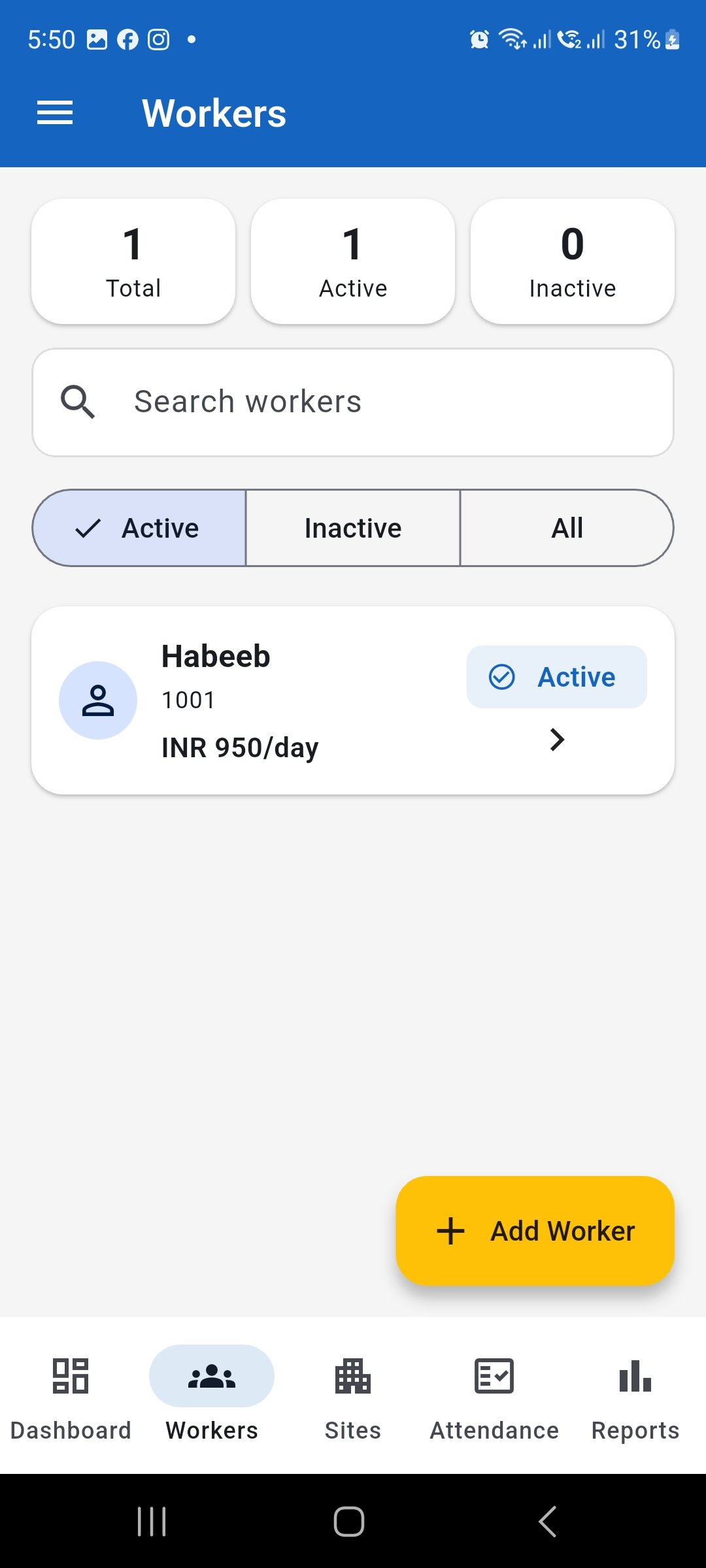
Open Workers to manage existing records or tap Add Worker to create a new worker. Enter the worker's basic information
Enter a unique Worker Code, Worker Name, Mobile Number, Job Type, and Joining Date. Review the details carefully before continuing so the worker is identified consistently throughout attendance and payroll records.
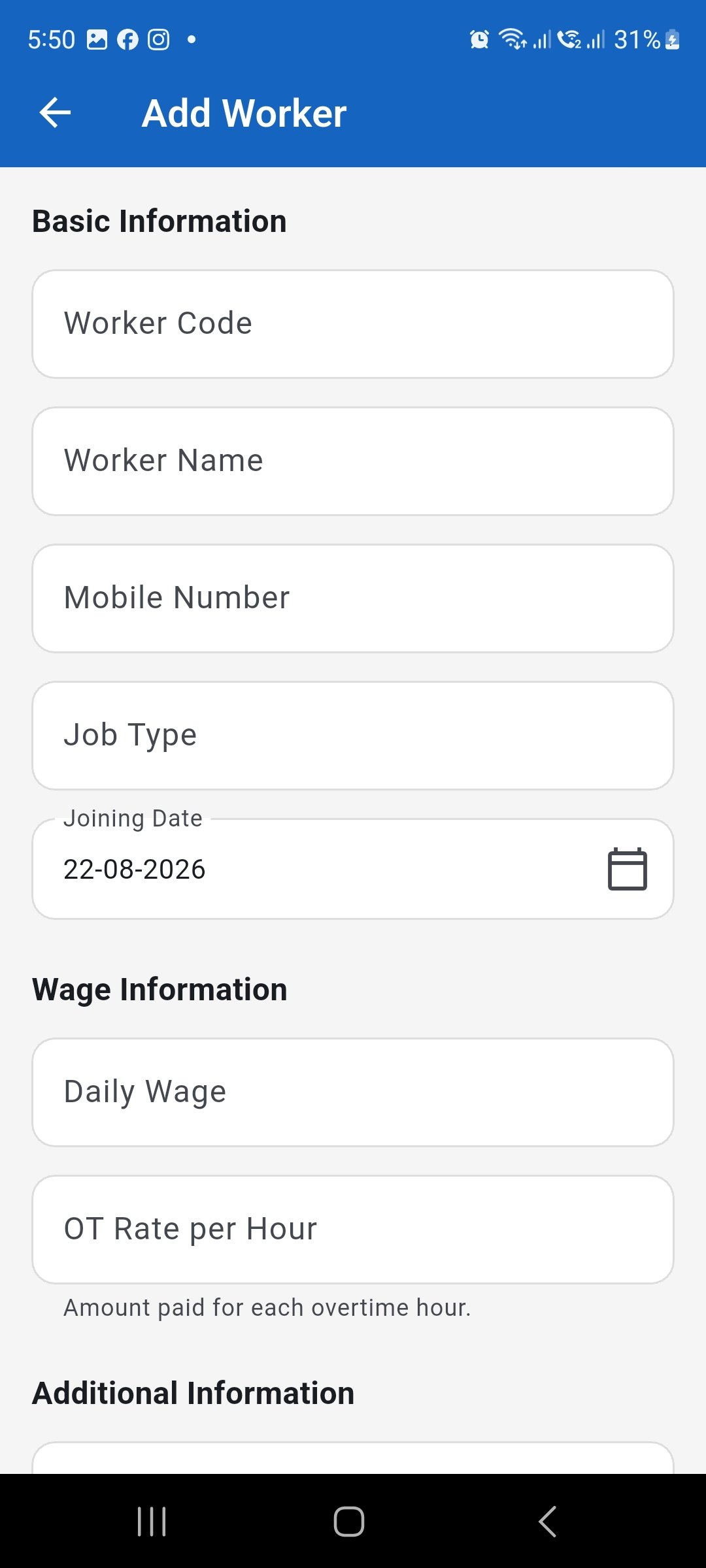
Enter the worker's identifying and employment details carefully. Enter wage and additional information
Enter the Daily Wage and OT Rate per Hour used for new attendance records. Add Address or Notes when useful, and keep the worker Active when the person should remain available for attendance and wage processing.
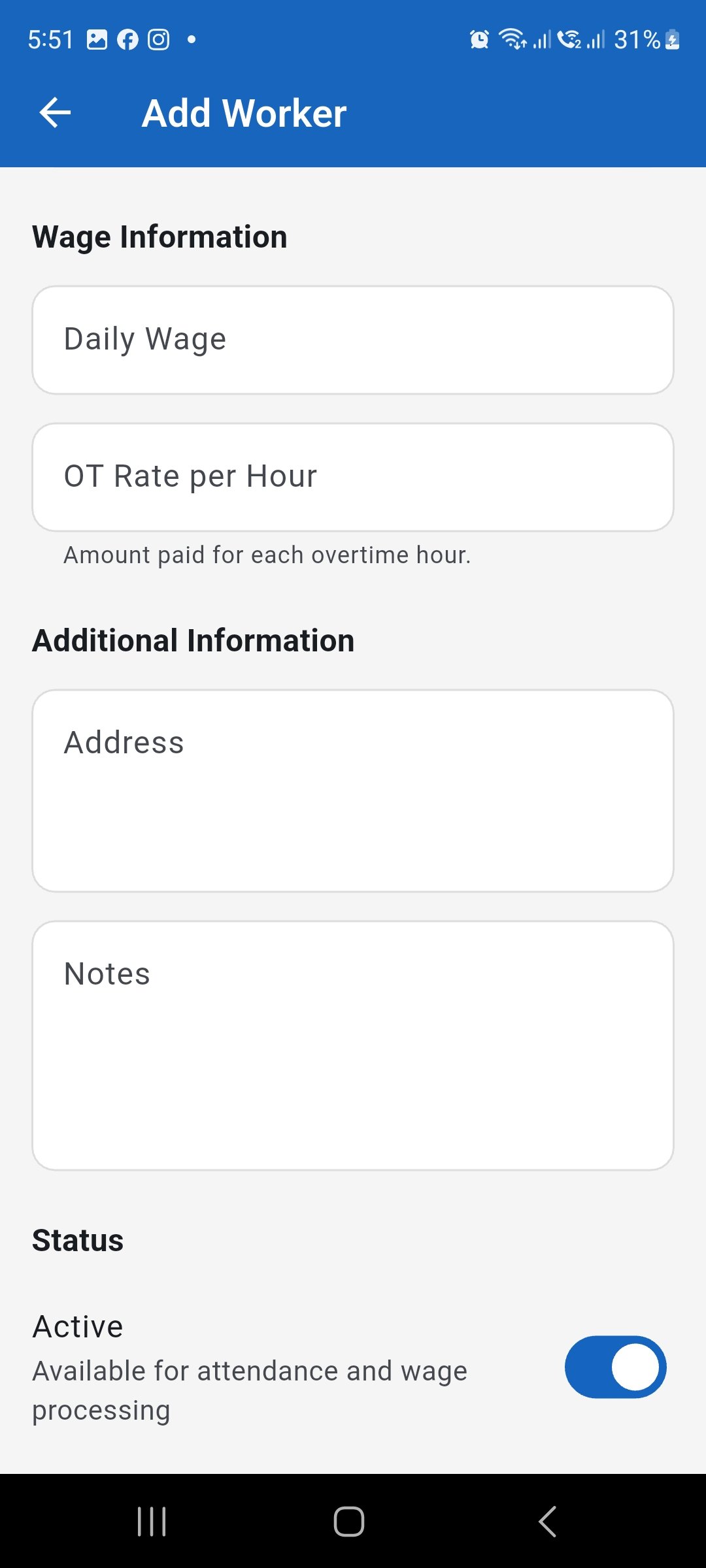
Set wage, overtime, optional additional information, and the worker's active status. Review an existing worker
Open a worker from the list to review the saved Worker Code, Worker Name, Joining Date, status, Daily Wage, and OT Rate before making changes.
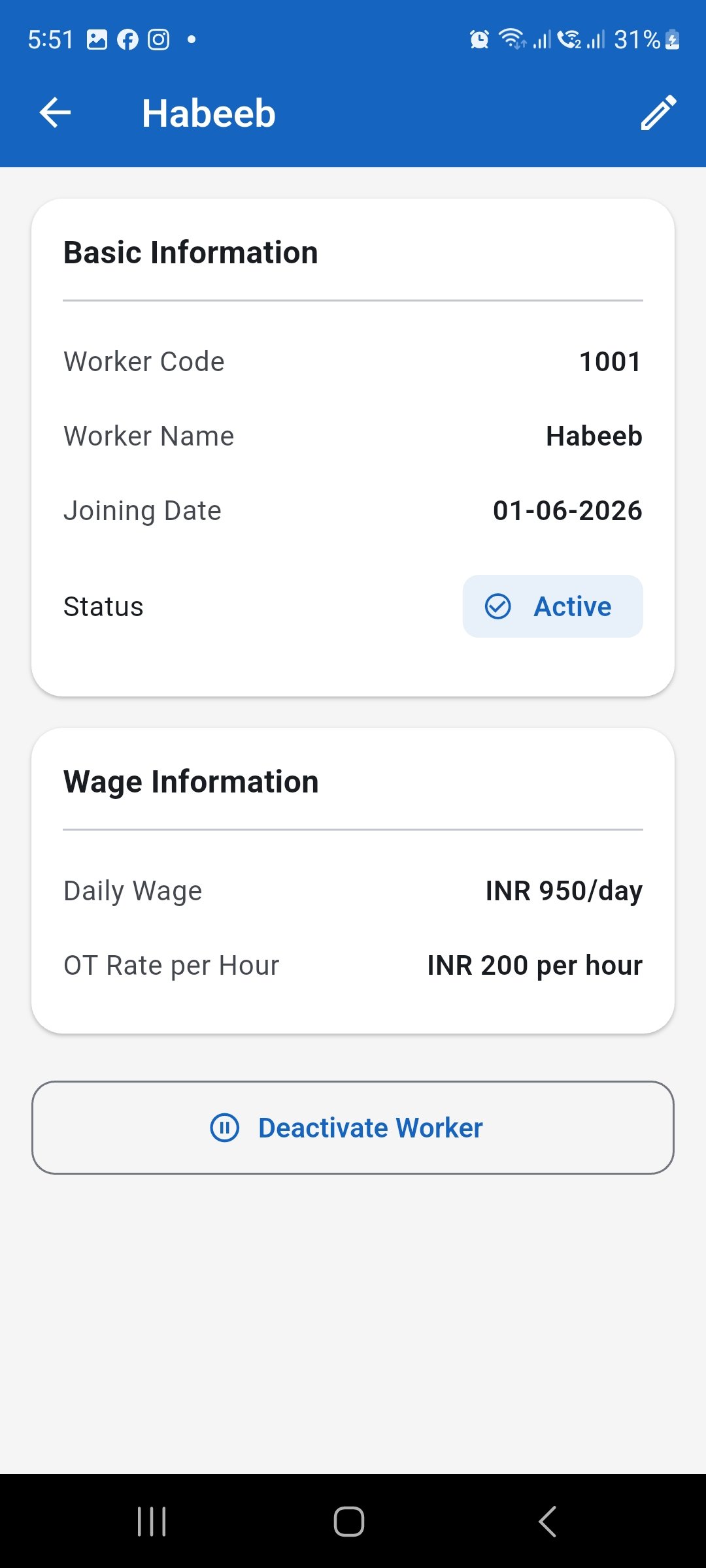
Review the saved worker information before editing or deactivating the record. Edit worker information when required
Use Edit Worker to correct or update worker information. Review wage and overtime changes carefully because updated rates apply only to new attendance records; existing attendance and confirmed wages retain their previously saved rates.
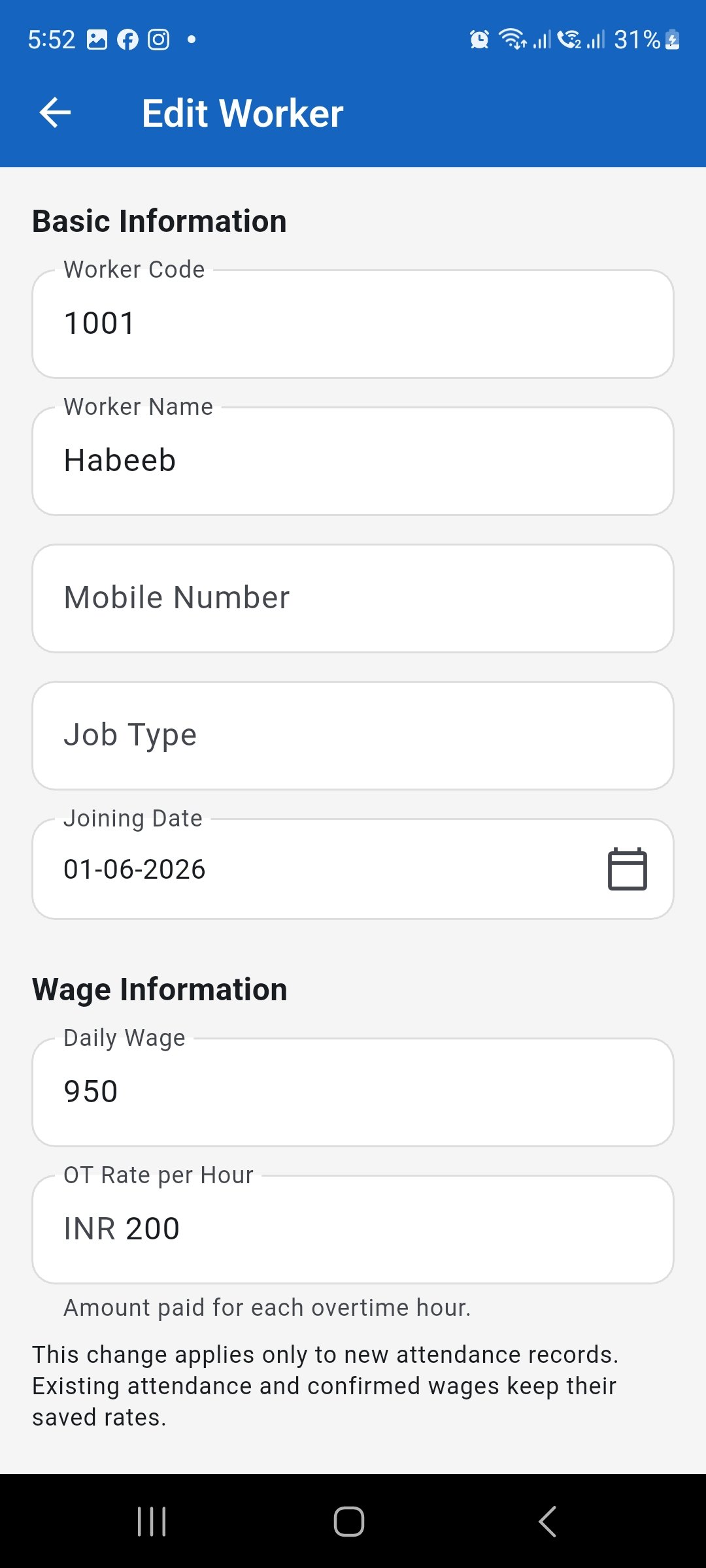
Edit the existing worker record instead of creating a duplicate. Choose the correct joining date
Use the date picker when you need to set or correct the worker's Joining Date. Confirm the selected date before saving the worker record.
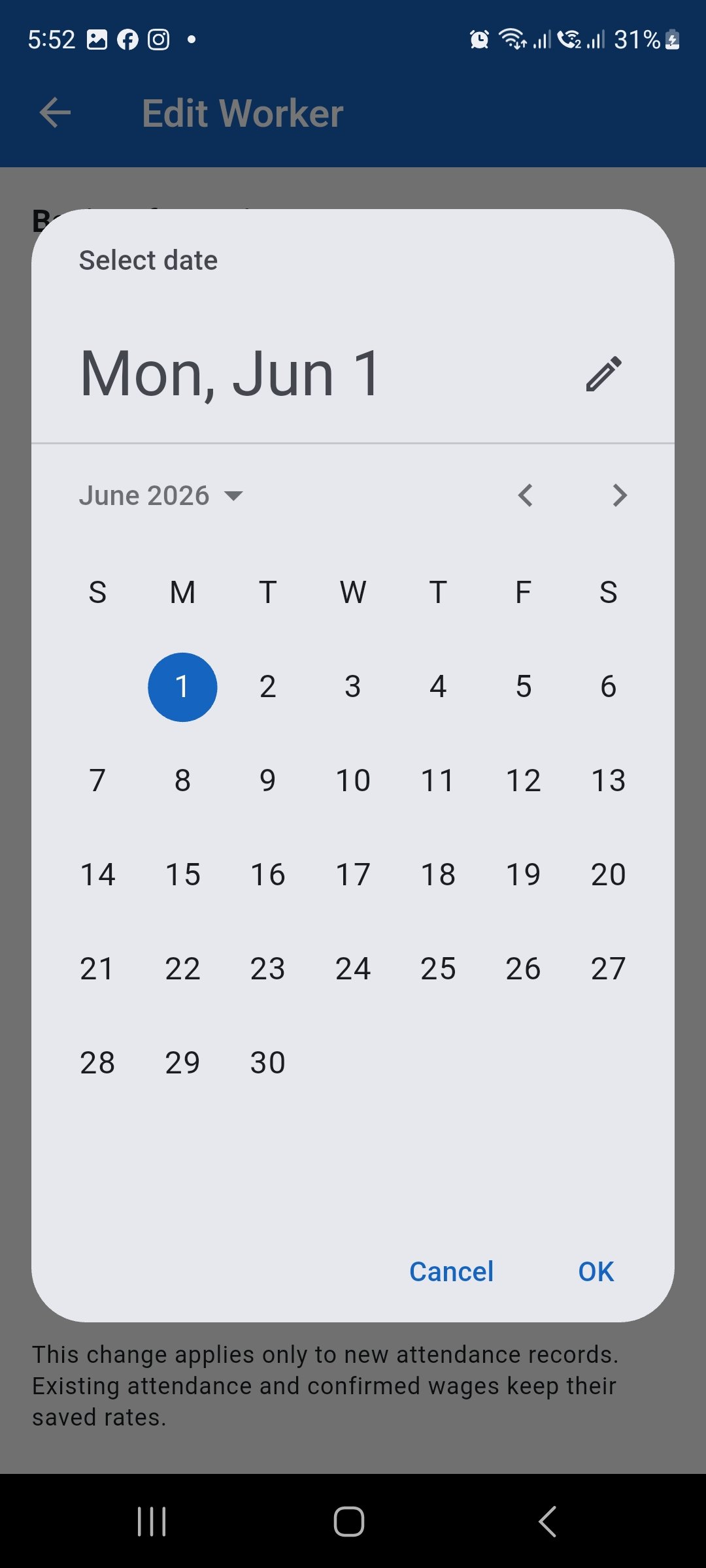
Select the correct joining date and confirm it before saving.