WorkLedger guide
Wage calculation
Wages use the local attendance, overtime, advance, and worker-rate information in the app. Verify inputs and the calculation period before accepting totals.
Category Workers & payroll
Review wages before accepting totals
Open Wage Calculation
Open the navigation menu and select Wage Calculation.
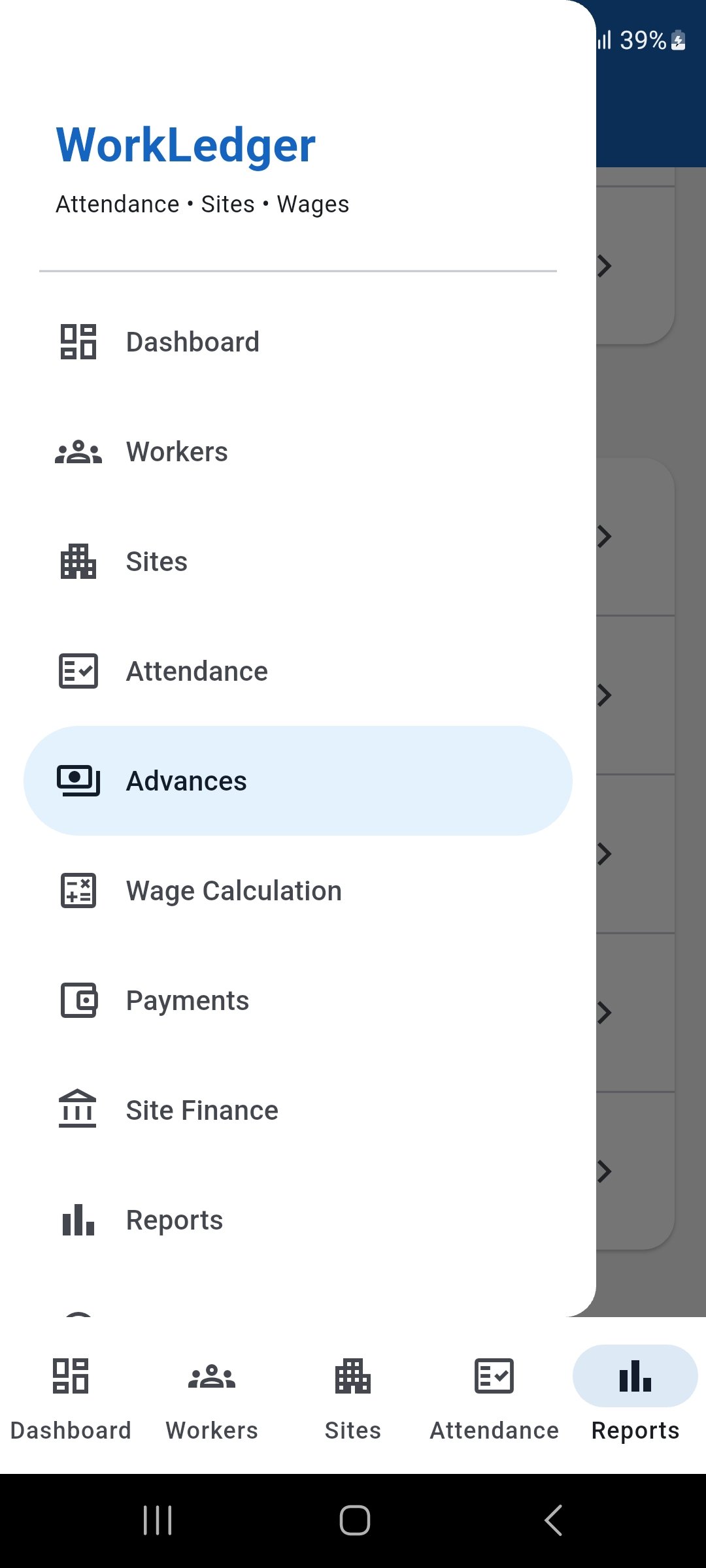
Open the navigation menu and select Wage Calculation. Review wages and start a calculation
Review the existing wage records and filters, then tap Calculate Wage to begin a new calculation.
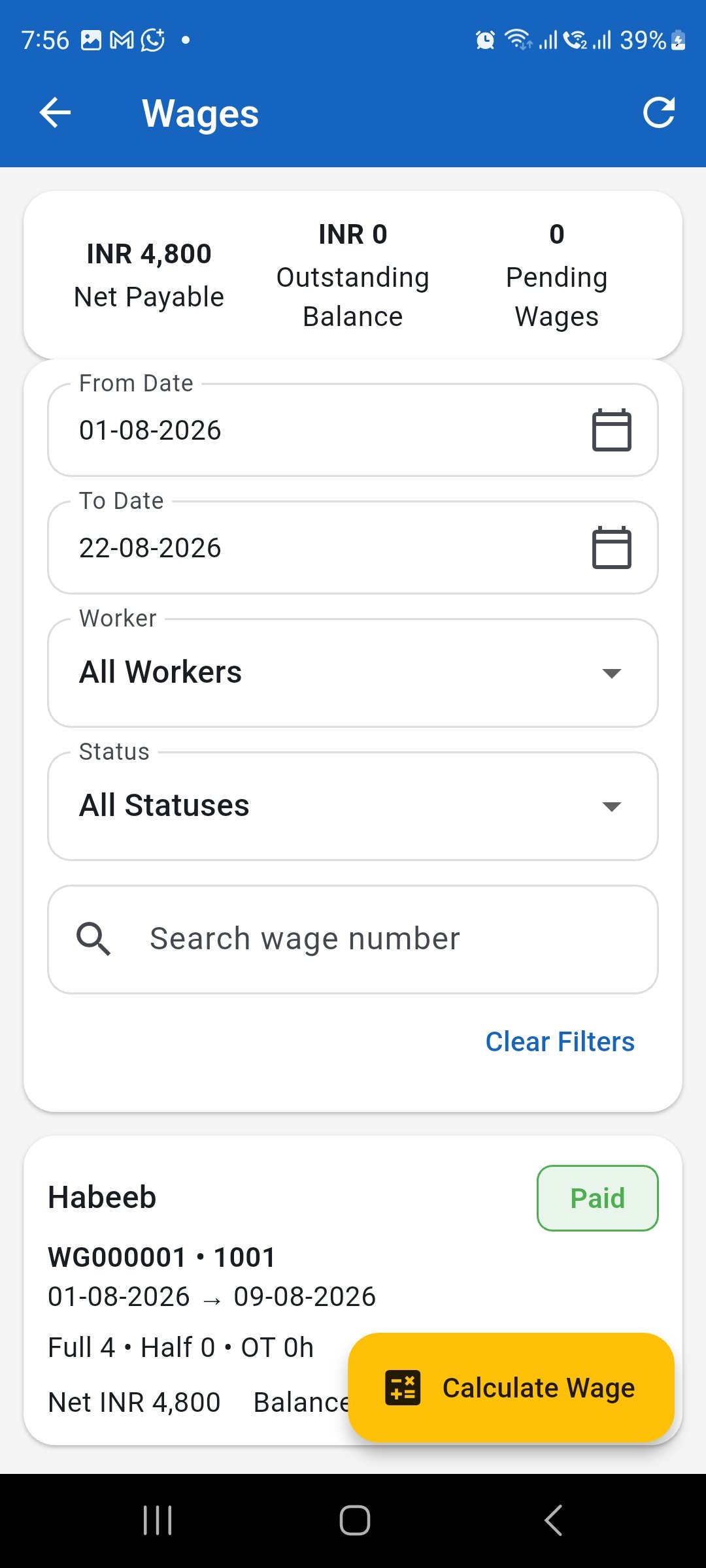
Review existing wage records and tap Calculate Wage to start. Select the worker and wage period
Select the worker and confirm the From Date and To Date. Enter additions or other deductions when required.
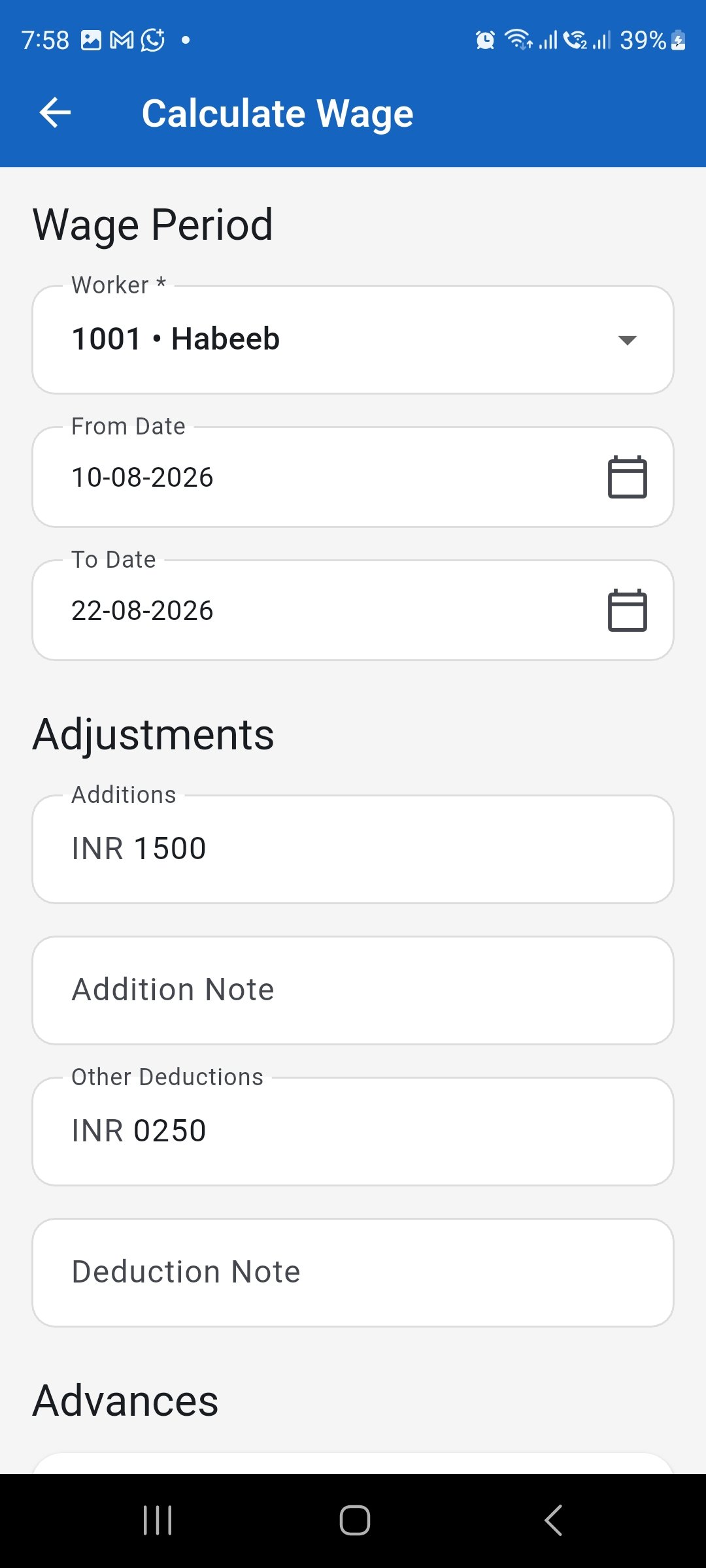
Choose the worker, wage period, and any required adjustments. Review attendance, rates and earnings
Check the attendance records, full and half days, overtime hours, daily wage rate, OT rate, regular wage, overtime amount, additions, and gross amount.
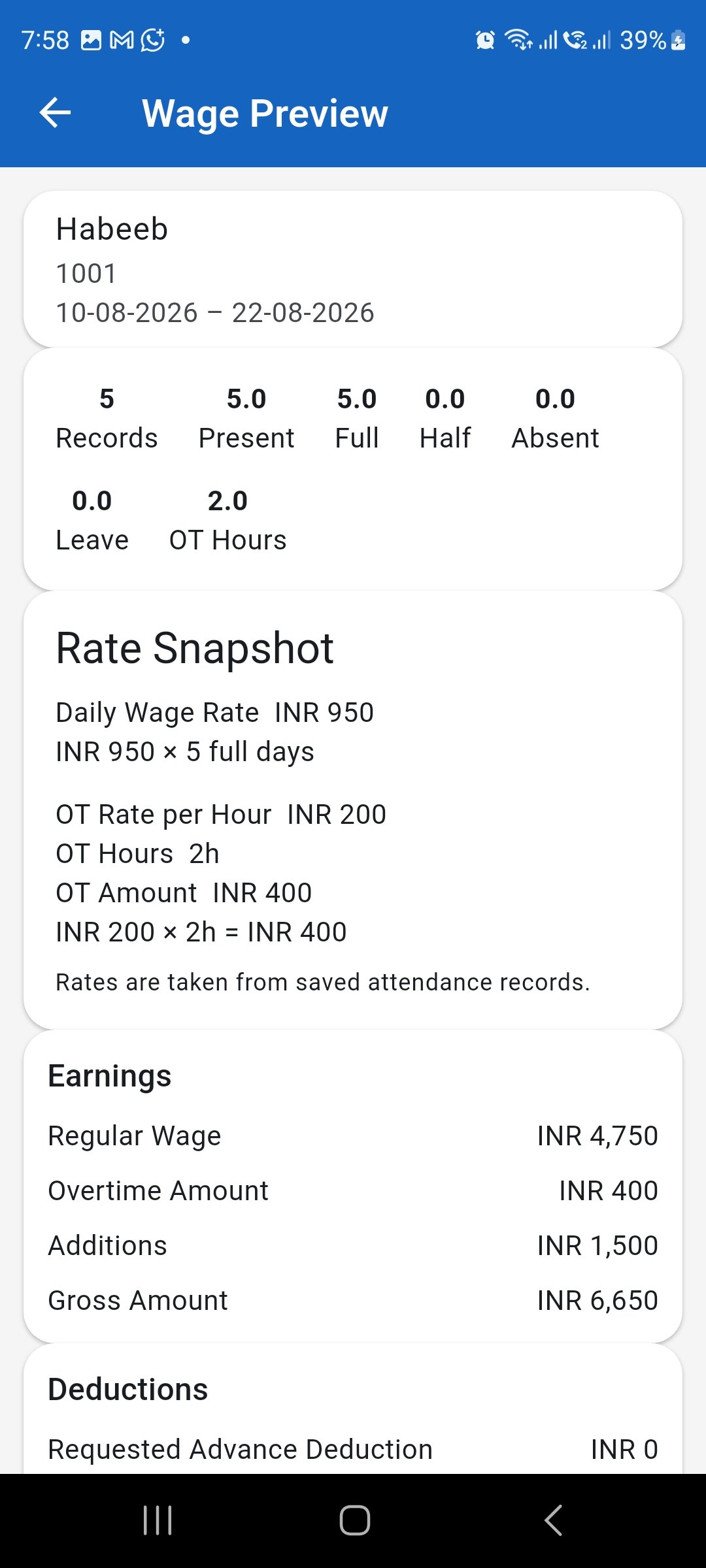
Verify attendance, wage rates, overtime, and earnings before continuing. Review deductions and net payable
Review advance deductions, other deductions, outstanding advances, and the resulting Net Payable before confirming the wage.
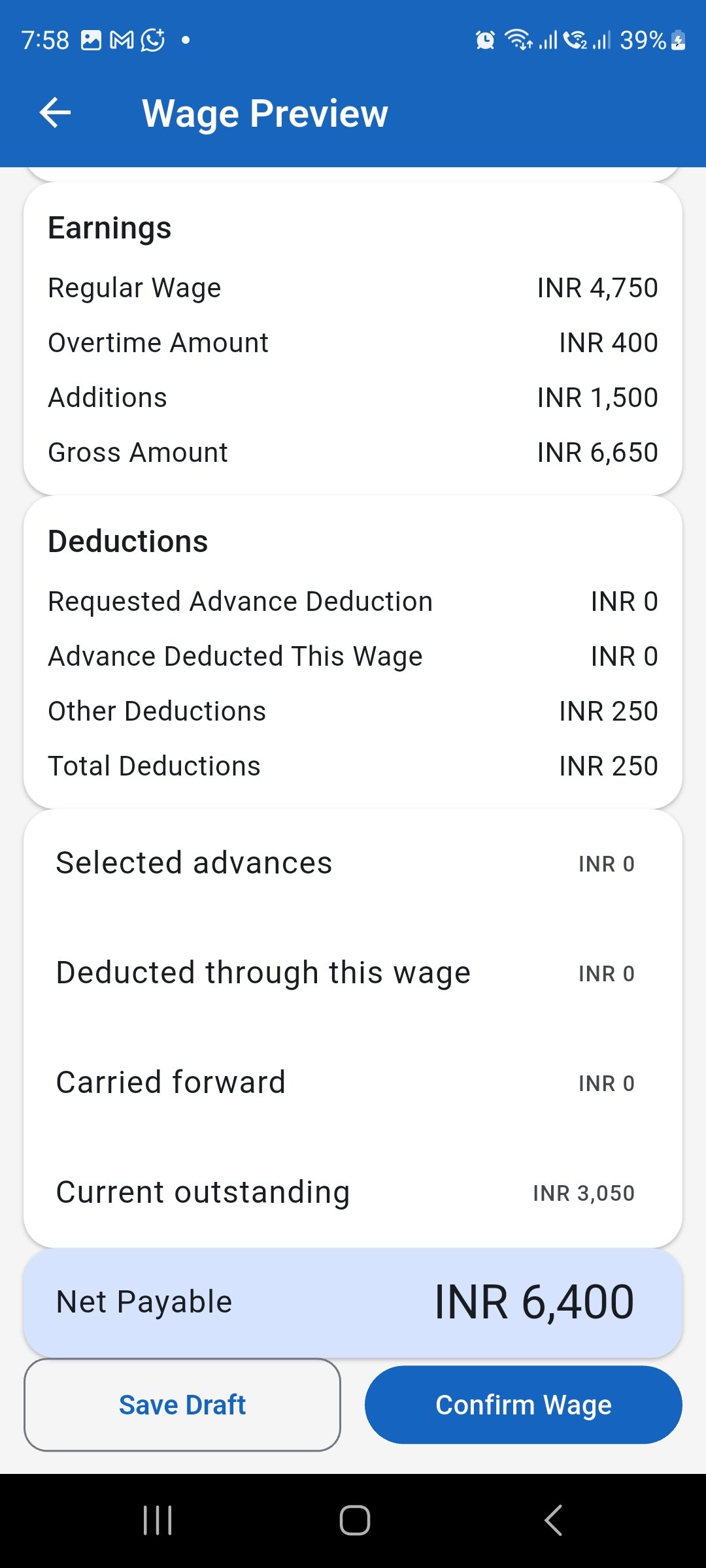
Check all deductions and confirm that the Net Payable is correct. Allocate worker advances when required
When an outstanding worker advance should be recovered from this wage, verify the requested advance deduction and the planned advance allocation before confirmation.
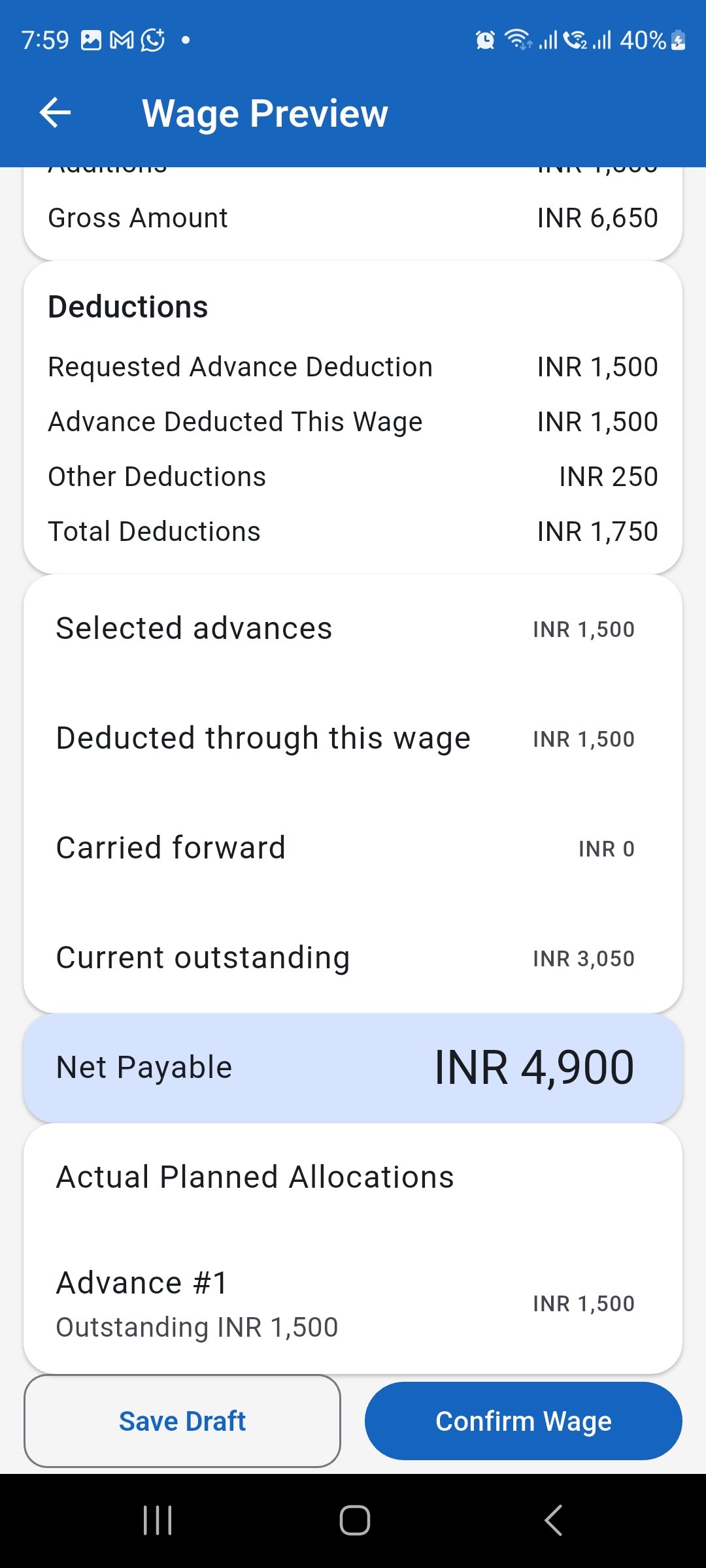
Verify the advance amount being deducted through this wage. Confirm the wage and verify its status
Confirm the wage and return to the Wages screen. Verify that the new wage appears with Confirmed status and the expected net amount and balance.
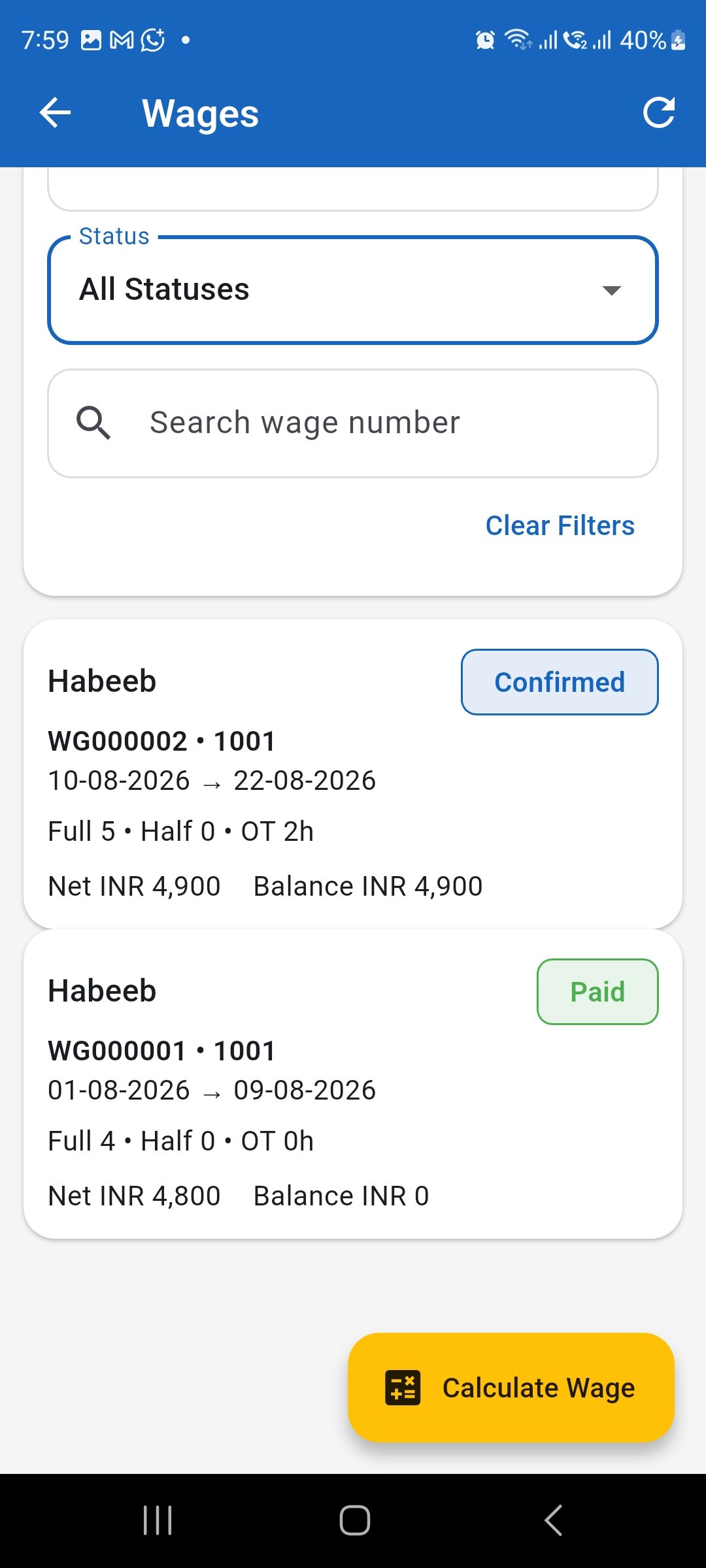
After confirmation, verify the wage status, net amount, and remaining balance.