WorkLedger guide
Wage payments
Record a payment only after it is made. Check the worker, period, amount, and payment method to keep outstanding balances accurate.
Category Workers & payroll
Maintain clear payment records
Open Wage Calculation
Open the navigation menu and select Wage Calculation.
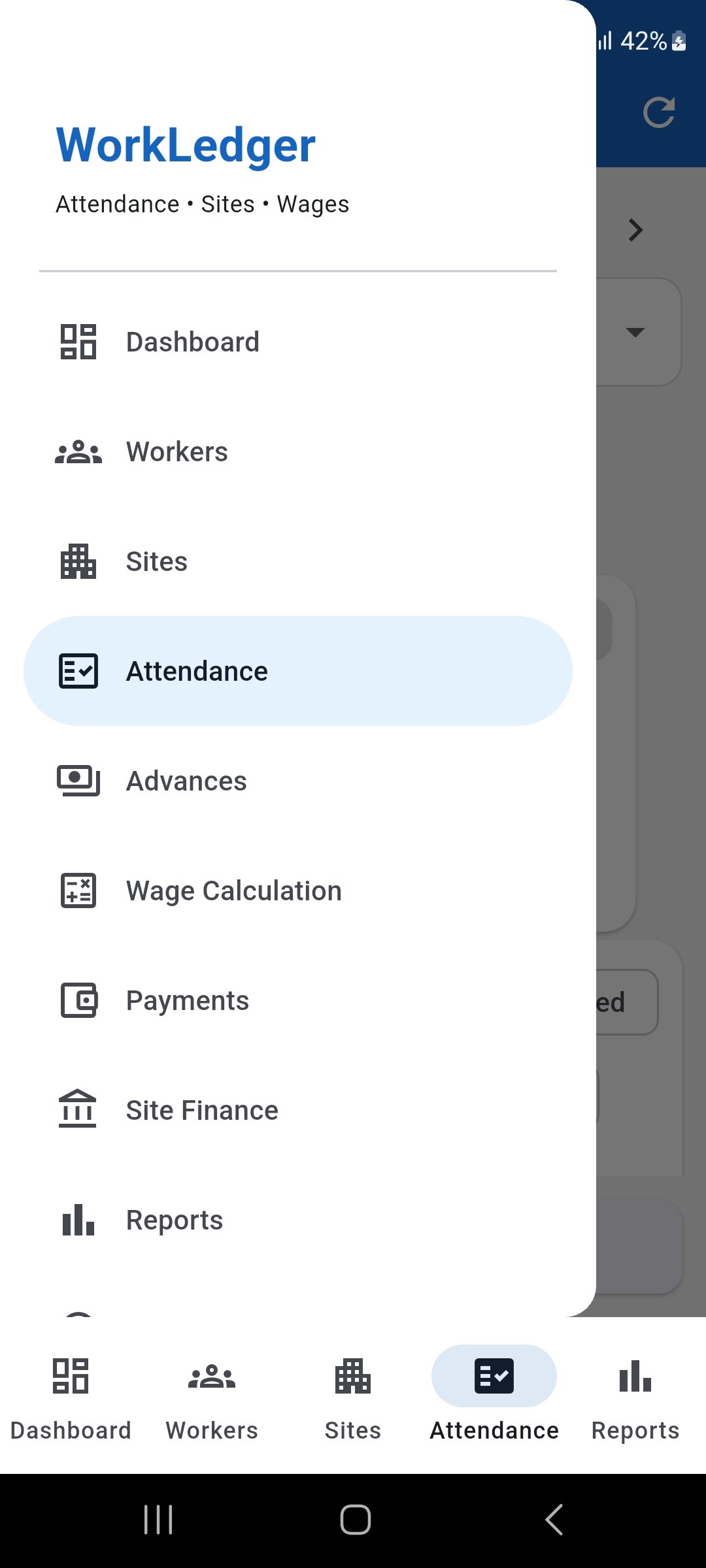
Open the navigation menu and select Wage Calculation. Open a confirmed wage
Find a wage with Confirmed status and an outstanding balance, then open the wage record.
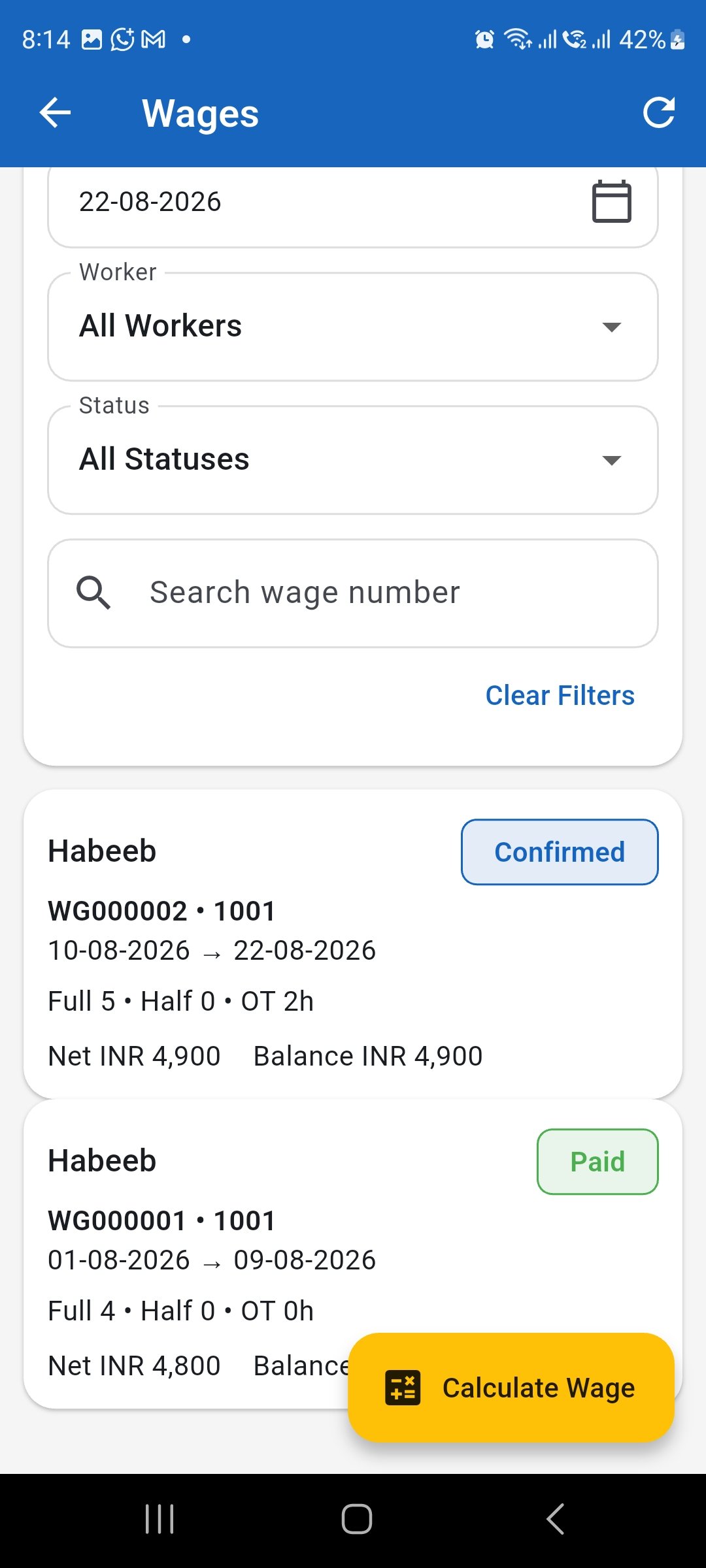
Open the confirmed wage that you want to pay. Review the wage before payment
Check the worker, wage period, attendance summary, rates, adjustments, advance deductions, and outstanding balance before recording a payment.
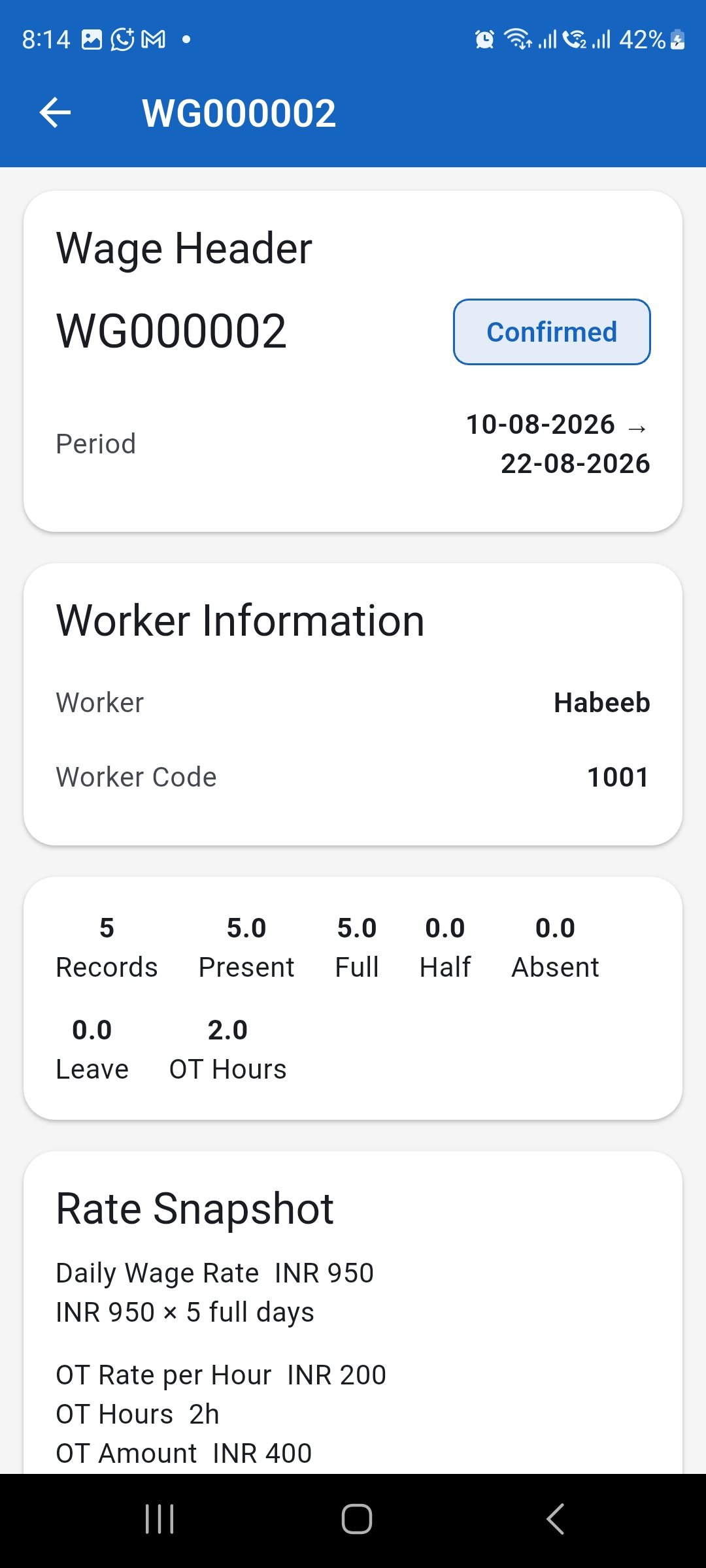
Review the confirmed wage and its outstanding balance before payment. Start recording the payment
Scroll to the payment section and tap Record Payment.
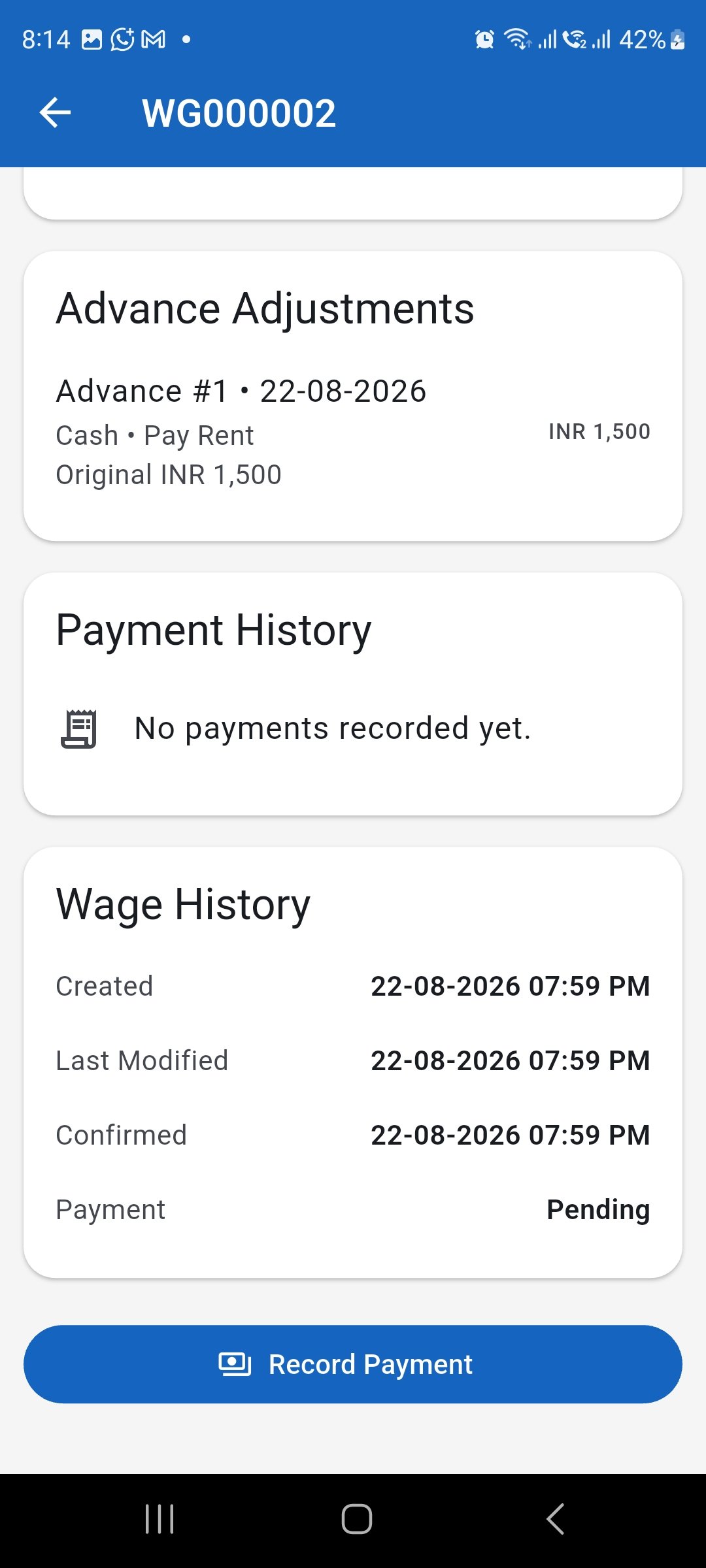
Tap Record Payment after confirming the wage details. Enter payment details
Confirm the wage number, worker, period, net payable, already paid amount, and current balance. Enter the payment date, amount, payment method, and any applicable reference number or notes.
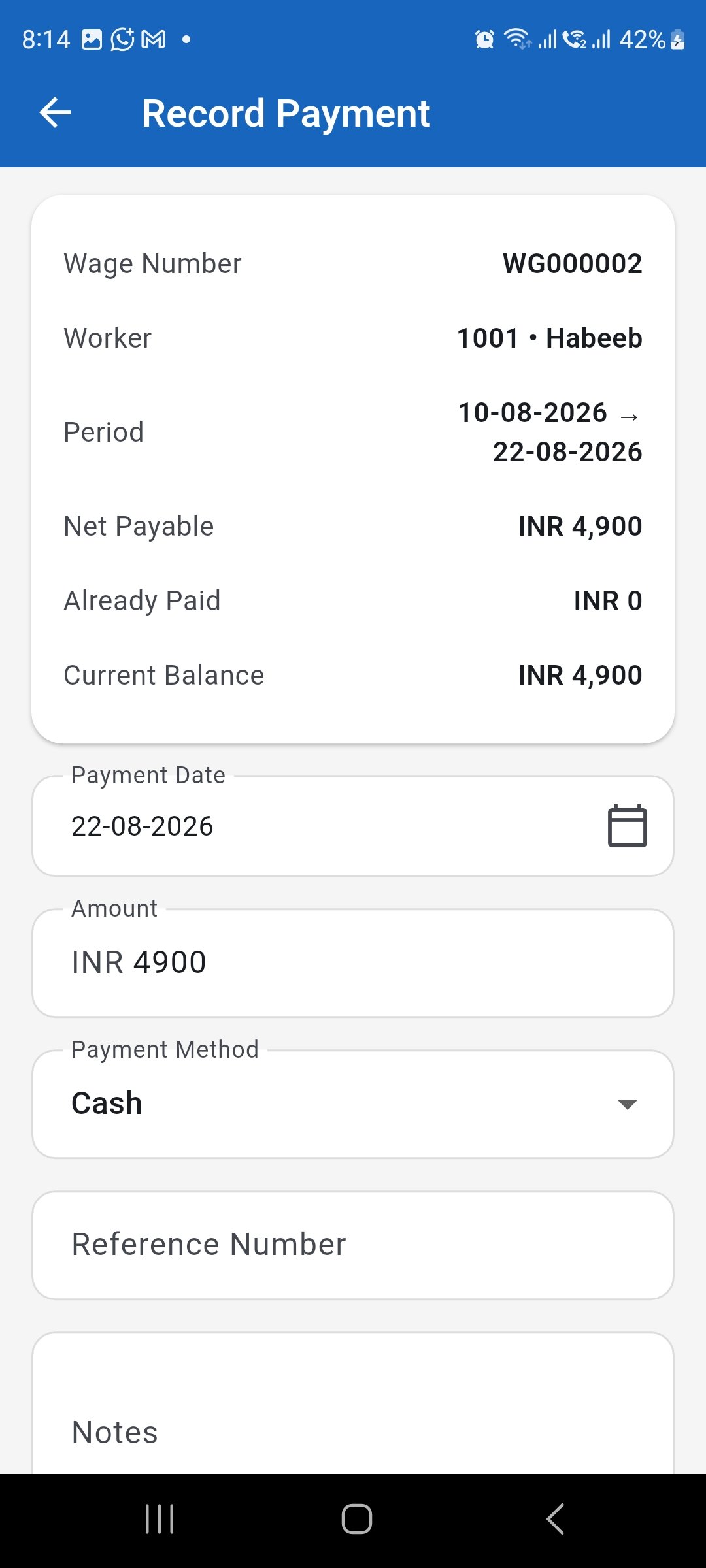
Enter the actual payment details and verify the current balance before saving. Confirm the wage payment
After recording the payment, review the wage again and confirm that the payment status and remaining balance have updated correctly.
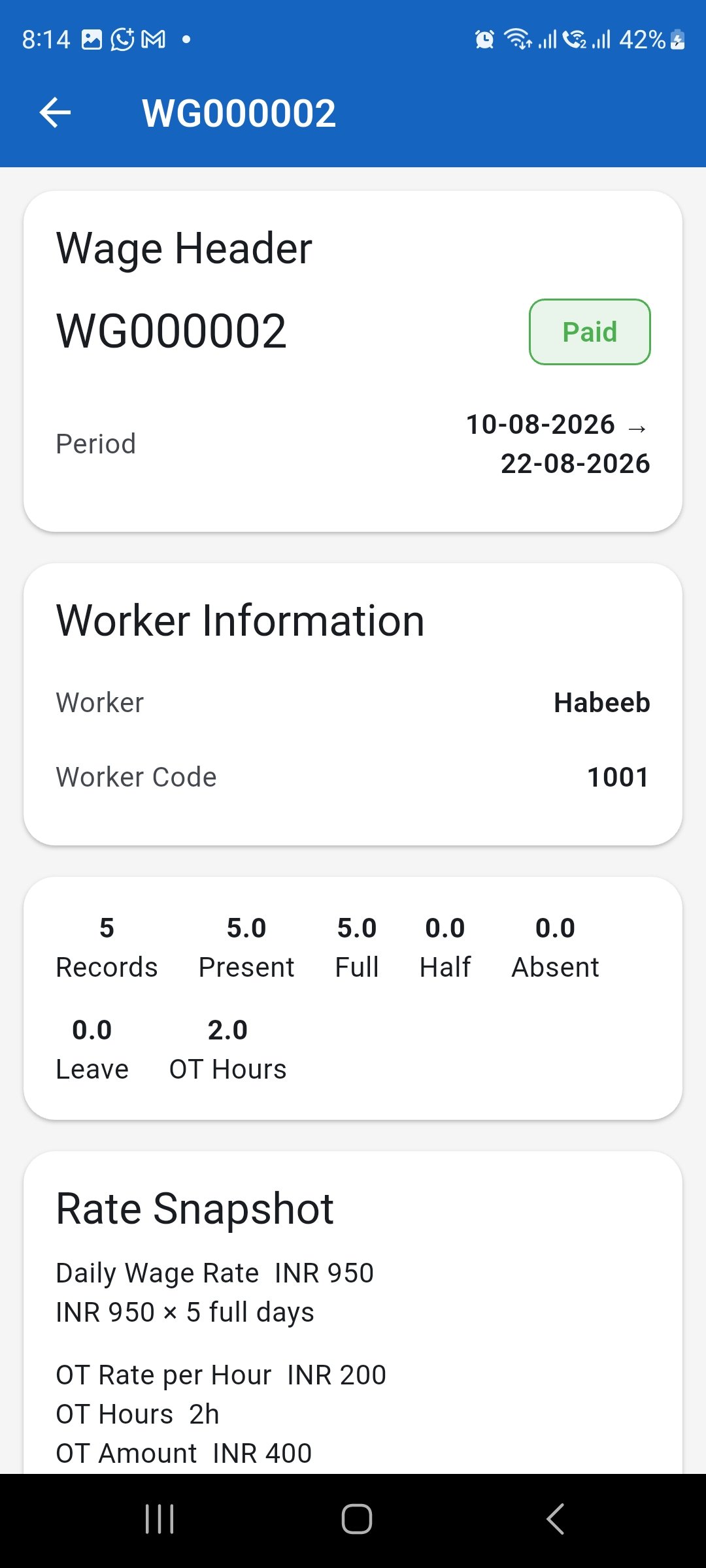
Confirm that the wage payment status and balance have updated correctly. Review payment history
Open Payments from the navigation menu to review recorded payments. Use the available filters when needed.
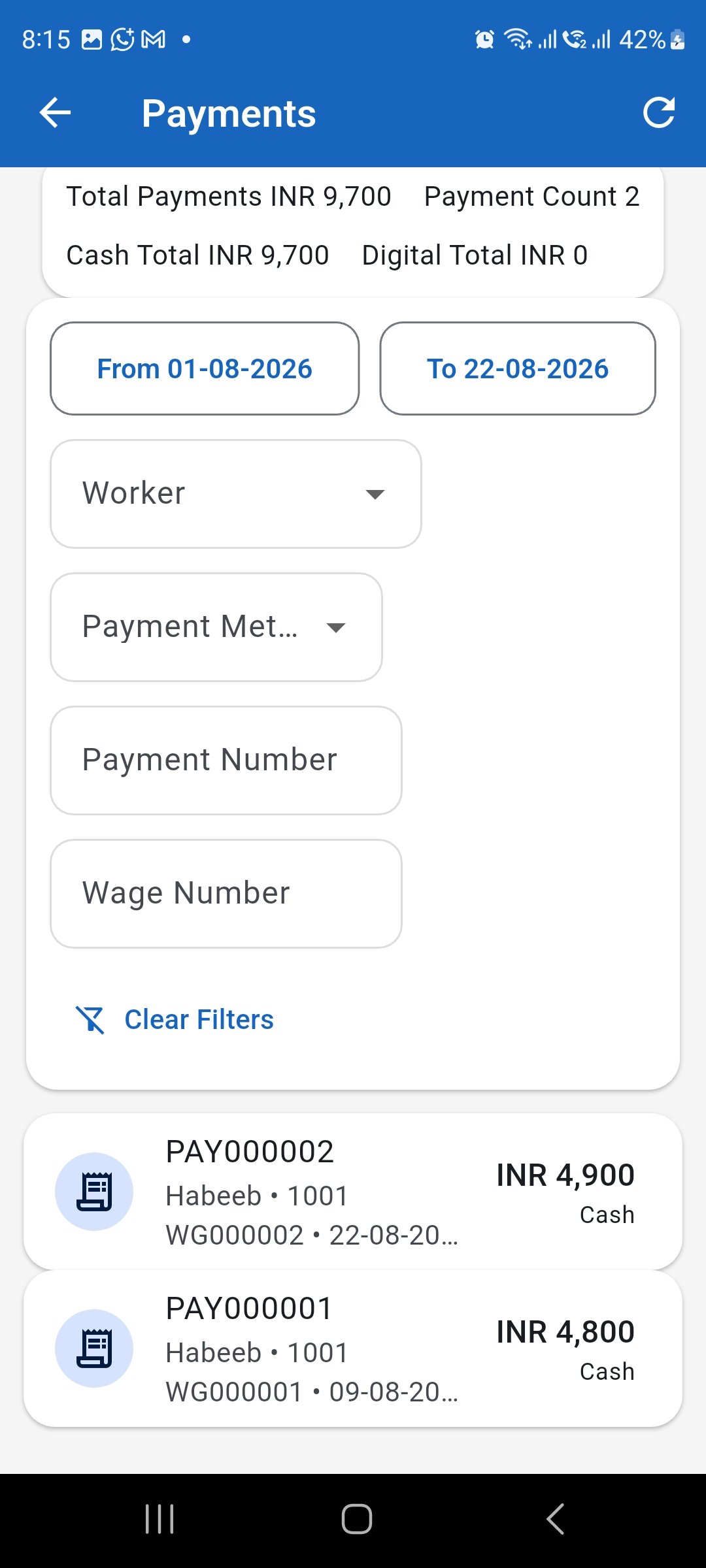
Review recorded payments and use the available filters when needed. Review payment details
Open a payment to verify its details.
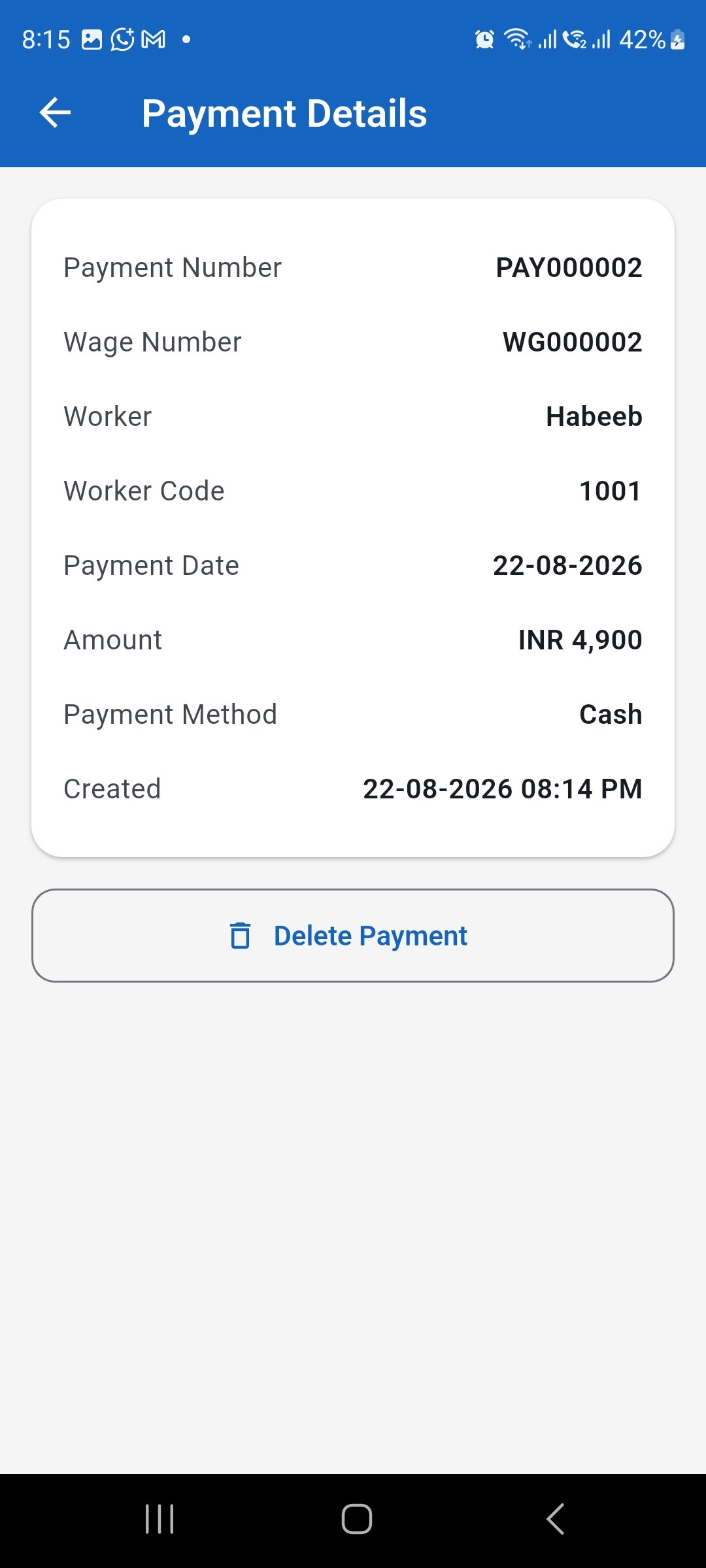
Open a payment to verify its wage number, worker, date, amount, and payment method.