WorkLedger guide
Attendance
Record attendance against the correct worker, site, and date. Review the day before calculating wages. Corrections remain local to your device.
Category Workers & payroll
Record attendance accurately
Select the work date and site
Choose the attendance date, then select the work site where the workers are working. Confirm both before marking attendance.
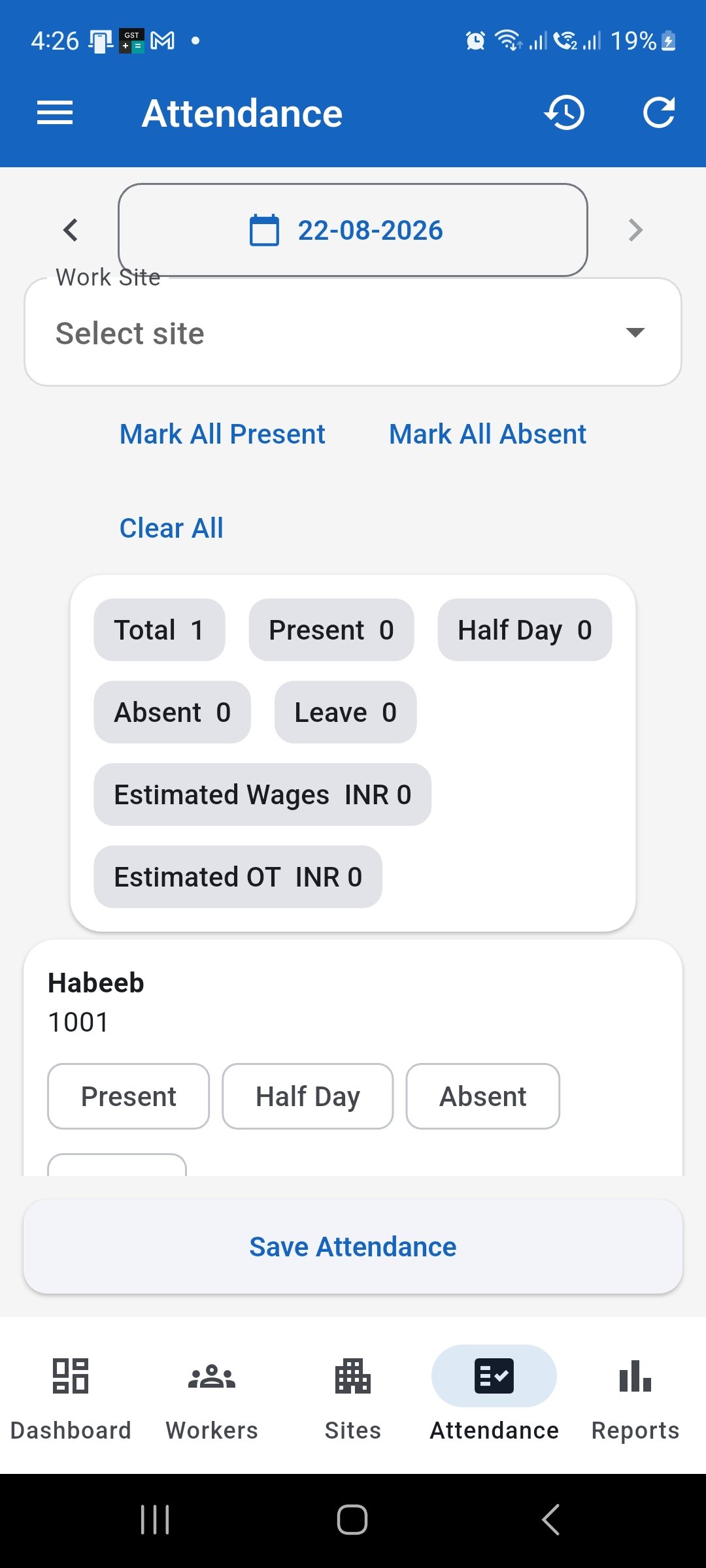
Choose the correct work date and site before recording attendance. Mark worker attendance
For each worker, select Present, Half Day, Absent, or Leave as appropriate. Use Mark All Present or Mark All Absent only when it correctly applies to the whole list.
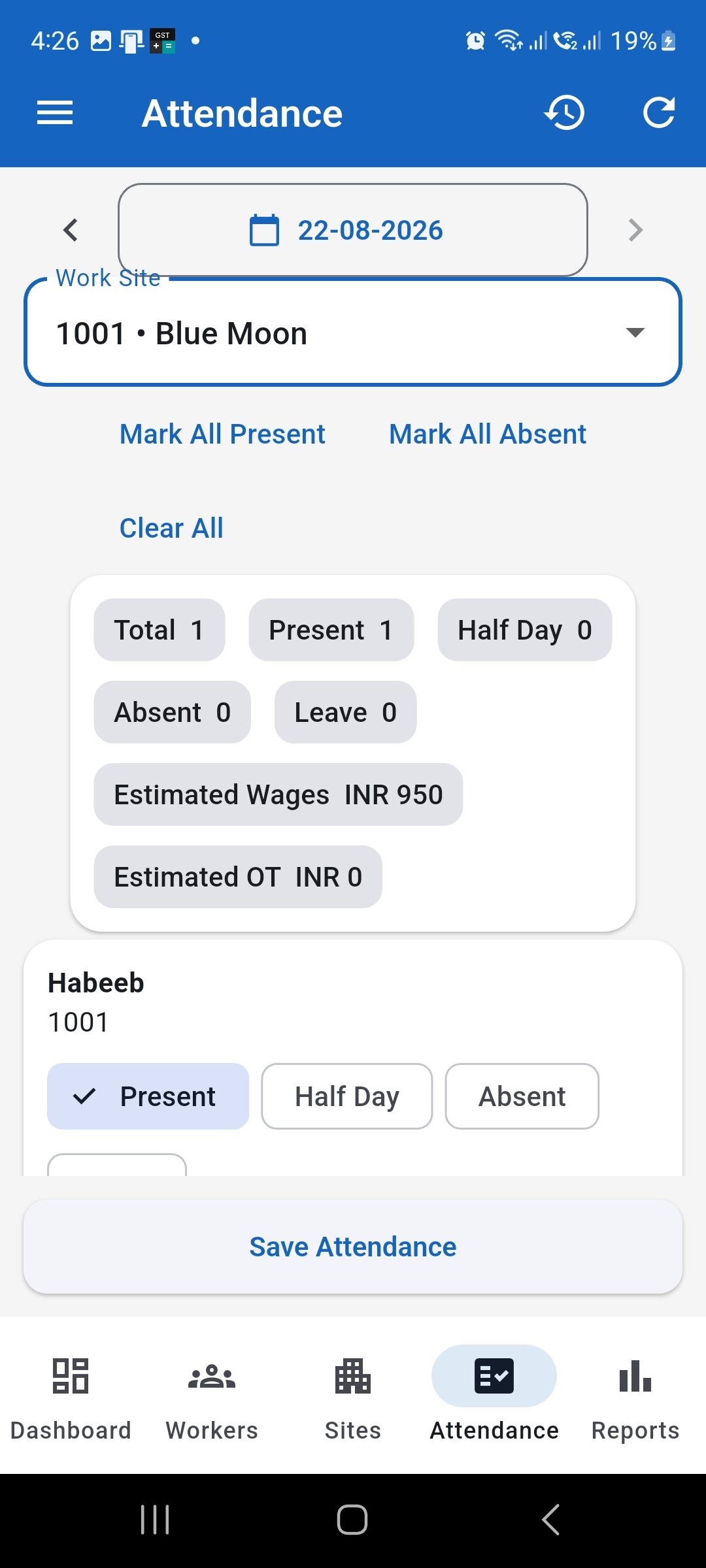
Select the correct attendance status for each worker. Add overtime if applicable
If a worker has worked additional hours, tap Add OT Hours and enter the overtime hours worked. Review the displayed overtime rate and estimated overtime amount before applying it.
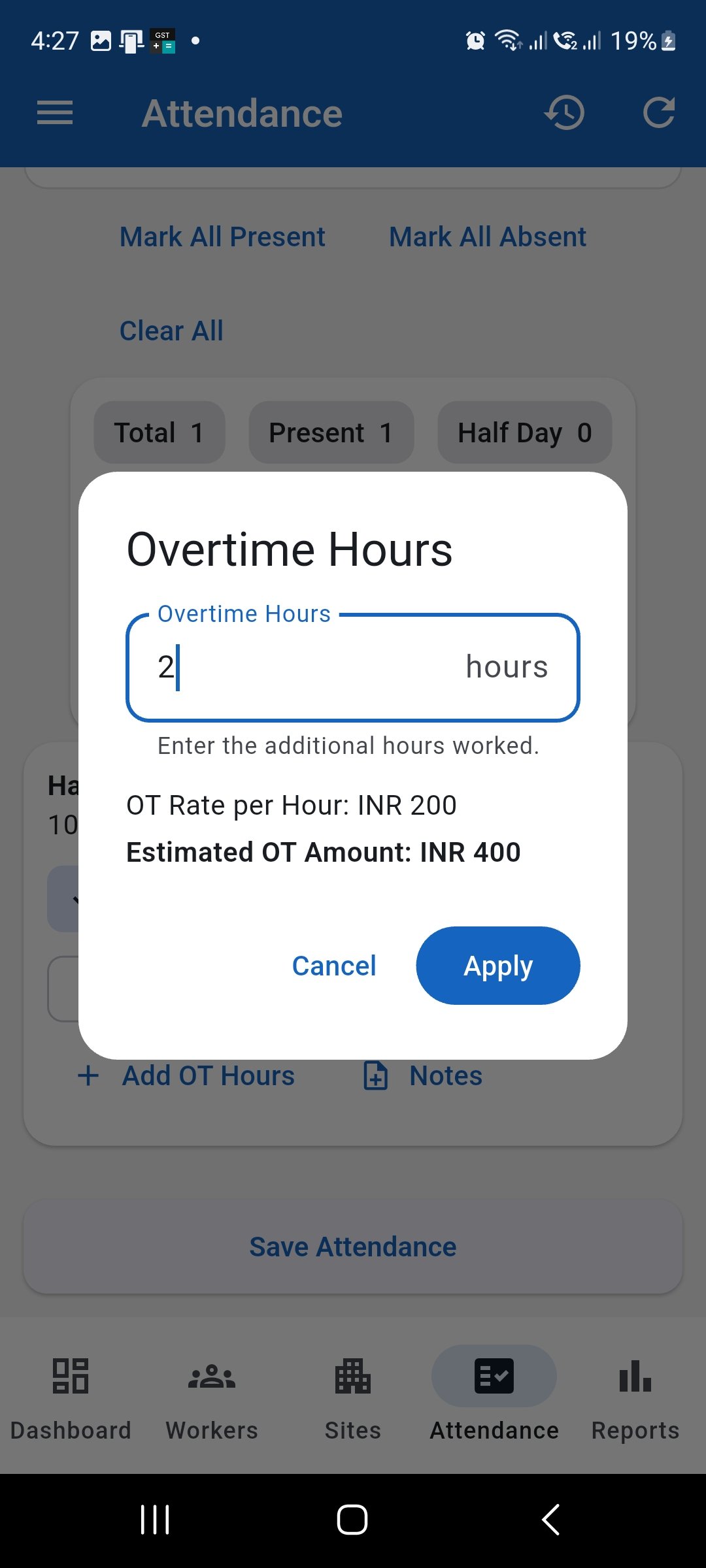
Enter overtime hours only when additional work was actually performed. Review attendance and estimated amounts
After entering attendance and overtime, review the daily totals, estimated wages, estimated overtime amount, and each worker’s selected status before saving.
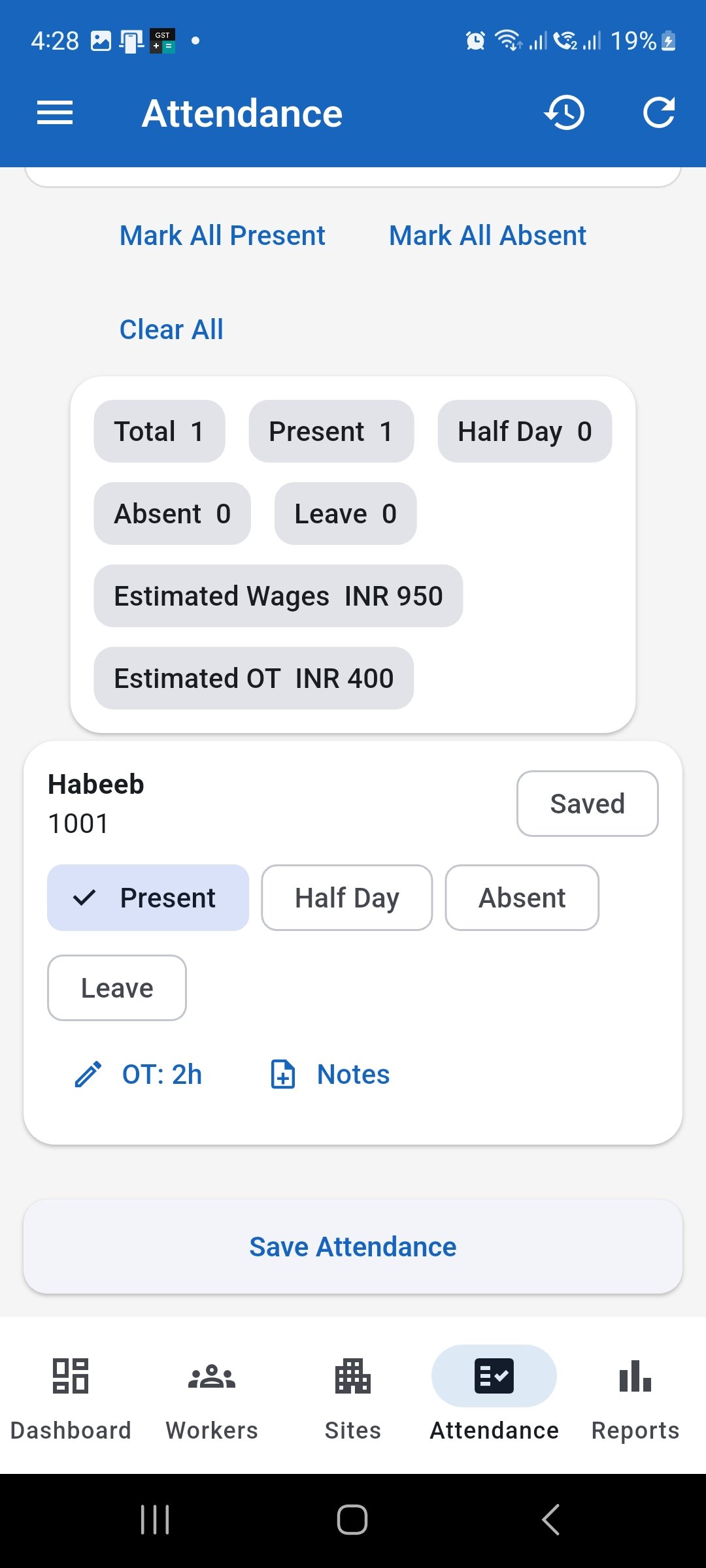
Review attendance, estimated wages, and overtime before saving the day. Save attendance
When the entries are correct, tap Save Attendance. Do not leave the screen until the save operation completes.
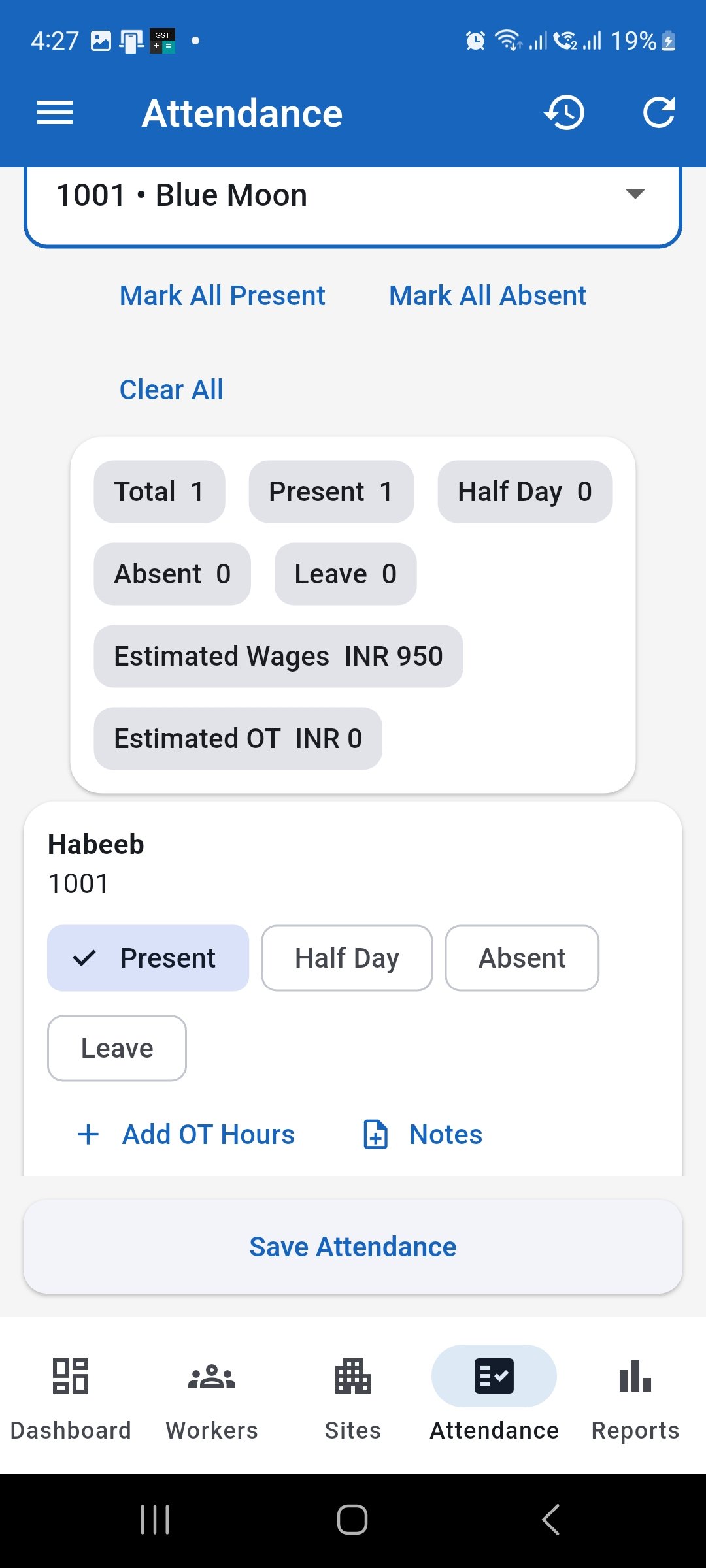
Tap Save Attendance after reviewing the entries. Confirm the attendance was saved
After saving, confirm that the worker entry shows the saved state. Review the record again if you need to correct attendance, notes, or overtime before wage calculation.
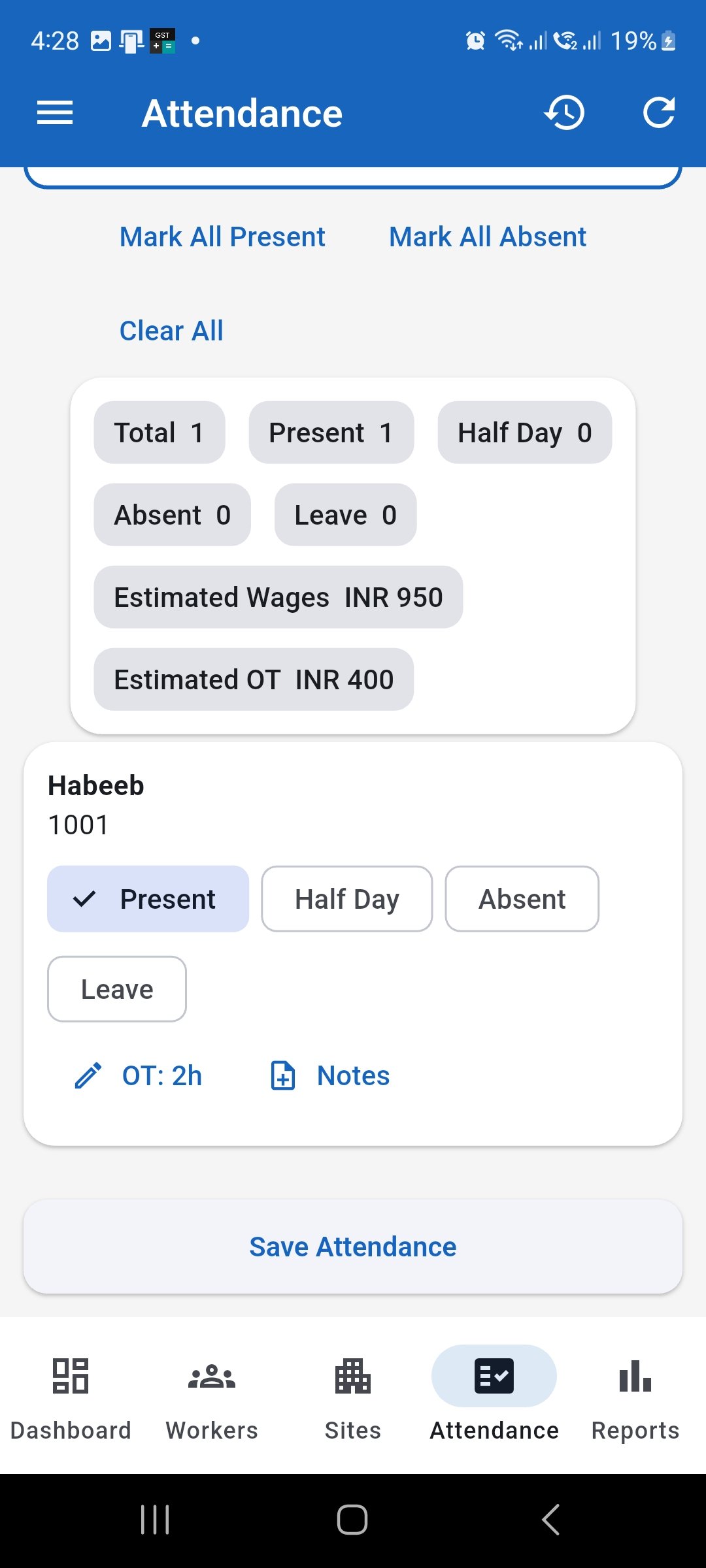
Confirm that the attendance record shows Saved before leaving the screen.