WorkLedger guide
Overtime
Record overtime only after confirming the applicable unit and rate. Review overtime totals with attendance before wage calculation.
Category Workers & payroll
Record overtime consistently
Open overtime for the worker
After marking the worker's attendance, tap Add OT Hours for the worker who worked additional hours.
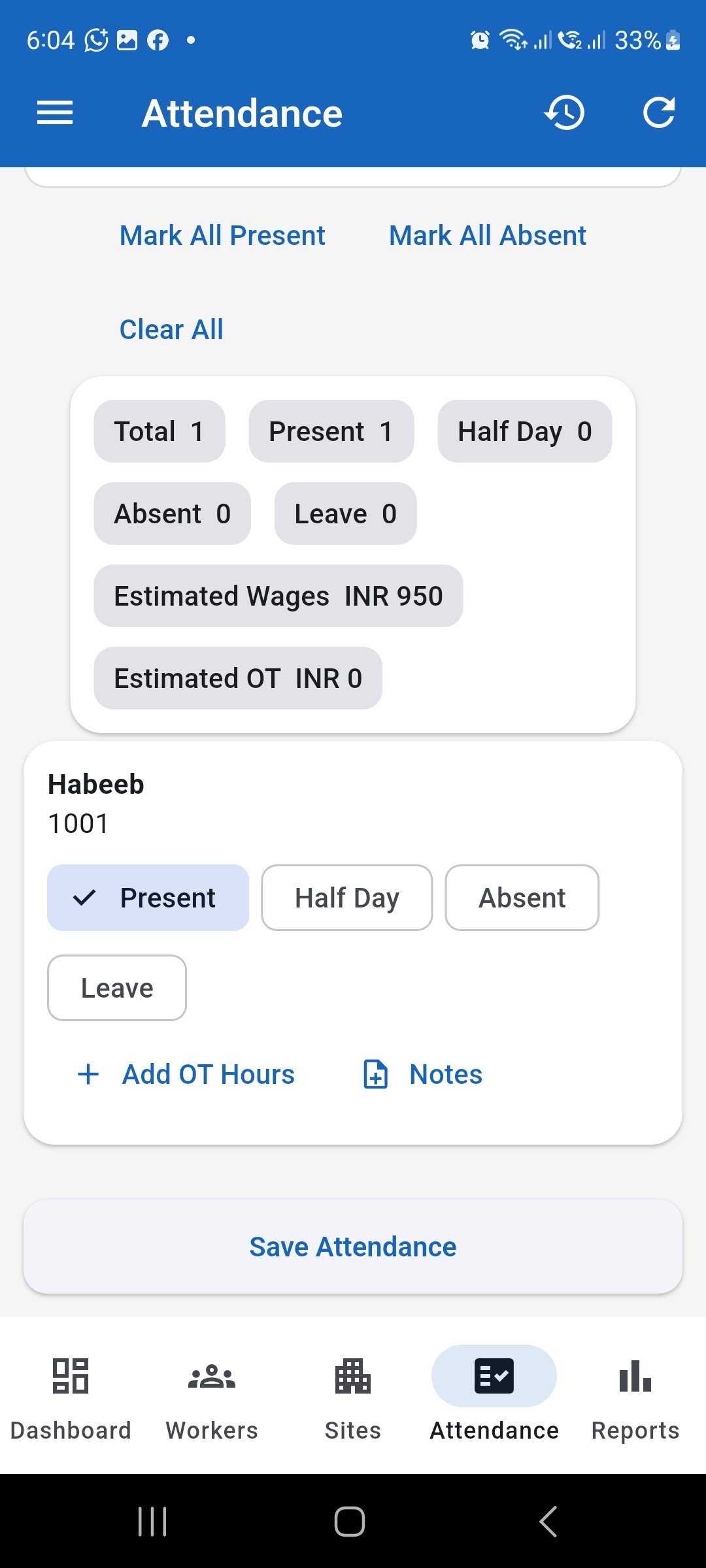
Tap Add OT Hours for the worker who worked additional hours. Enter the overtime hours
Enter the number of additional hours worked. WorkLedger also shows the worker's saved OT rate per hour.
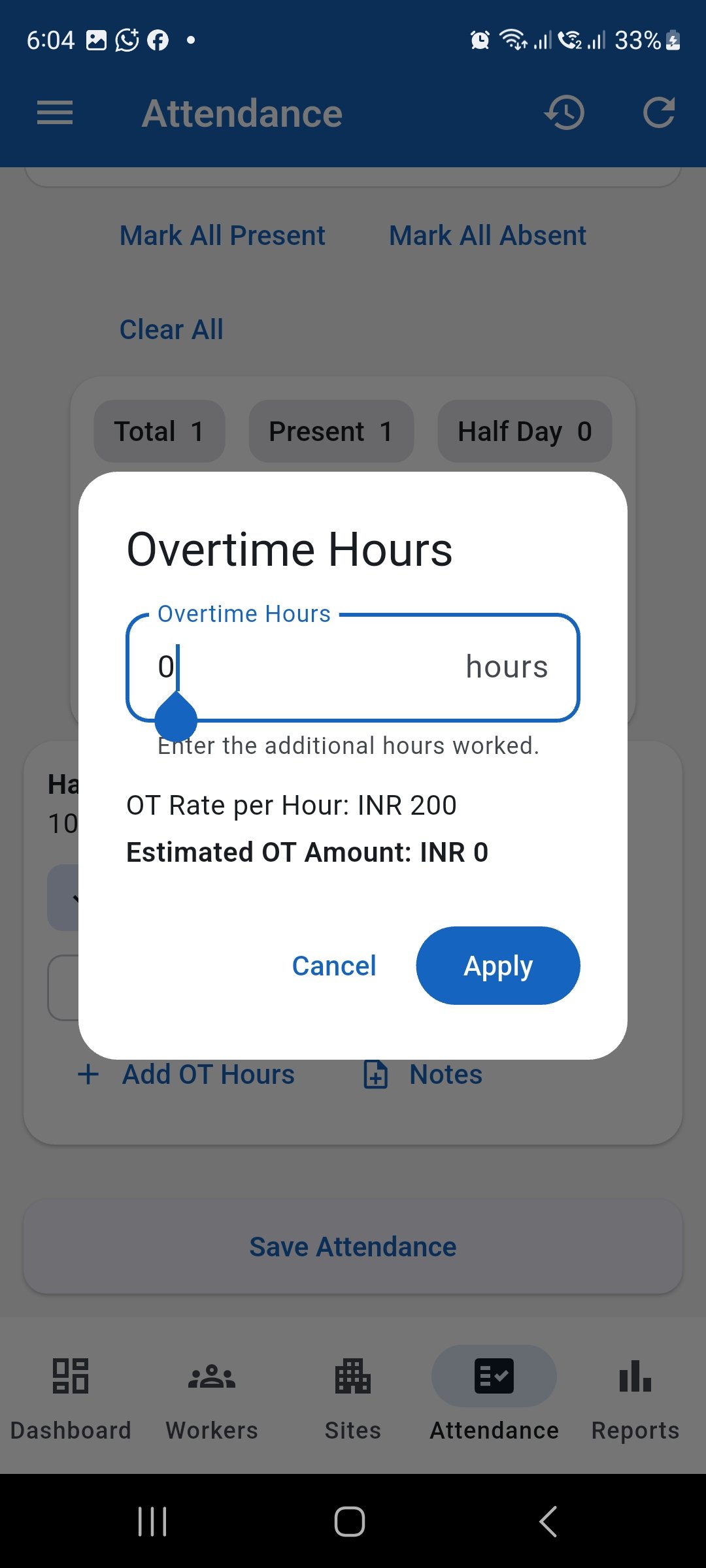
Enter the additional overtime hours worked by the worker. Review the overtime amount and apply
Check the OT rate and the automatically calculated estimated OT amount. If the details are correct, tap Apply.
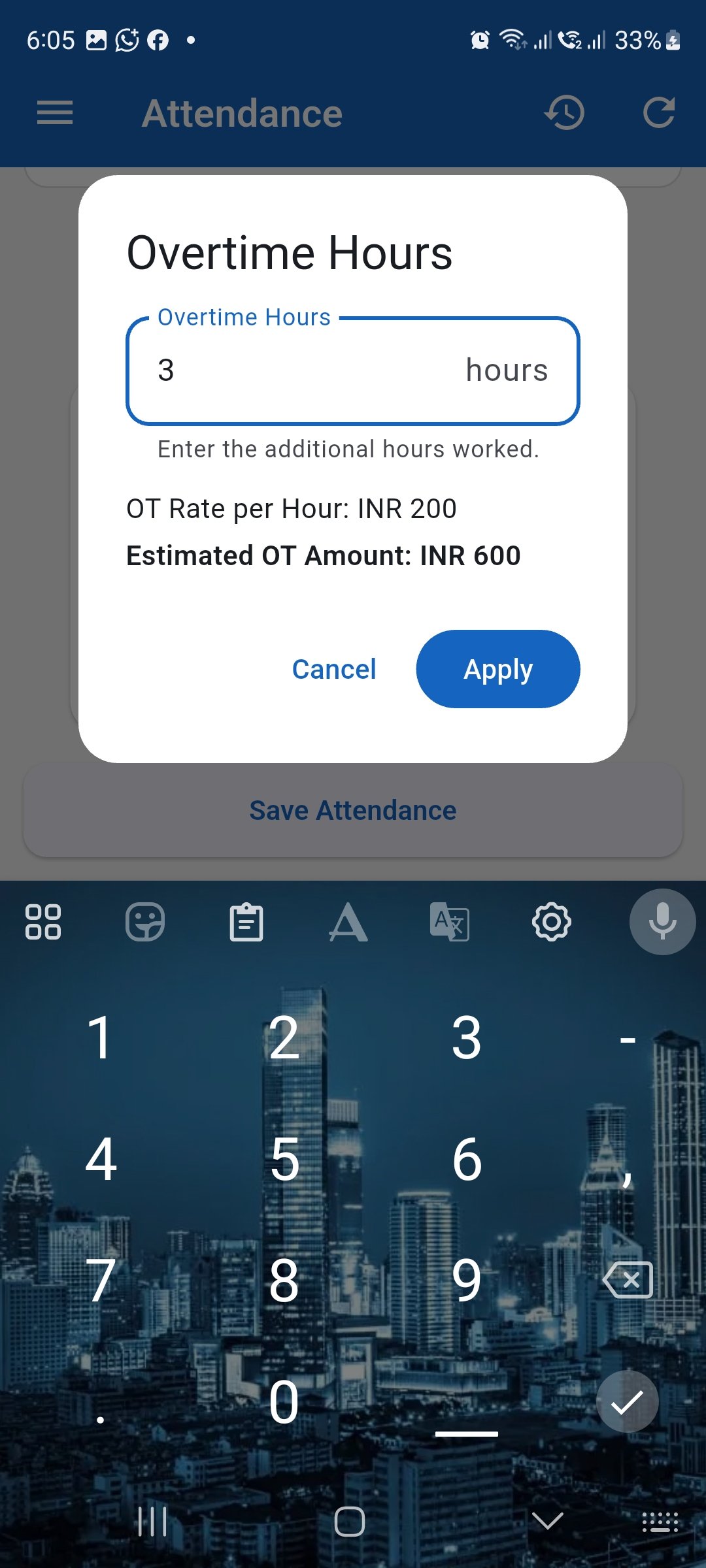
Review the calculated overtime amount and tap Apply. Review overtime before saving attendance
Confirm that the worker card shows the entered OT hours and that the attendance summary shows the updated Estimated OT amount. Then save the attendance.
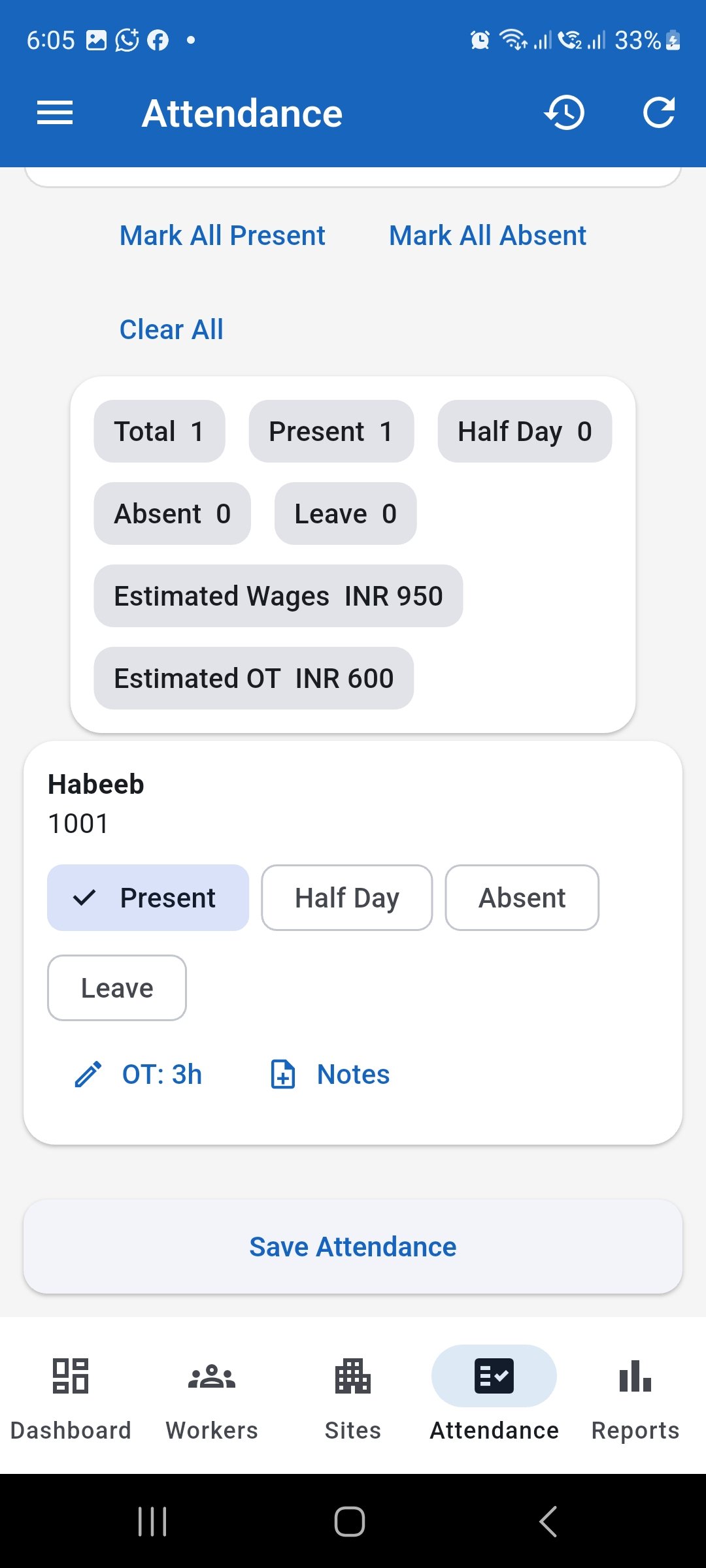
Confirm the overtime hours and estimated OT amount before saving attendance.