WorkLedger guide
Backup and restore
Backups are your responsibility because operational data is not synchronized to our server. Create regular backups, store copies somewhere protected, and test restoration before relying on a backup routine.
Category Reports & data
Build a reliable backup routine
Open Backup & Restore
Open the main menu and select Backup & Restore. This screen contains the manual backup, automatic backup, and restore tools for your WorkLedger business data.
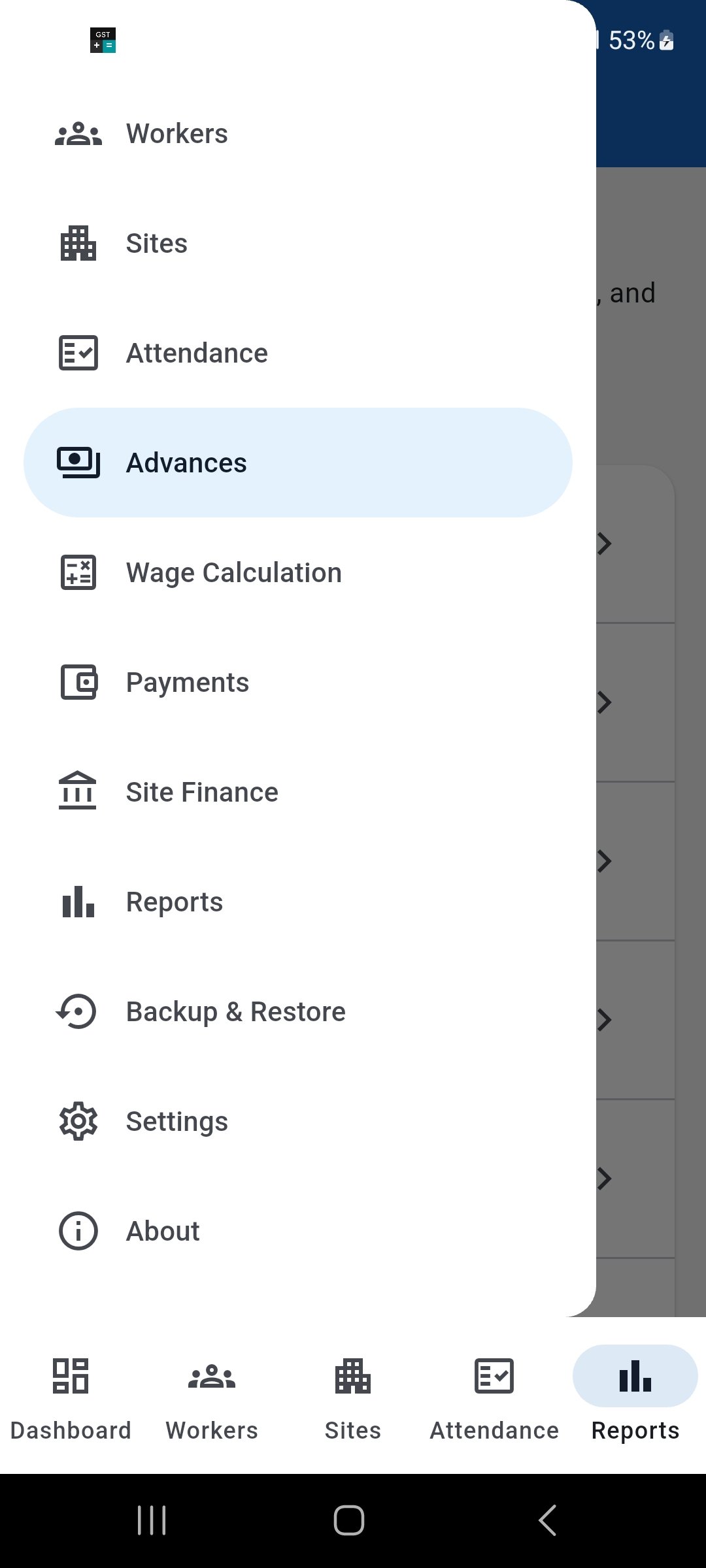
Open Backup & Restore from the WorkLedger main menu. Create a manual backup
Select Create / Save Backup when you want to create a complete backup of your current WorkLedger business data. Choose a safe location that you can find again if the device is lost, damaged, replaced, or reset.
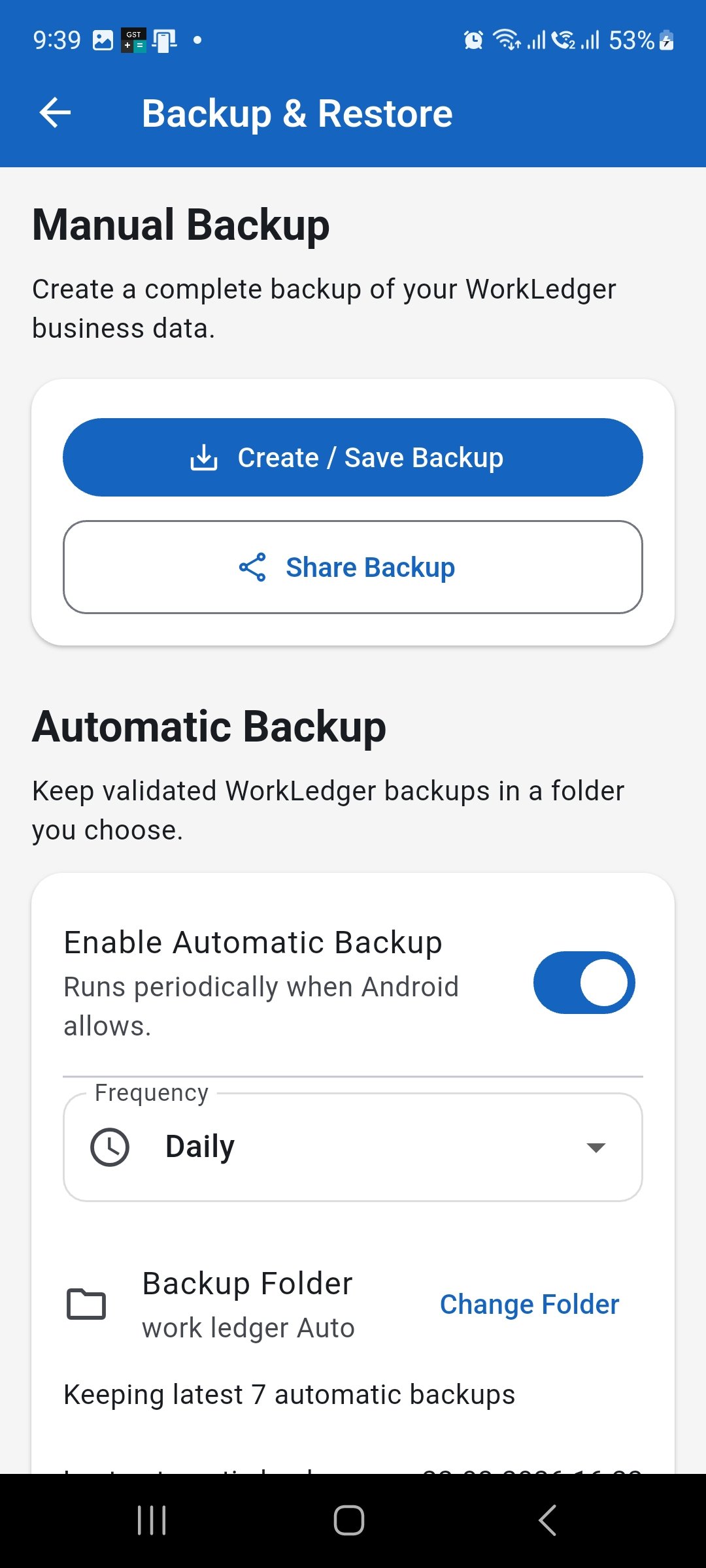
Use Create / Save Backup to make a manual copy of your WorkLedger business data. Keep another copy when appropriate
Use Share Backup when you need to transfer or store an additional copy using an available app or storage service on your device. Keep important backups separate from the device that contains the live WorkLedger data.
Share Backup can be used to keep an additional copy away from the live device. Configure automatic backup
Enable Automatic Backup if you want WorkLedger to create backups periodically when Android allows. Select the required frequency and choose the backup folder where the automatic backup files should be kept.
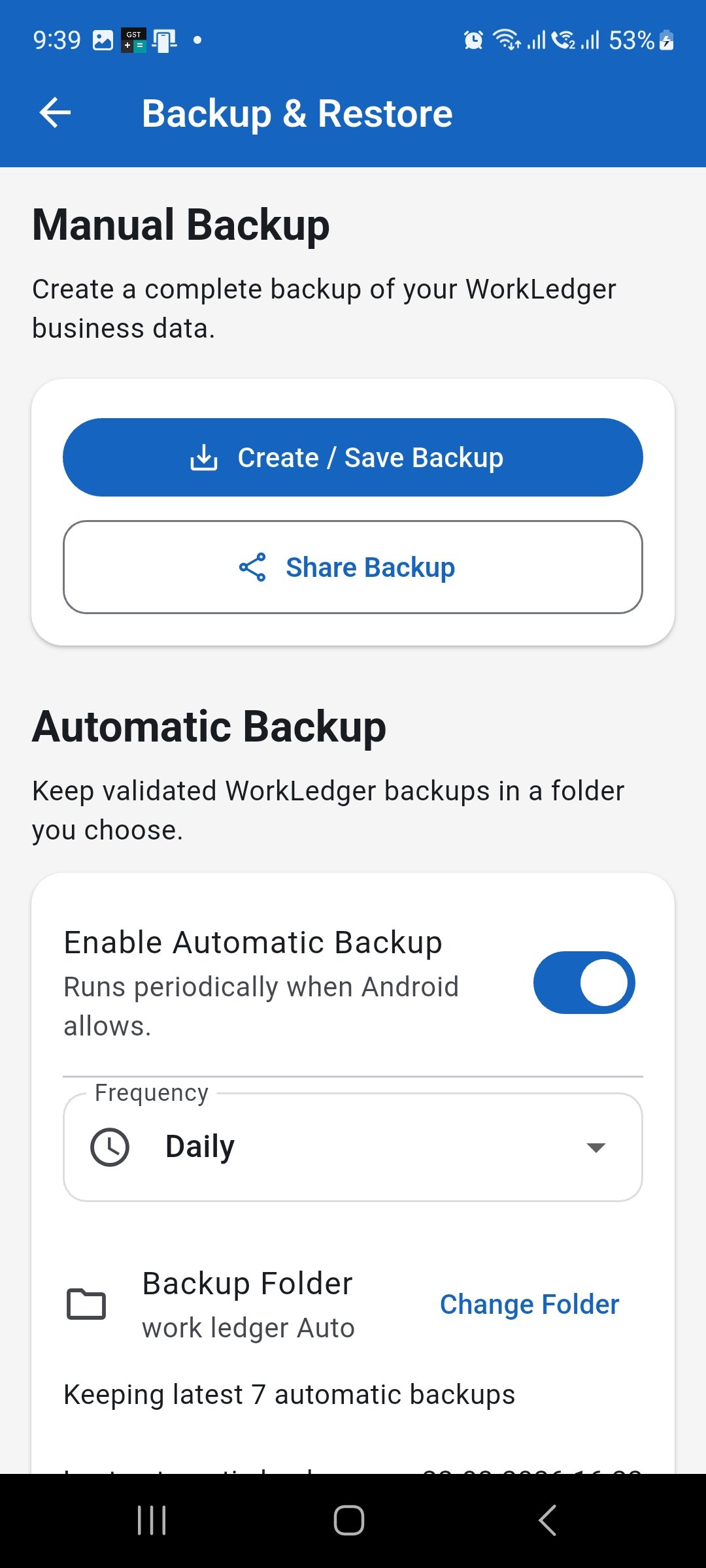
Enable automatic backup, choose a frequency, and select a trusted backup folder. Check automatic backup status
Review the Last automatic backup, Last attempt, and Approximate next eligible backup information to confirm that your backup routine is operating as expected. Automatic execution depends on when Android allows the scheduled work to run.
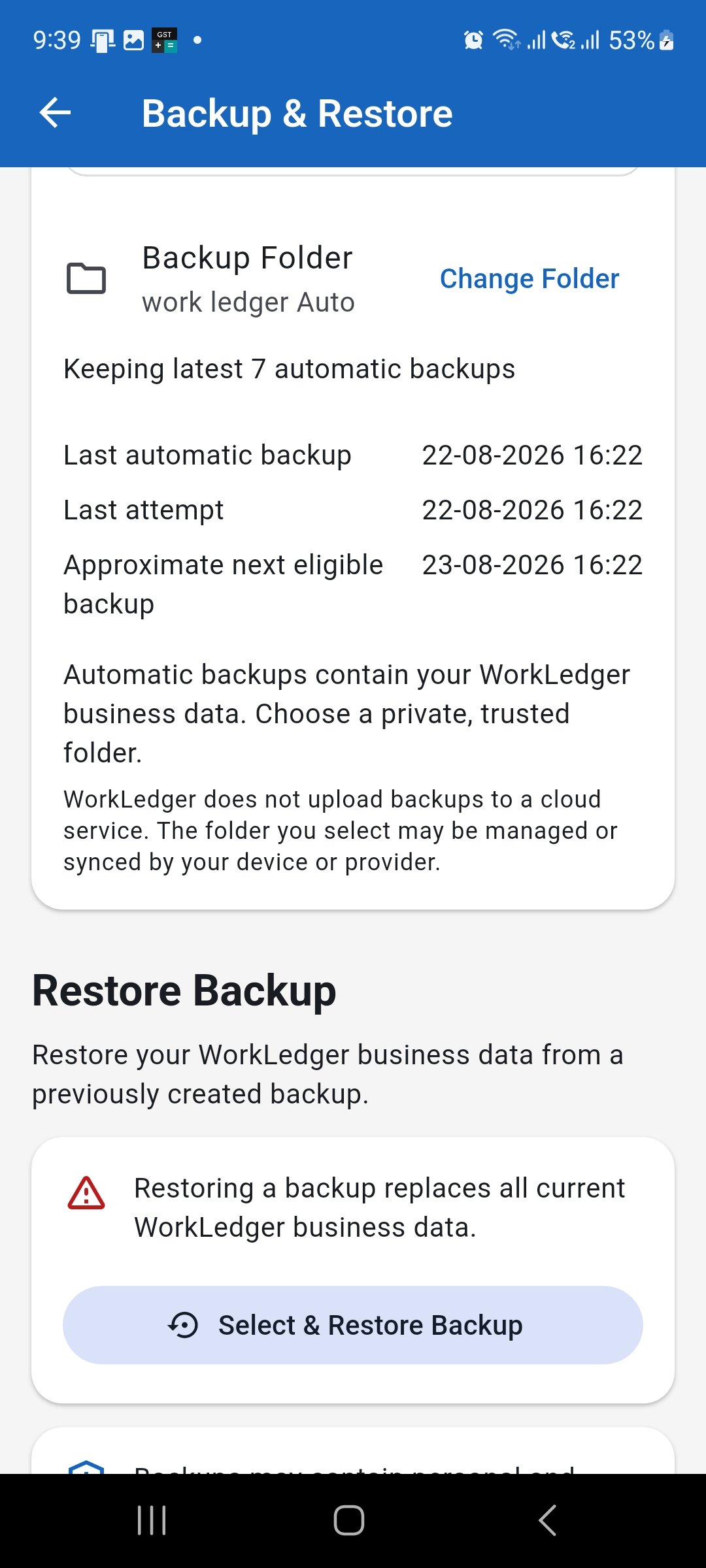
Check the backup status periodically instead of assuming an automatic backup has run. Understand where backups are stored
WorkLedger does not upload backups to a WorkLedger cloud service. Automatic backups are kept in the folder you select. That folder may itself be managed or synchronized by your device or another provider, so choose a private, trusted location.
WorkLedger keeps automatic backups in the folder you choose and does not upload them to its own cloud service. Restore a backup carefully
Use Select & Restore Backup when you need to recover WorkLedger business data from a previously created backup. Restoring a backup replaces the current WorkLedger business data, so confirm that you selected the correct backup and understand what will be replaced before continuing.
Restore only after confirming the backup because restoration replaces the current WorkLedger business data.