WorkLedger guide
Reports
Reports are generated from records stored on the device. Confirm the selected date range and filters, and verify important totals against source records.
Category Reports & data
Review reports with context
Open business reports
Select Reports from the main navigation to open WorkLedger's business reports. These reports help you review attendance, worker payments, wages, overtime, and site labour information.
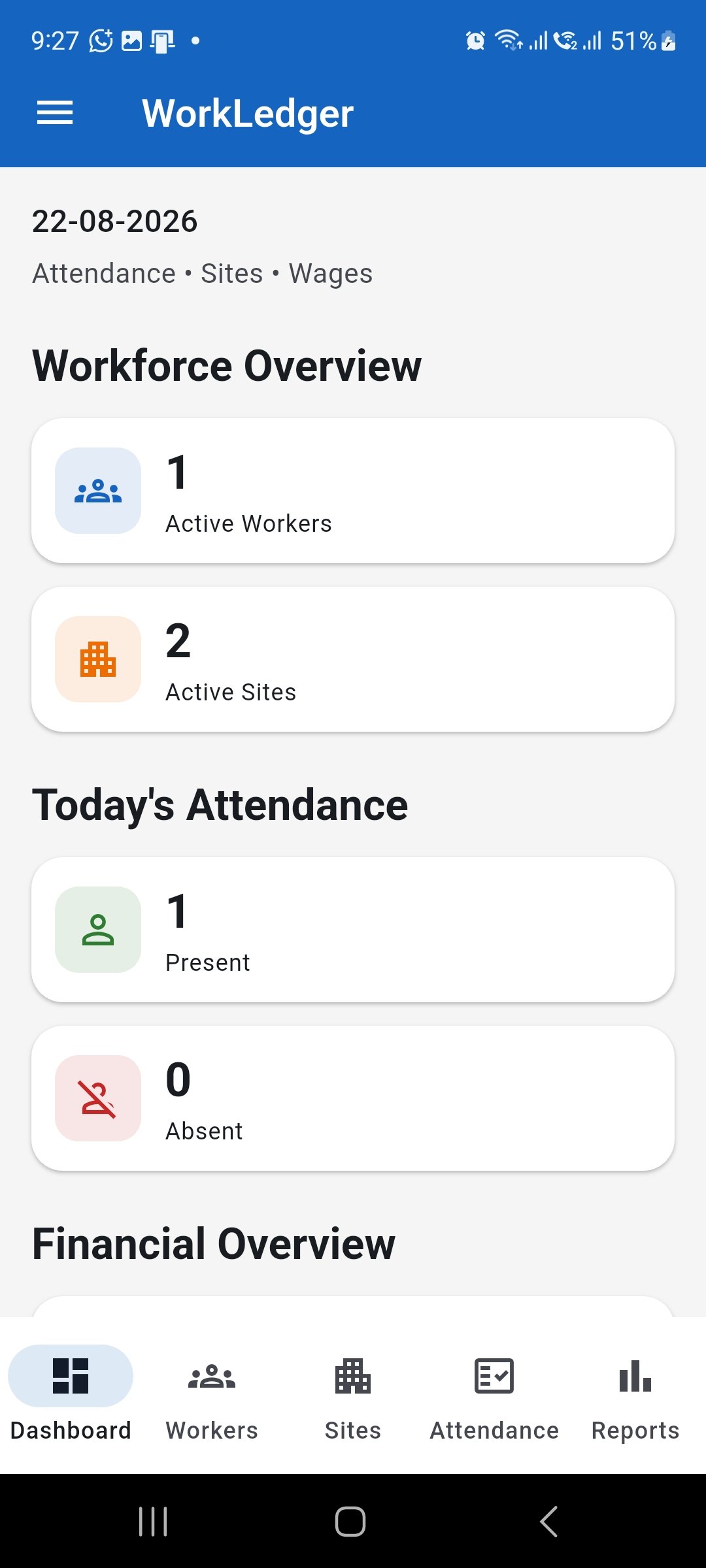
Open Reports from the main navigation for attendance, payment, and site labour reports. Review payment reports
Use Payment Reports to review worker wage summaries, advance payments, pending payments, payment history, and monthly wage expenses.
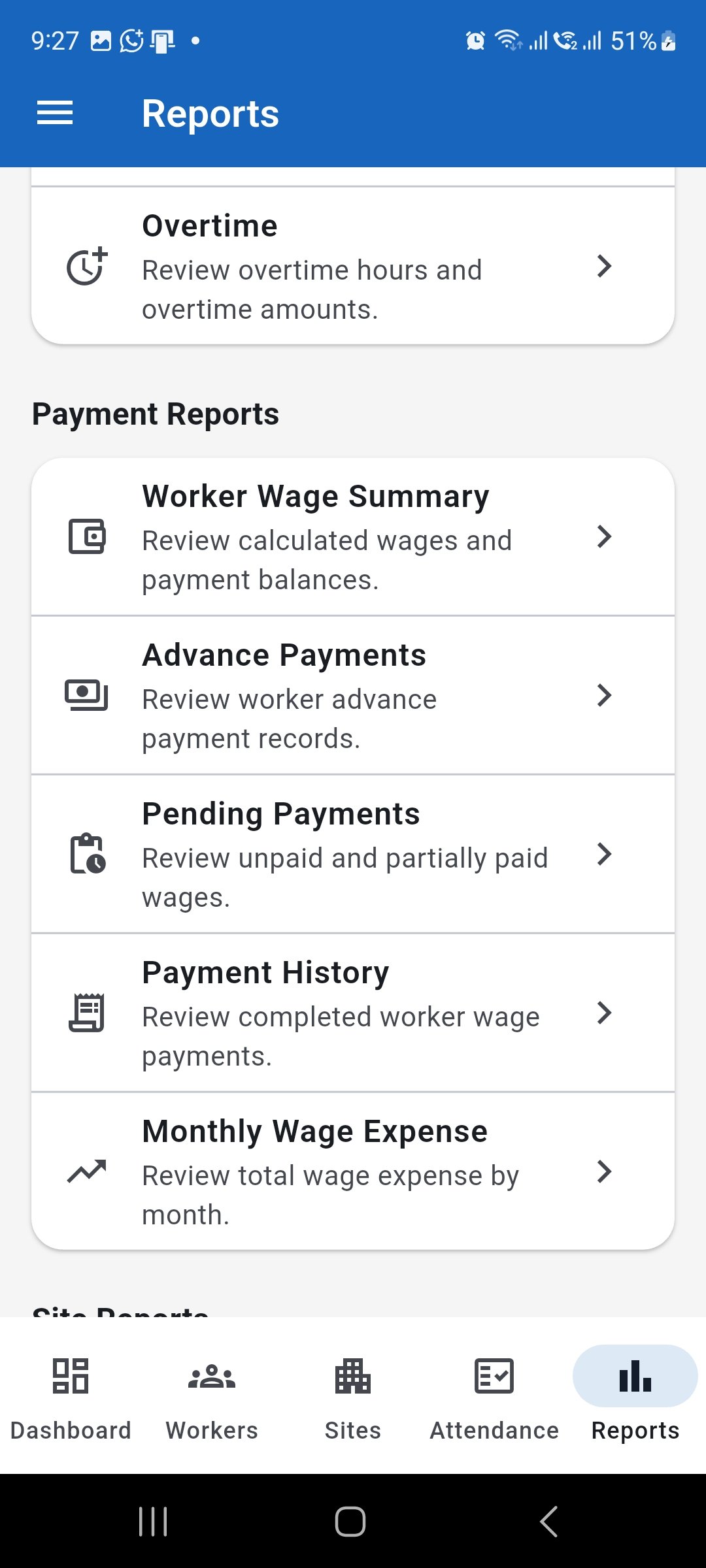
Payment Reports provide different views of wages, advances, balances, and completed payments. Review site labour reports
Use Site Reports to review worker attendance by site, regular wage costs, overtime costs, and total labour expense grouped by site.
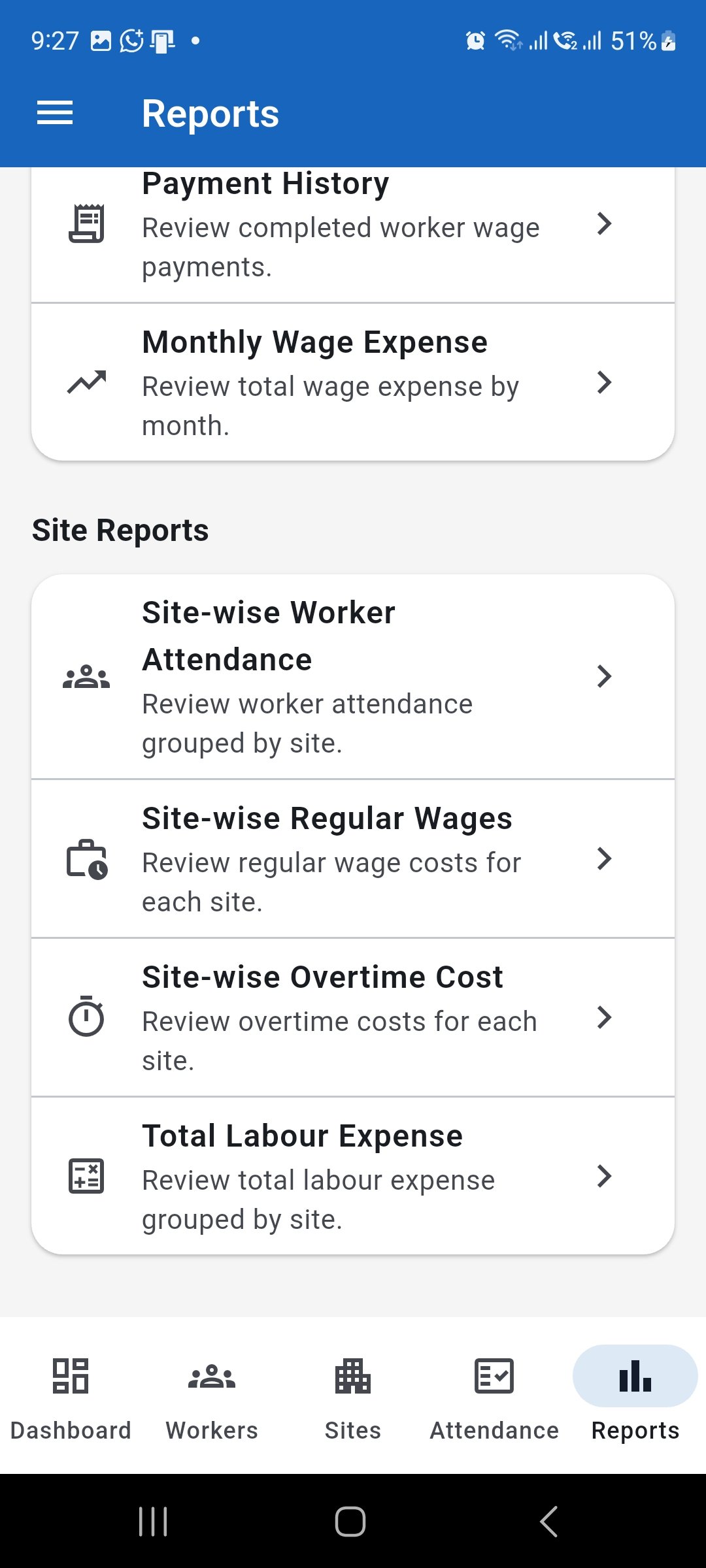
Site Reports help relate worker attendance and labour costs to individual sites. Open financial reports
Financial reports are accessed separately. Open Site Finance and select View Reports under Records & Reports.
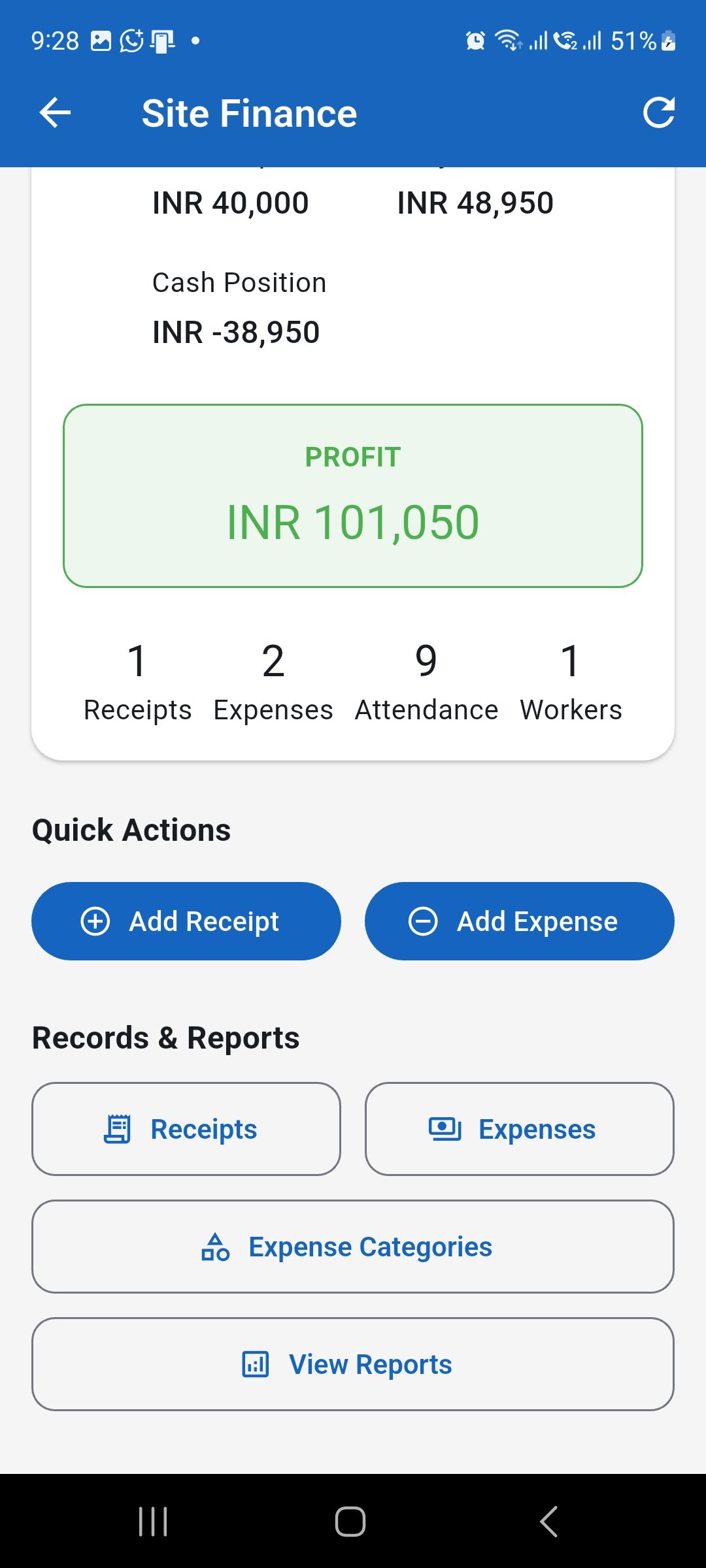
Open View Reports from Site Finance to access financial reports. Choose a financial report
The Site Finance Reports screen provides Profit & Loss, Cash Flow, Site Summary, Outstanding Receivables, and Labour Cost Report. Choose the report that matches the information you need to review.
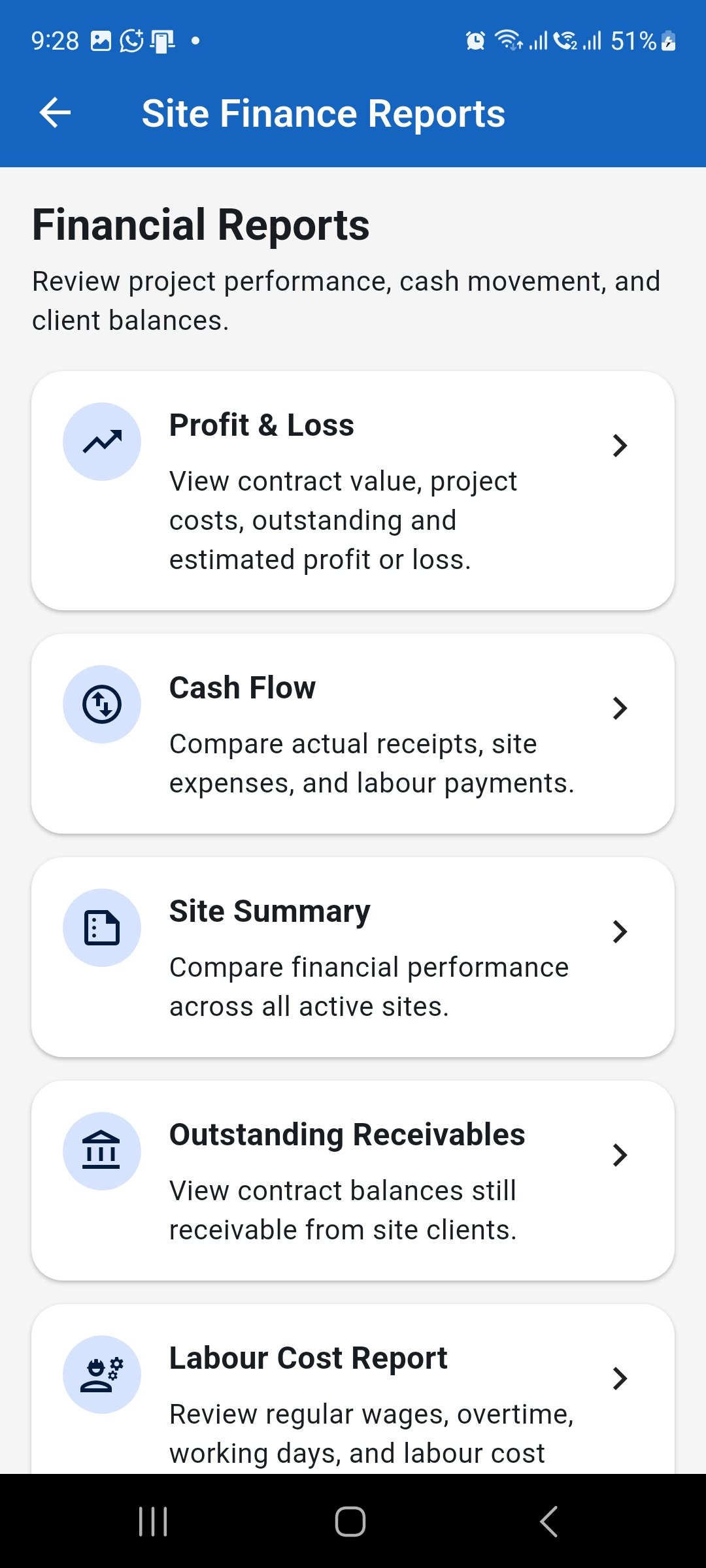
Choose the financial report that matches the project information you need. Use transaction registers
Use Receipt Register and Expense Register when you need detailed transaction records. These registers help review receipts and expenses by the available site, date, type, category, vendor, and payment filters.
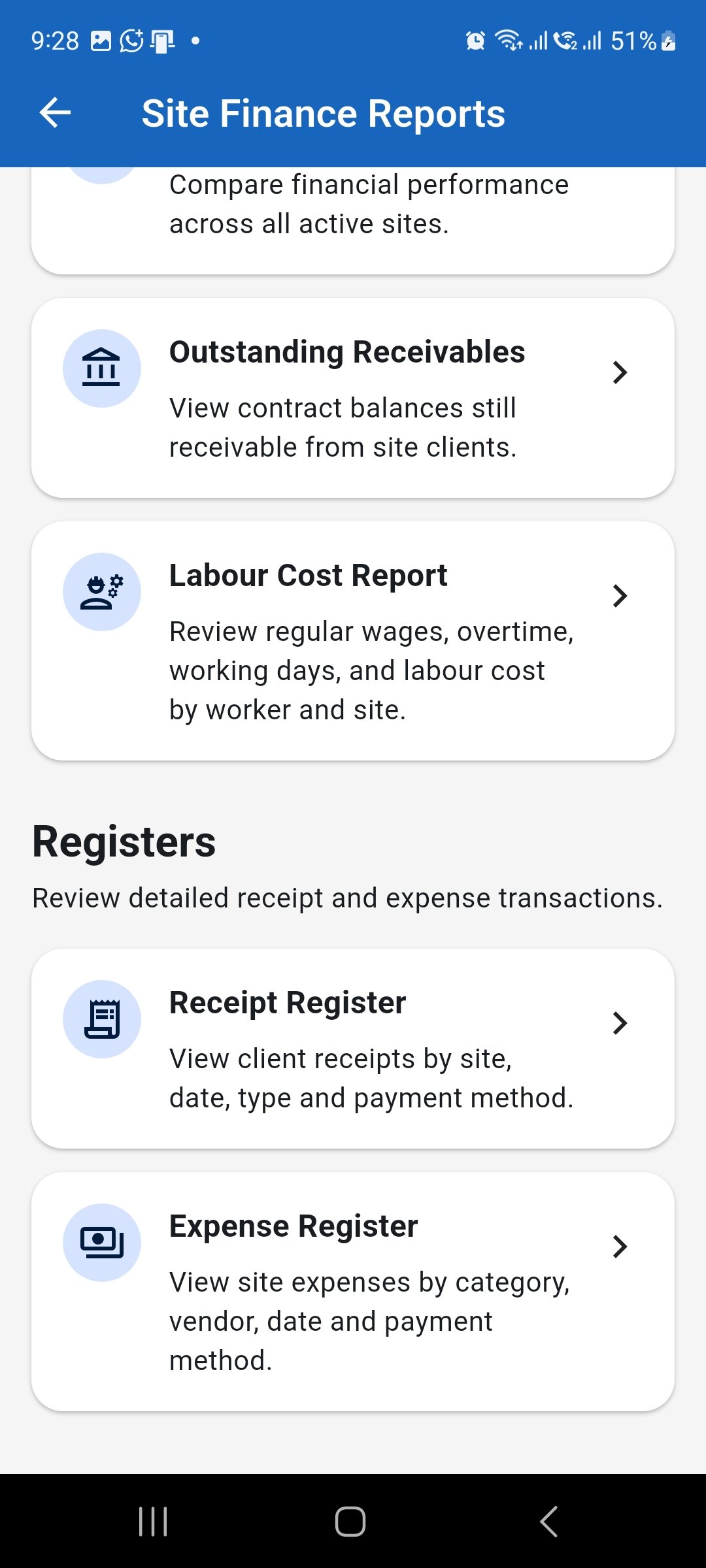
Use the registers when you need detailed receipt or expense transactions. Review project profit or loss
Profit & Loss compares the selected site's contract value, receipts, outstanding amount, labour cost, other expenses, total project cost, and estimated net profit or loss for the selected period.
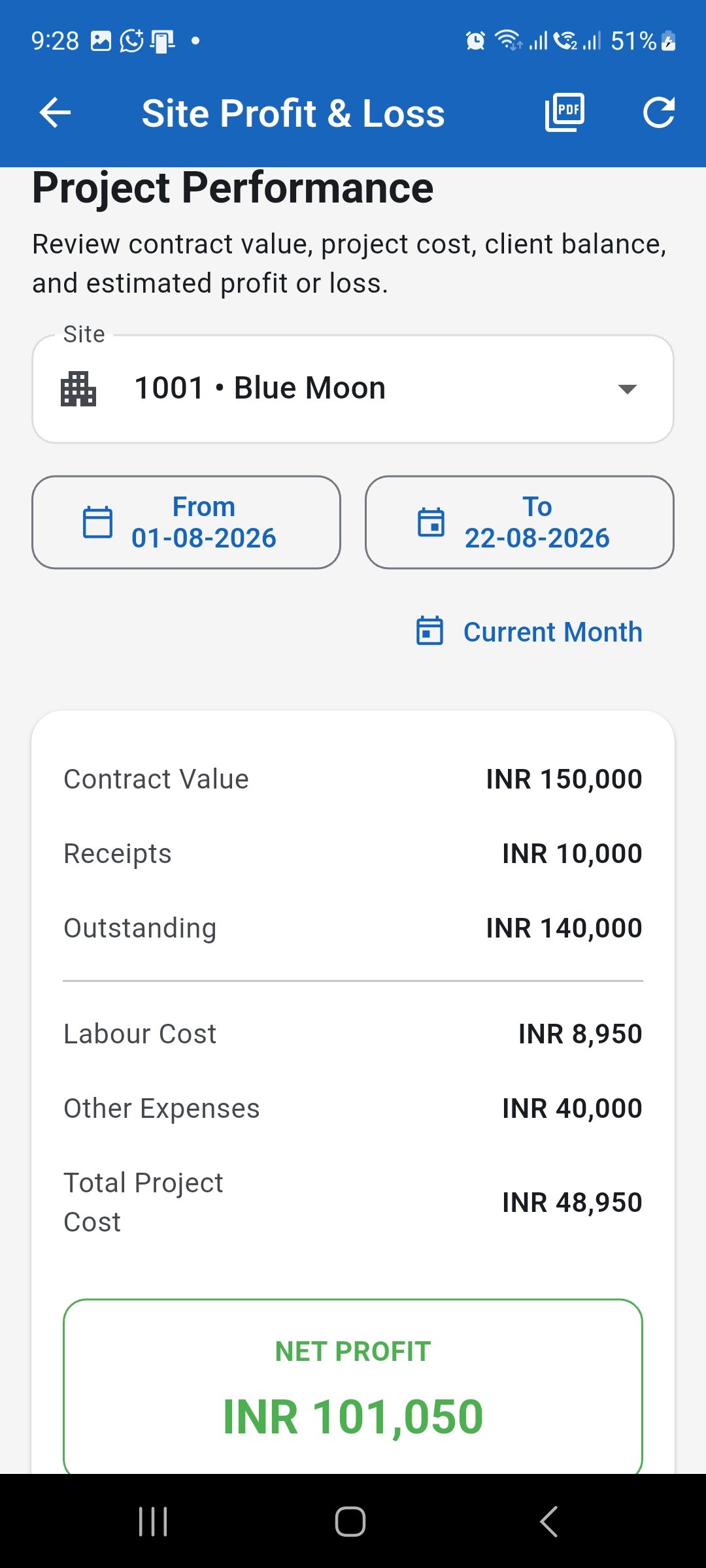
Check the site, date range, project costs, and resulting profit or loss together. Review actual cash movement
Cash Flow compares actual cash received with site expenses and labour payments for the selected site and period. Use Net Cash Flow to understand the resulting cash position for that reporting period.
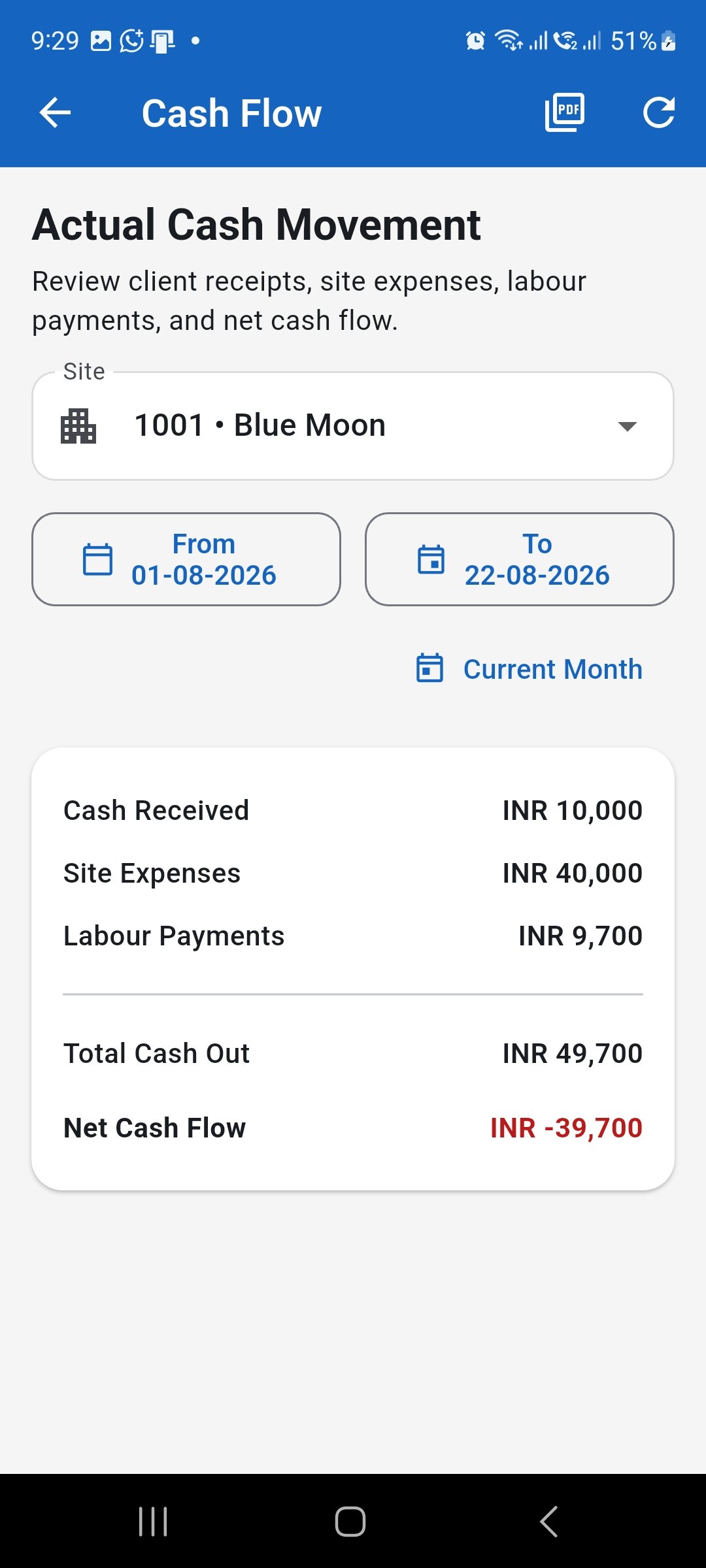
Cash Flow shows actual money received and paid during the selected period. Check scope and totals before relying on a report
Confirm the selected site, worker, date range, month, and other available filters before interpreting a report. Review important totals against the underlying attendance, wage, payment, receipt, or expense records when needed.
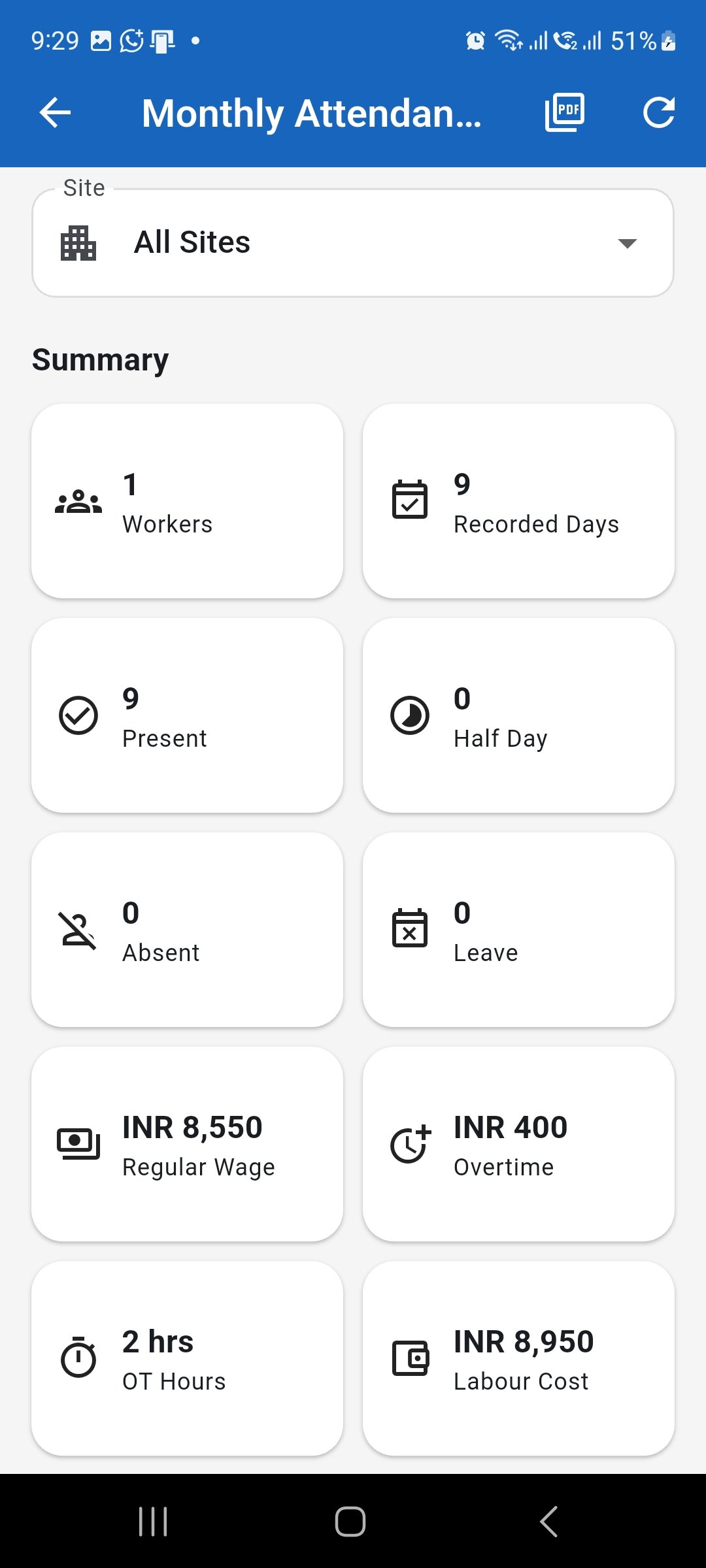
Always confirm the report scope and important totals before using the results.