WorkLedger guide
Security, PIN, and biometric access
Protect WorkLedger from unauthorized access by enabling App Lock. WorkLedger uses a 6-digit PIN and can also use fingerprint or another supported biometric method on compatible devices. Keep your PIN private and enable biometric access only on a device you control.
Category Security & assistance
Protect access to WorkLedger
Open Security settings
Open Settings, then select Security under the Security section.
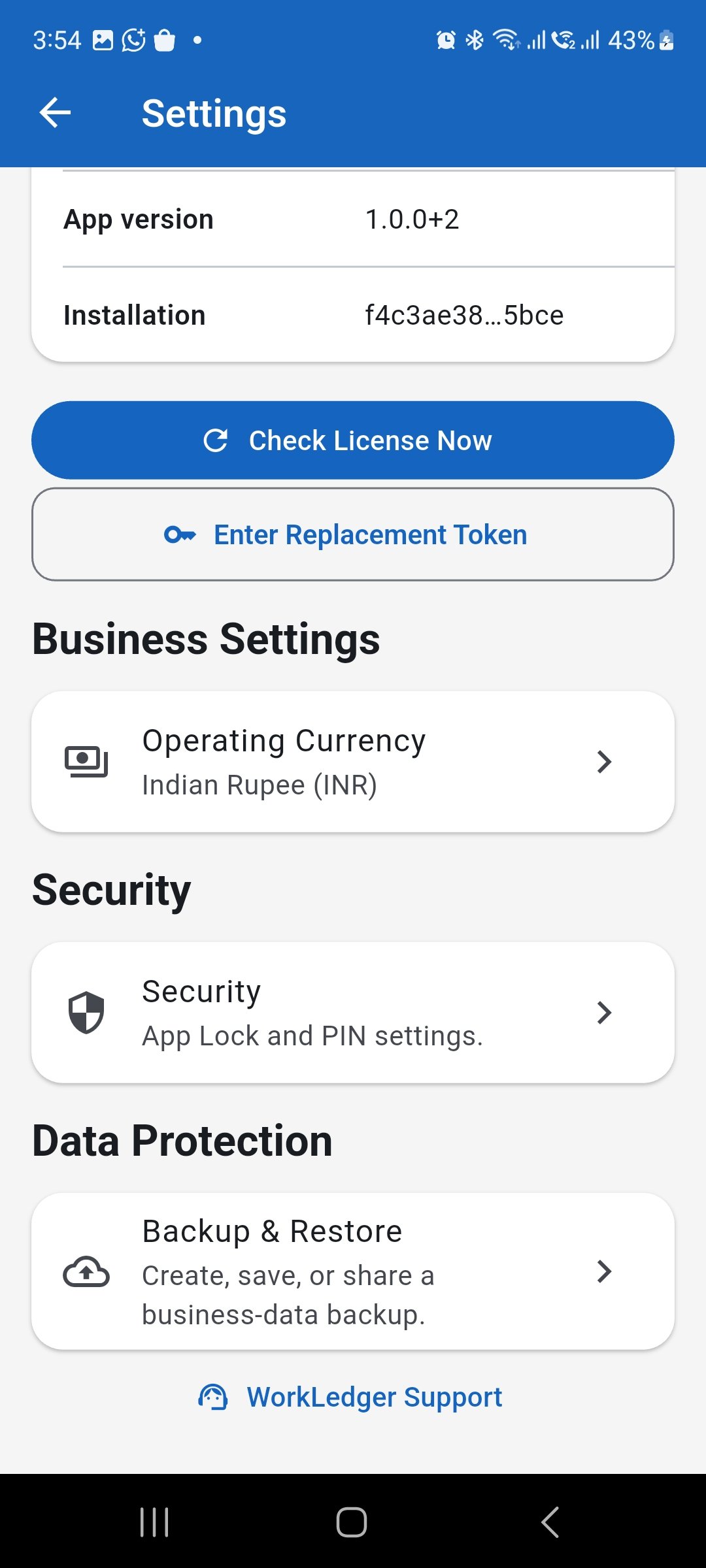
Open Settings and select Security. Enable App Lock
On the Security screen, tap Enable App Lock.
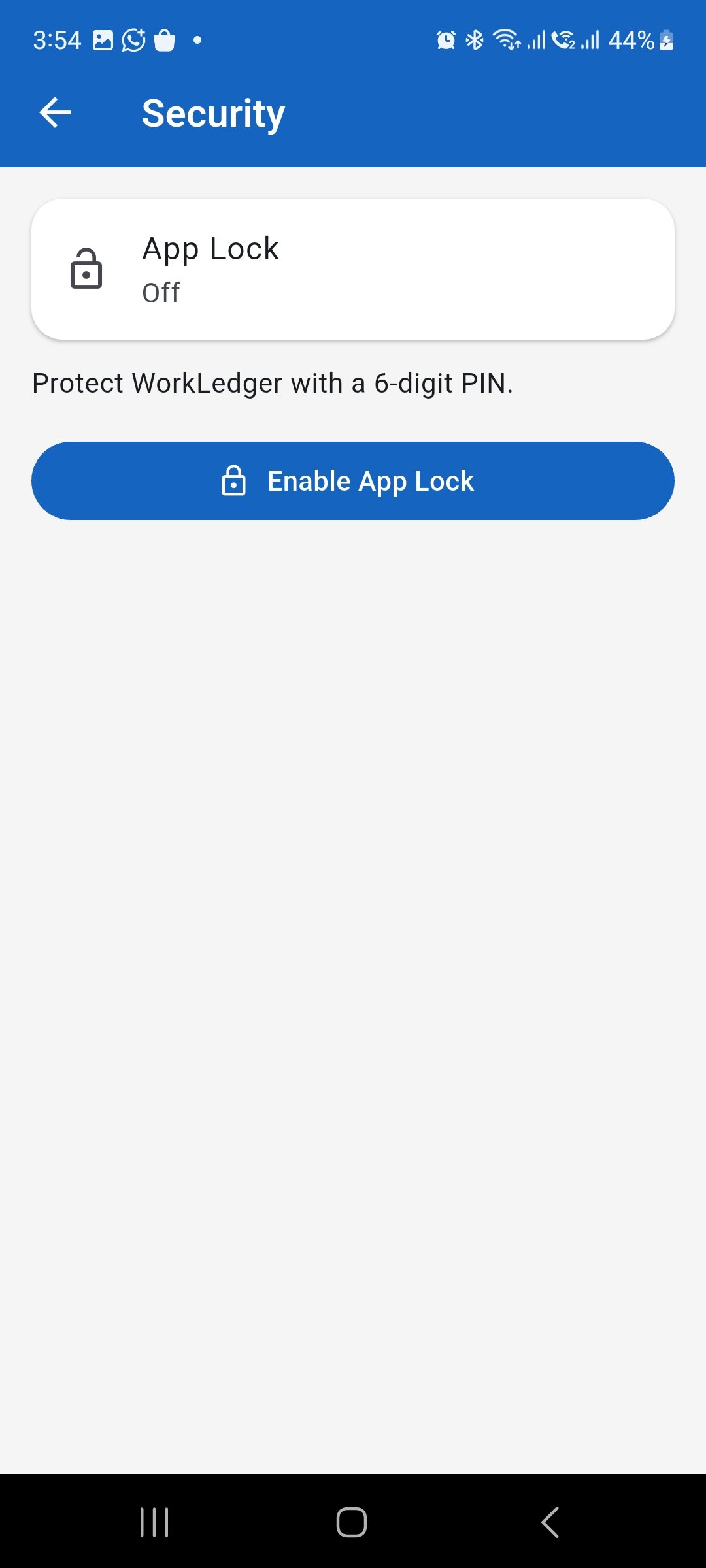
Tap Enable App Lock to protect WorkLedger. Create a 6-digit PIN
Enter a new 6-digit PIN, enter the same PIN again to confirm it, and tap Enable.
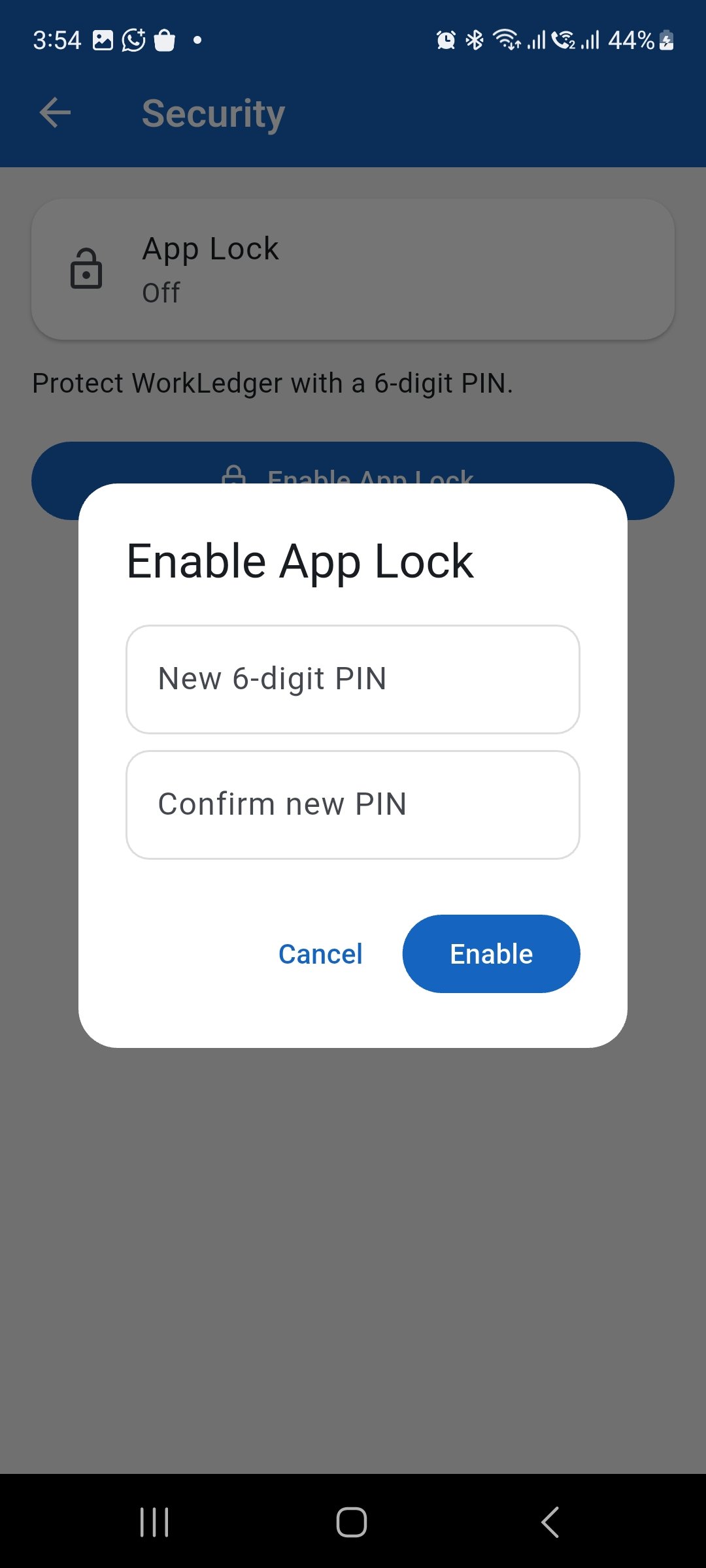
Enter and confirm your 6-digit PIN, then tap Enable. Review biometric unlock
After App Lock is enabled, WorkLedger shows additional security options including the lock delay, Biometric Unlock, Lock now, Change PIN, and Disable App Lock. Biometric Unlock is initially optional and can remain off if you want to use the PIN only.
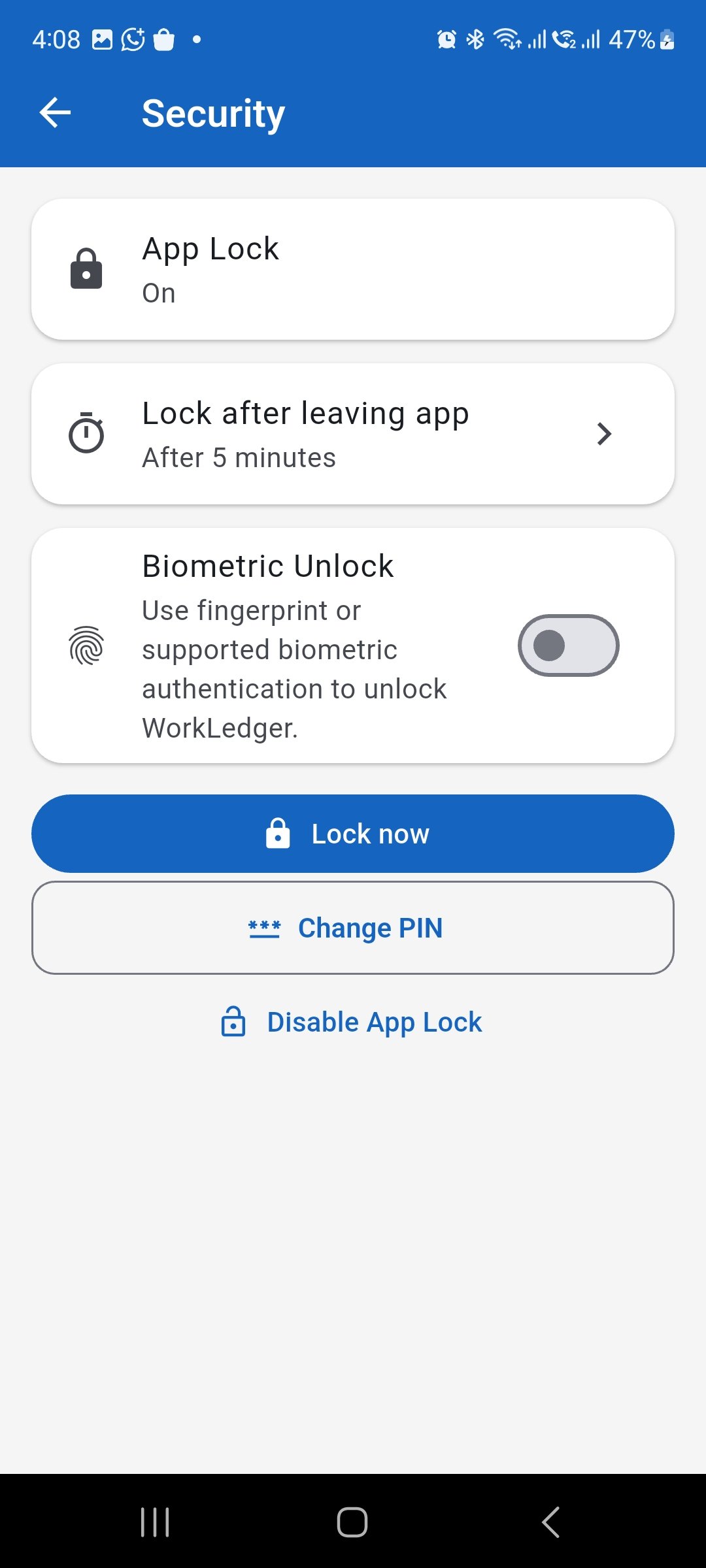
After enabling App Lock, Biometric Unlock can be enabled separately. Enable biometric unlock if required
Turn on Biometric Unlock to allow fingerprint or another supported biometric authentication method to unlock WorkLedger on compatible devices. Only enable this on a device whose enrolled biometric credentials belong to authorized users.
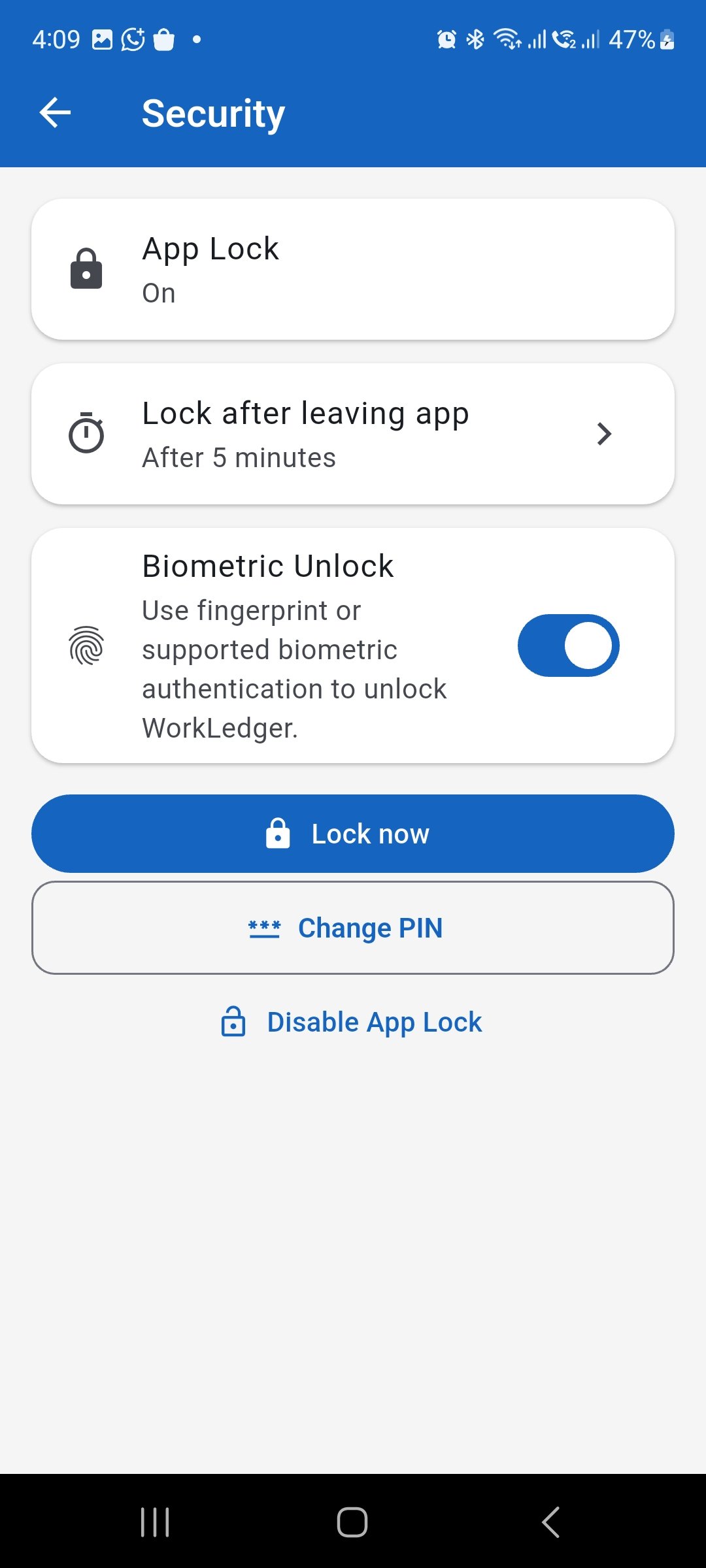
Turn on Biometric Unlock to use supported device biometrics when unlocking WorkLedger.