WorkLedger guide
Expenses
Enter expenses promptly, select the correct site and category, and retain supporting documents. Review unusual or duplicate amounts before reporting.
Category Sites & finance
Capture project expenses
Open Site Finance
Open the navigation menu and select Site Finance to access the project's receipts, expenses, categories, and financial reports.
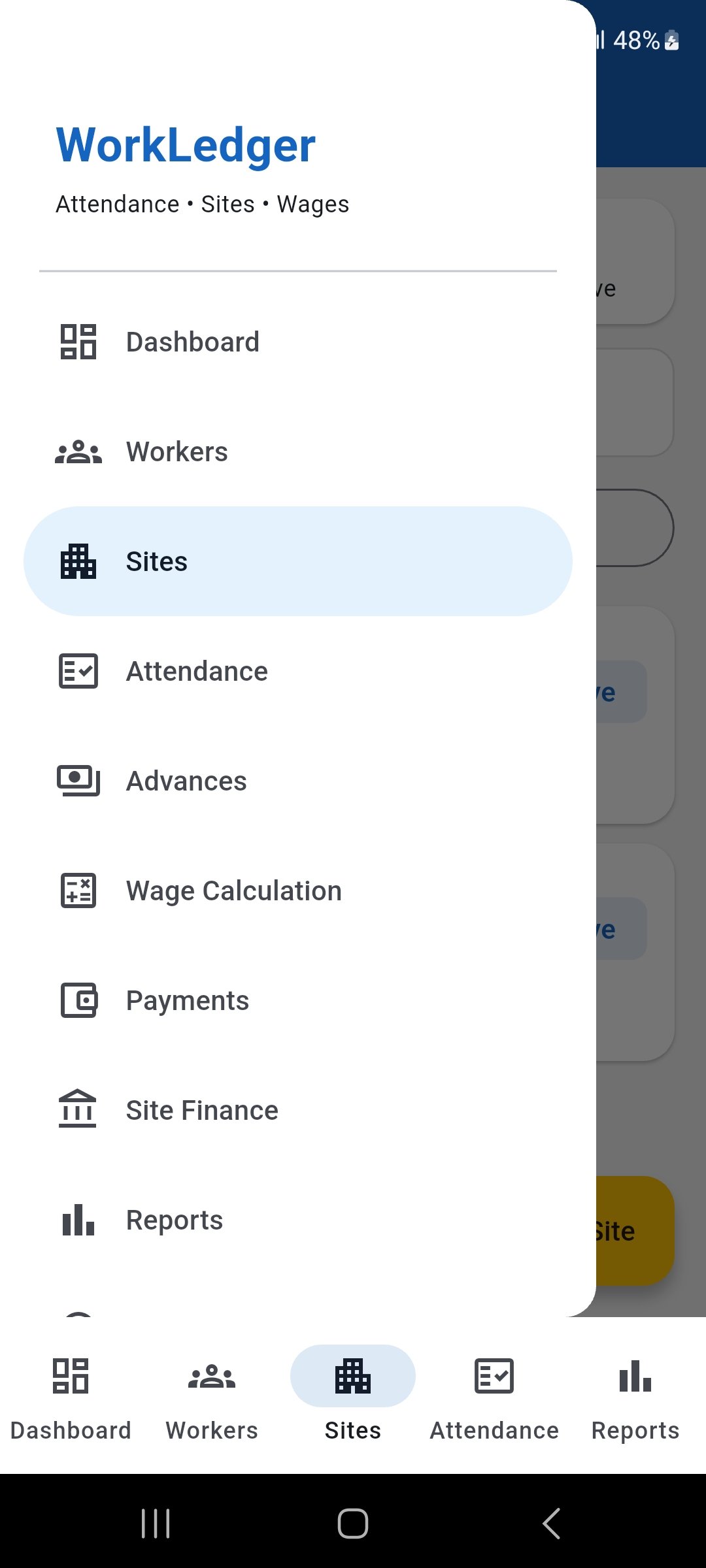
Open the navigation menu and select Site Finance. Open Site Expenses
Under Records & Reports, select Expenses to review the expenses already recorded for the selected site.
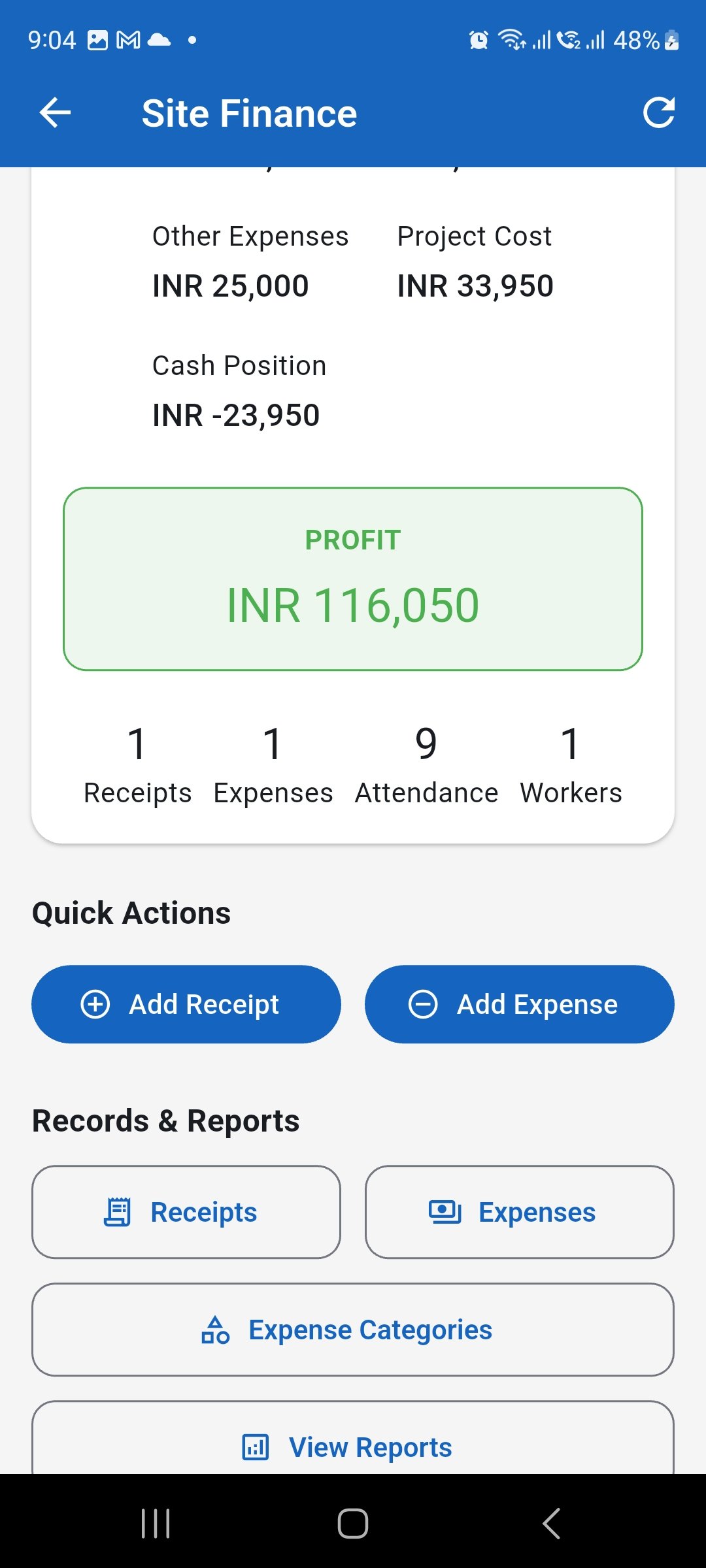
Select Expenses from Site Finance to review recorded project expenses. Add a site expense
Tap Add Expense and confirm that the expense is assigned to the correct site, date, and expense category before entering the amount.
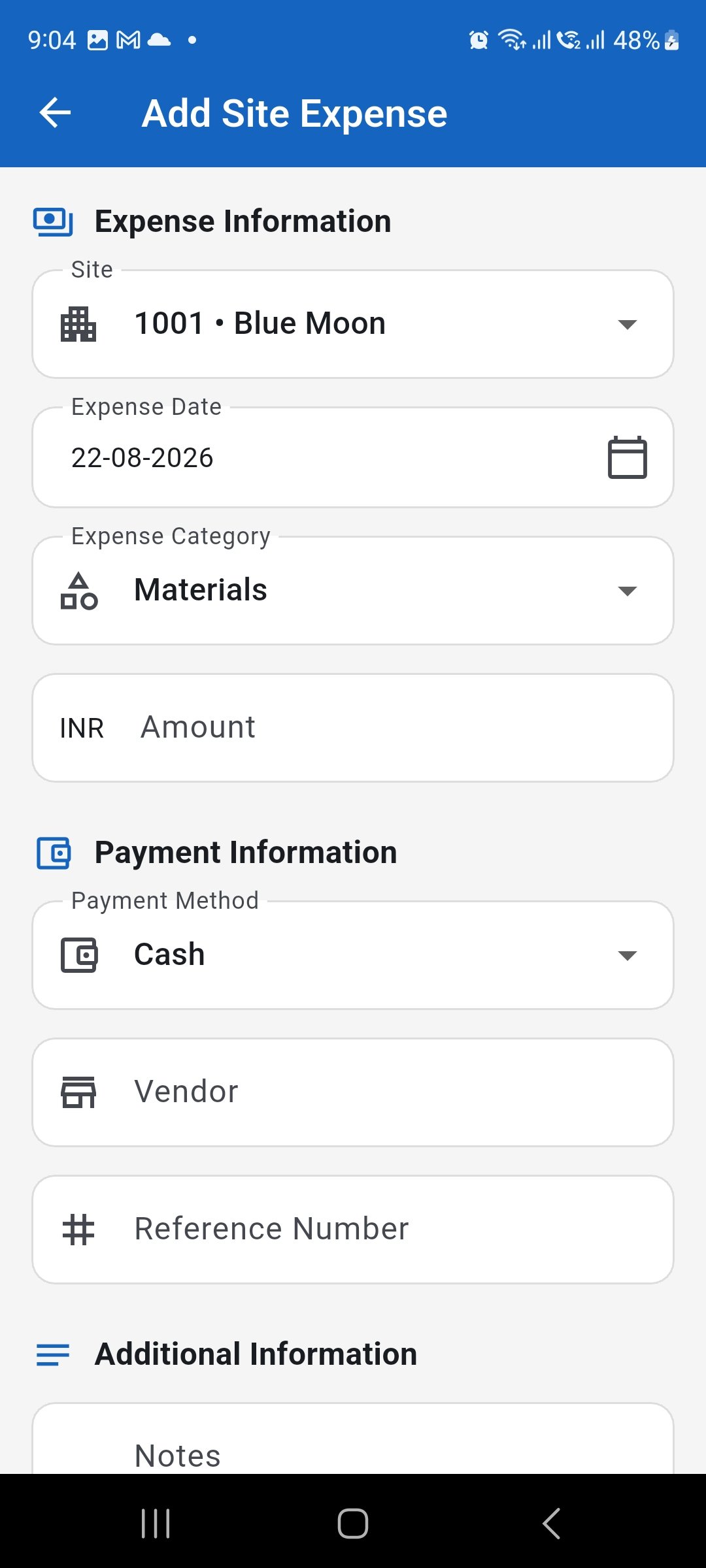
Start a new site expense and confirm the site, date, and category. Enter the expense details
Enter the amount and payment method. Add the vendor, reference number, and notes when available, then save the expense. Keep the original invoice, receipt, or other supporting document according to your business process.
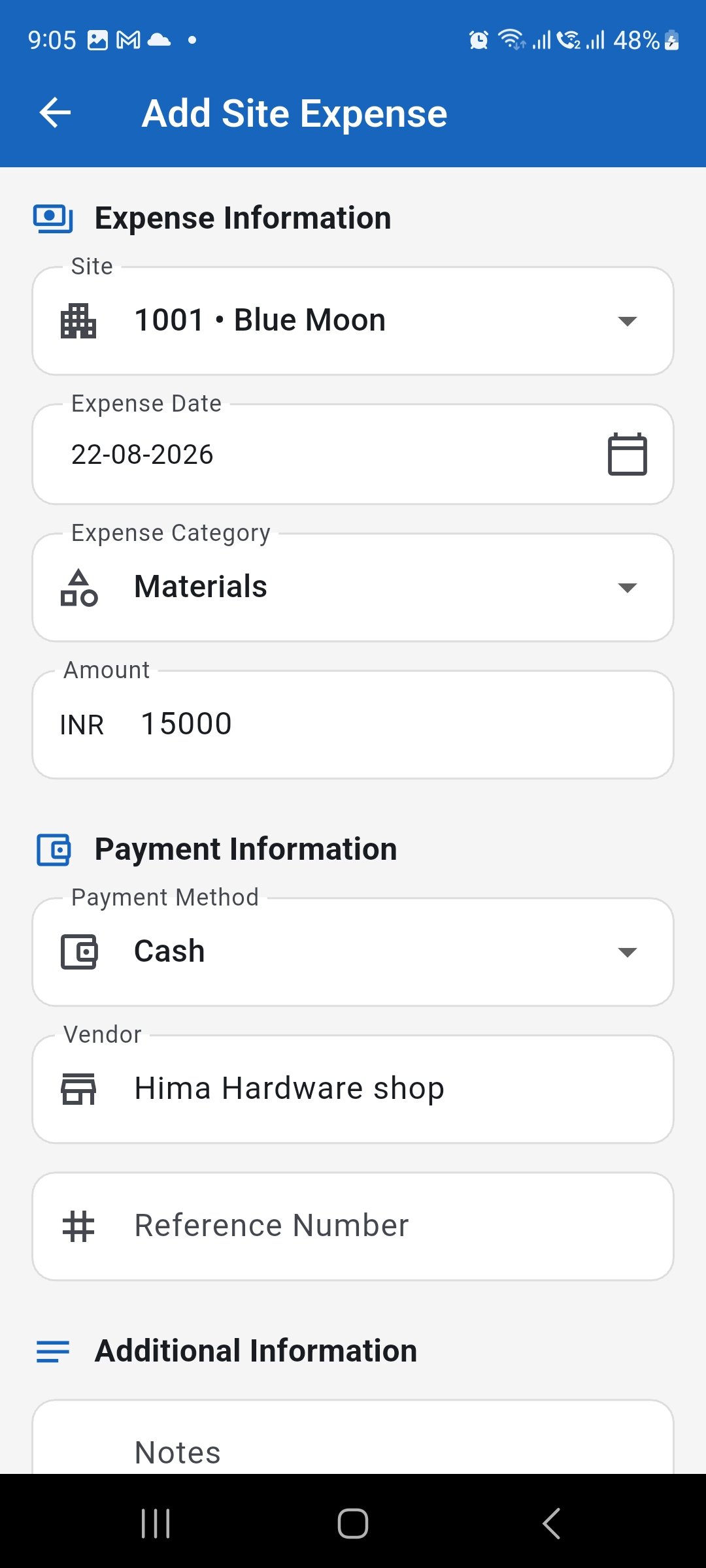
Record the expense amount and supporting transaction details accurately. Manage expense categories
Use Expense Categories when you need to review the categories available for site expenses. Categories can be searched, reordered, activated or deactivated, and renamed where the application permits it.
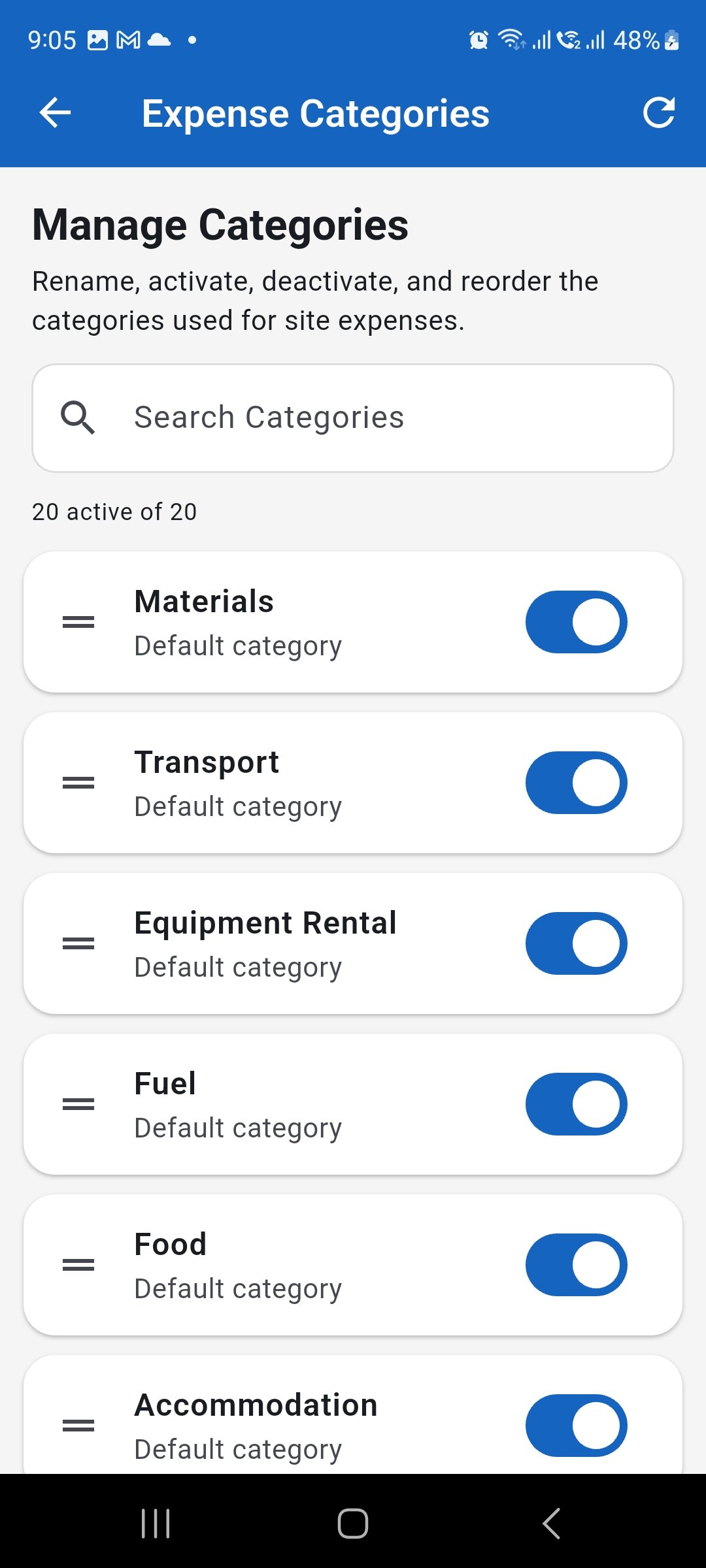
Keep expense categories organised so expenses are classified consistently. Review the Expense Register
Use the Expense Register to review recorded expenses by date, site, category, payment method, expense number, or vendor. Compare unusual or repeated amounts with the original supporting records before relying on reports.
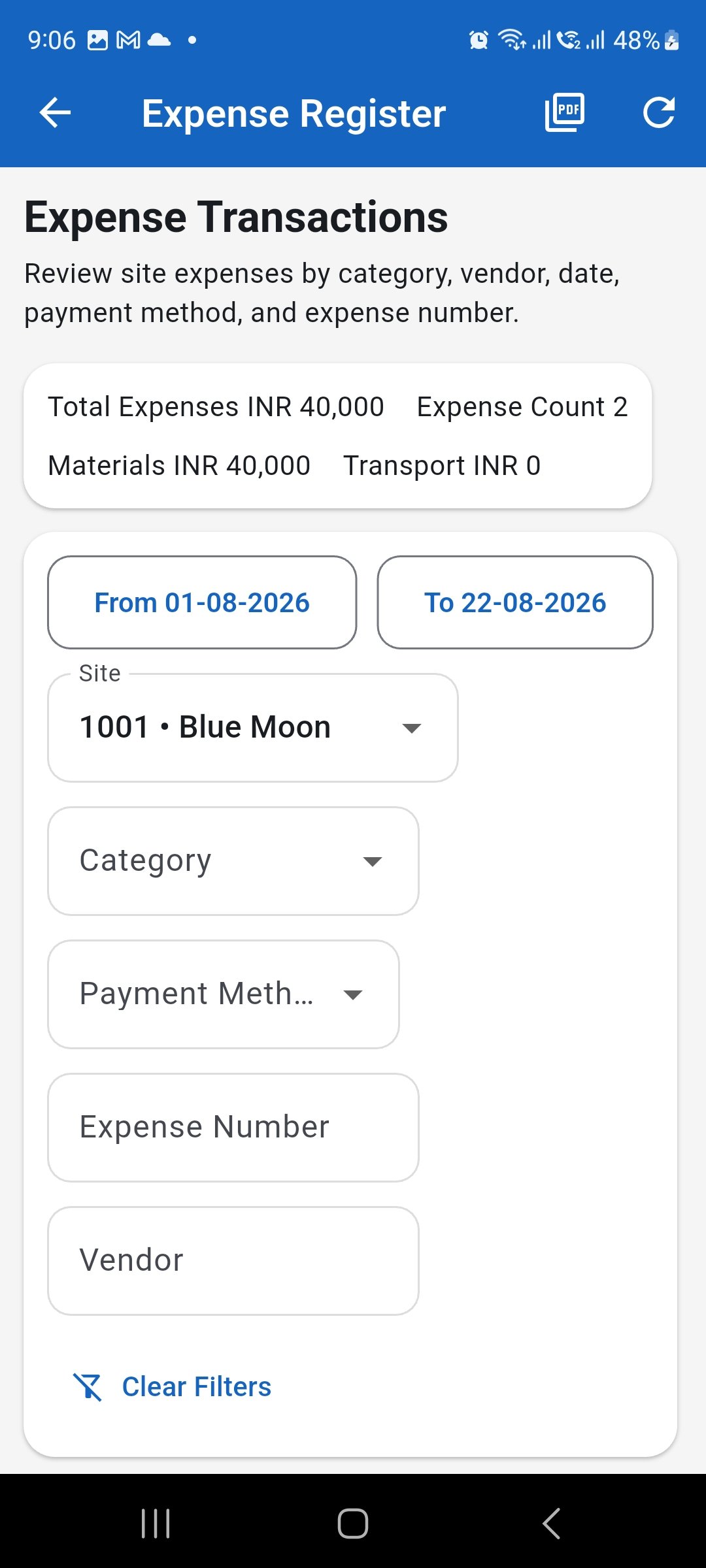
Use the Expense Register and filters to review and reconcile project expenses.