WorkLedger guide
Registration and licensing
WorkLedger must be registered before normal first-time use. A normal new registration starts a server-controlled 15-day trial, and internet access is required for registration and licensing checks. Registration and licensing information is exchanged with the WorkLedger licensing service, while ordinary workers, sites, attendance, wages, receipts, and expenses remain primarily on your device. Review licensing status in Settings → Licensing / Application.
Category Getting started & licensing
Register WorkLedger
Enter accurate registration details
On first-time registration, WorkLedger shows Register WorkLedger and Start your 15-day trial. Enter the required Name and Mobile number, and add the available Business / Company name, Email, and Location details where applicable. Accurate information helps WorkLedger support match registration and licensing records later. Tap Register and Continue while internet access is available to create the server-controlled trial. Worker, attendance, wage, and finance records are not uploaded during registration.
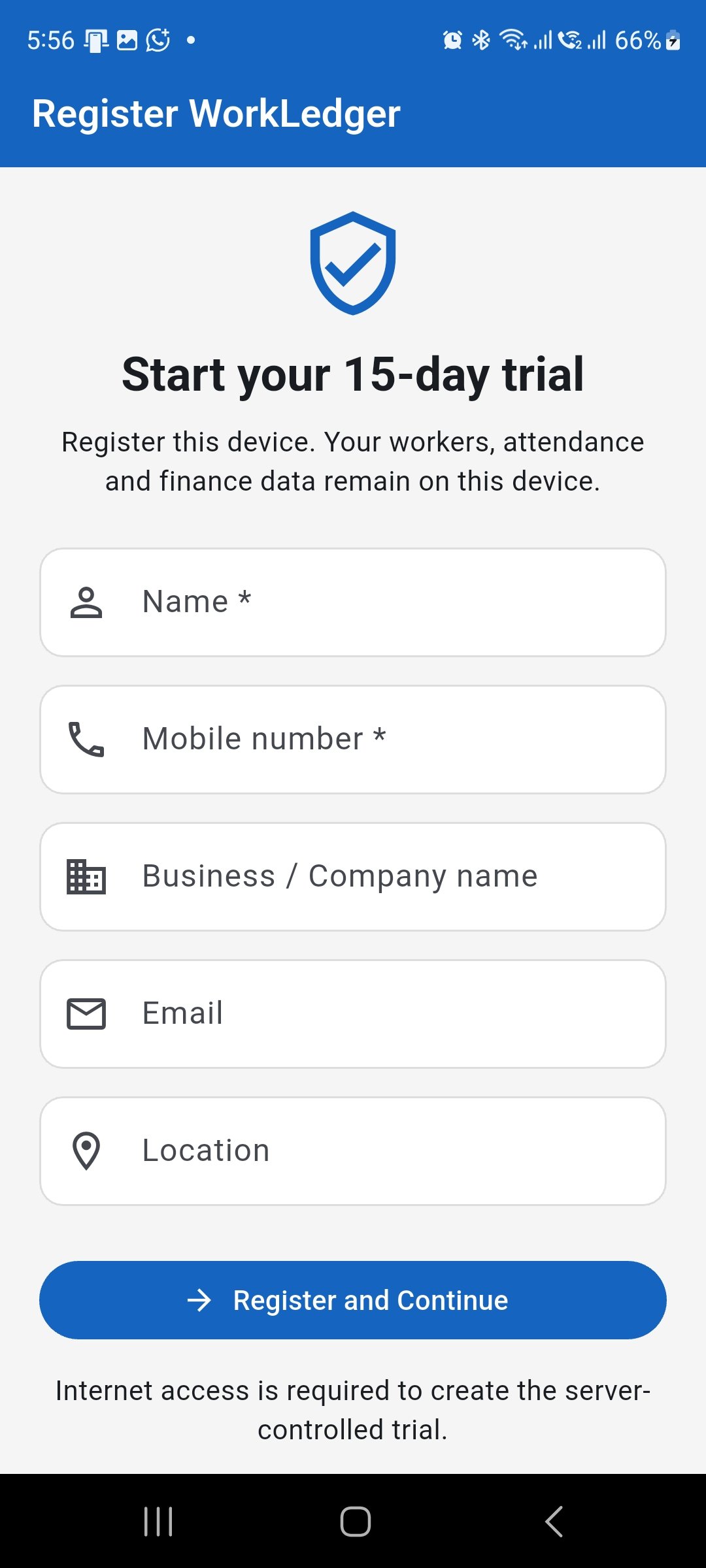
Enter the registration details and tap Register and Continue. Internet access is required to create the server-controlled trial.
Start the 15-day trial
Confirm that the trial is active
After successful registration, a normal new installation can enter the server-controlled 15-day trial. WorkLedger may show a Trial Active message with the number of days remaining. Approval is pending refers to the registration approval state and does not prevent use of the active trial shown in this state. A later installation is not guaranteed another trial, and reinstalling WorkLedger does not restart the trial.
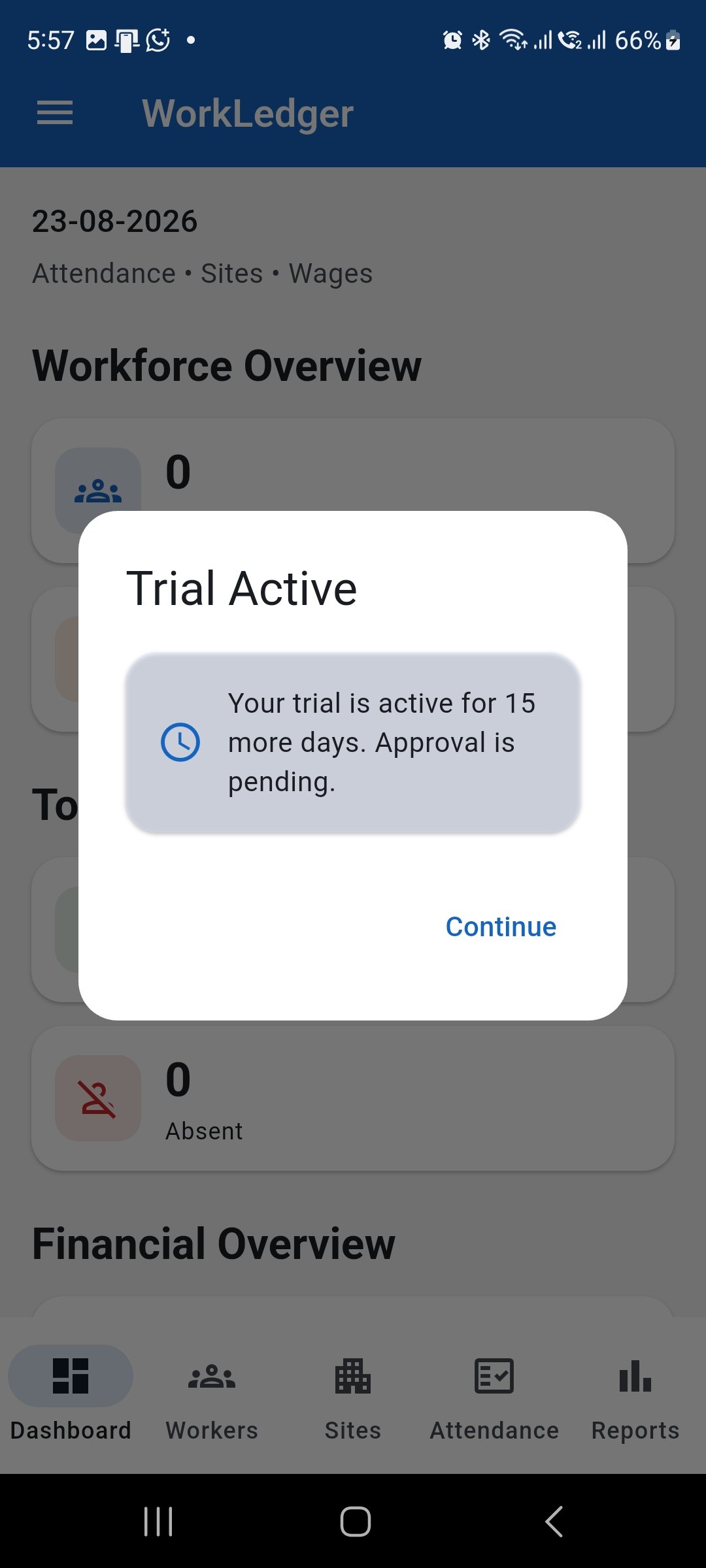
After registration, WorkLedger shows the active trial and the number of days remaining.
Check your trial and licensing status
Open Licensing / Application in Settings
Open Settings → Licensing / Application. Registration shows the current state, such as Pending or Approved. Trial shows whether the trial is active or another applicable state; Days remaining and Trial expiry show its remaining period and expiry date. License shows whether a full license is activated. Last successful check records the latest successful licensing-service check. App version shows the installed version, and Installation identifies the current installation.
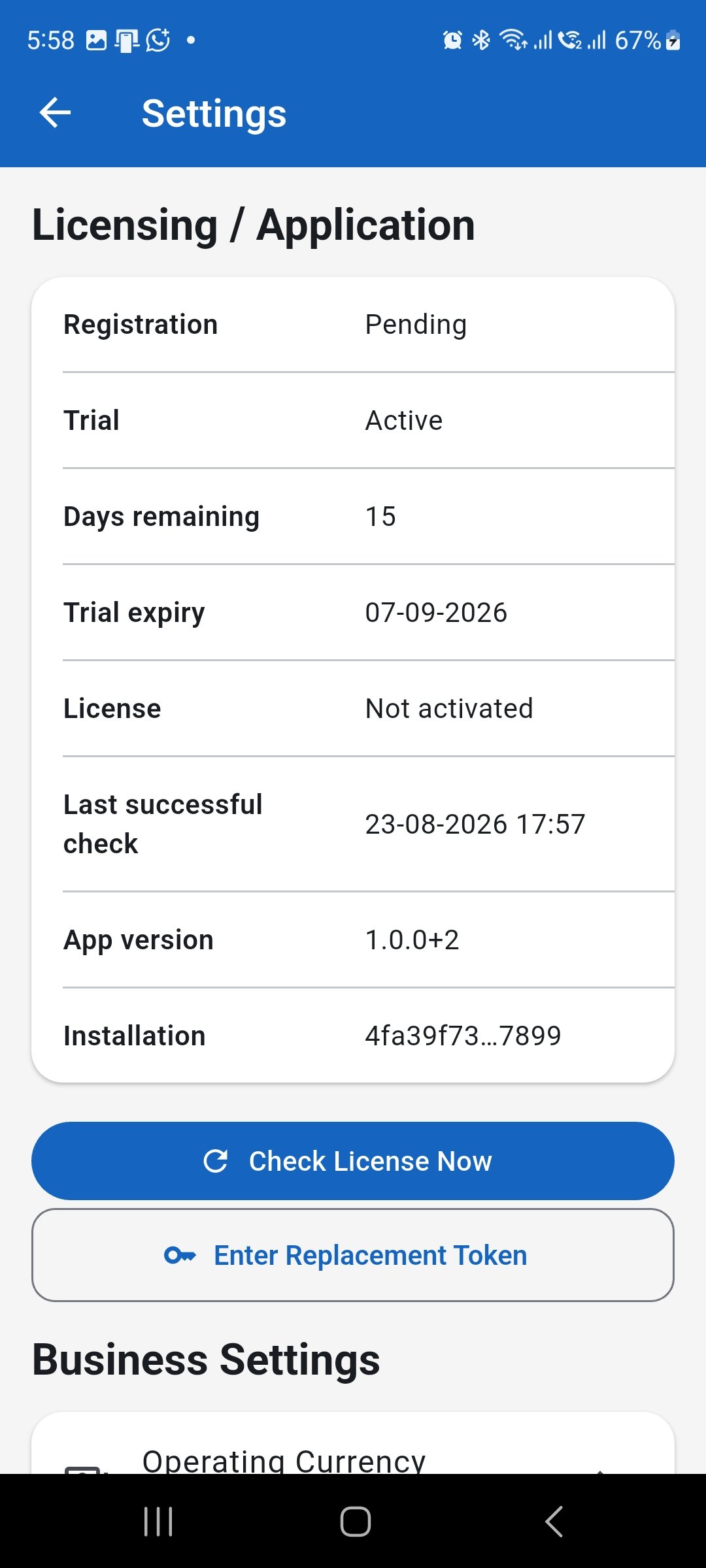
Settings → Licensing / Application shows the registration state, trial status, remaining days, expiry date and license state.
Understand Registration Approved
Read registration and license states separately
Registration approval and full license activation are separate statuses. Registration: Approved, Trial: Active, and License: Not activated means the registration has been approved while the installation is still operating under its active trial and a full license has not been activated. Approved does not automatically mean that the full license is active.
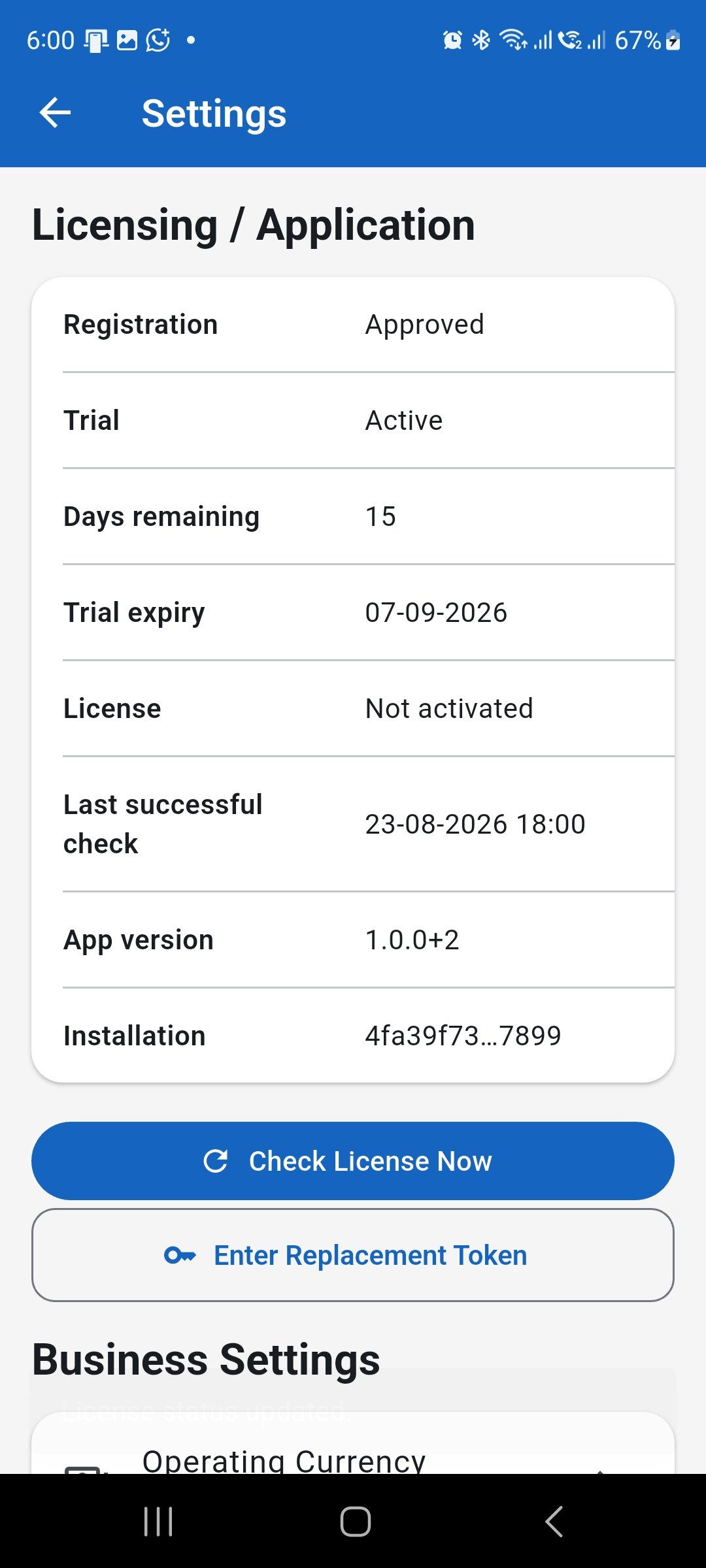
Registration approval and full license activation are separate. An approved registration may still be using the active trial.
Check License Now
Refresh the current licensing status
Use Check License Now when you want WorkLedger to refresh its current licensing status from the server. Internet access is required for a successful check. After a registration or licensing change, this can retrieve the latest applicable status. Last successful check shows when WorkLedger most recently completed a licensing check successfully. Check License Now does not purchase, create, or automatically grant a license.
Full license activation
Confirm the updated license state
The trial and full license are separate states. When an applicable full WorkLedger license has been activated for the installation, Licensing / Application reflects the updated license status after a successful licensing check. If you expect a license to be active but the expected status is not shown, confirm internet access and use Check License Now. Contact WorkLedger support if the status still does not appear.
Replacement License Token
Use only a supplied replacement token
Enter Replacement Token is not part of normal first-time registration. Use it only when a replacement license token has been supplied by the WorkLedger administrator or support team. Enter the supplied Replacement License Token and tap Verify Token; WorkLedger verifies it before replacing the current license token. Do not guess or create a token, use somebody else's token, or share licensing tokens. Contact WorkLedger support when a device replacement or licensing transfer requires assistance.
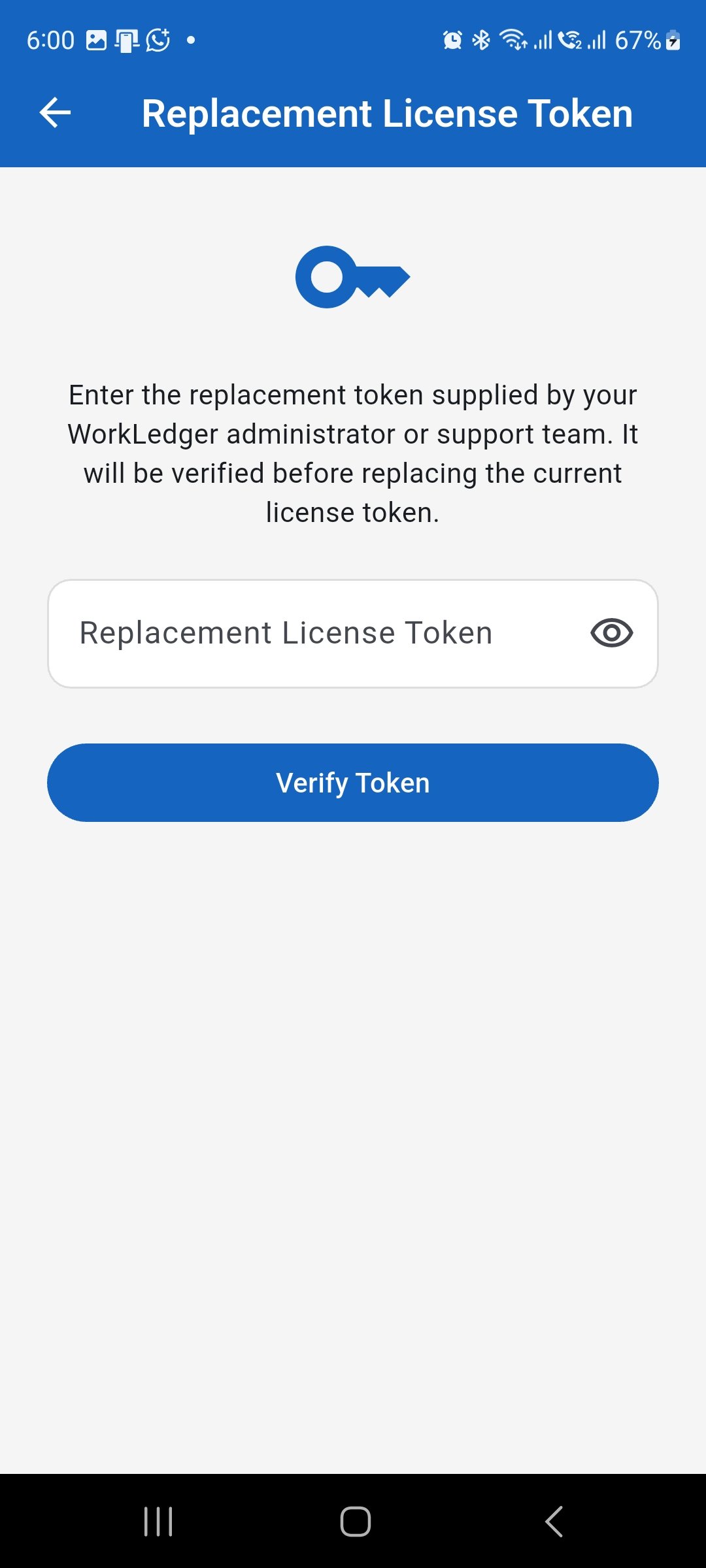
Use this screen only when a replacement token has been supplied by the WorkLedger administrator or support team.
Important licensing and data notes
Licensing is server controlled
Registration, trial, and licensing states are controlled through the WorkLedger licensing system.
Business records remain local
Ordinary WorkLedger operational records such as workers, sites, attendance, wages, receipts, and expenses remain primarily on your device and in backups you create. The licensing service is not an operational business-data synchronization service.
Reinstalling does not reset the trial
Do not uninstall or reinstall WorkLedger to try to obtain another trial. Reinstallation is not a trial-reset method and can put locally stored data at risk.
Protect data before changing devices
Before uninstalling WorkLedger, replacing a device, clearing application storage, or performing another action that could remove local data, create and safely preserve a current WorkLedger backup.
Contact support when necessary
Use the related Contact support topic for registration, activation, licensing, device-transfer, or replacement-token problems. Do not send passwords, MPINs, biometric credentials, private keys, backup passwords, or other security credentials.