WorkLedger guide
Common problems
Most WorkLedger problems can be checked safely without reinstalling the app or changing existing records. Start by reviewing the application status and settings, then record any error message before attempting corrective changes. Create a backup before making changes that could affect business data.
Category Security & assistance
Troubleshoot common issues safely
Check license and application status
Open Settings and review Registration, Trial, License, the last successful license check, app version, and installation information. If the problem may be related to registration or licensing, use Check License Now while internet access is available.
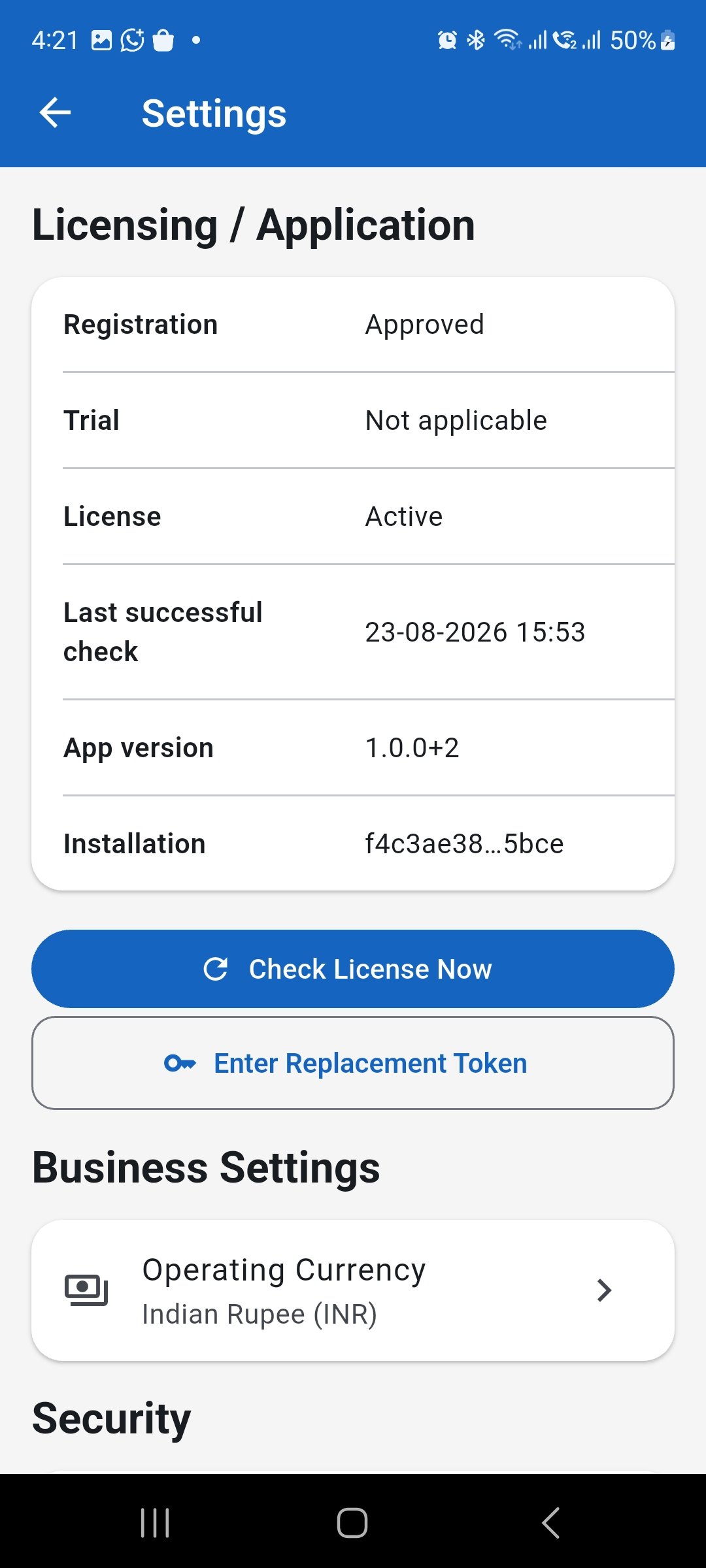
Review the application and license status before troubleshooting registration or licensing problems. Check the operating currency
If amounts or currency labels appear incorrect, open Operating Currency and confirm the currency selected for the business. The selected operating currency applies to the business database, so verify it before investigating financial display issues.
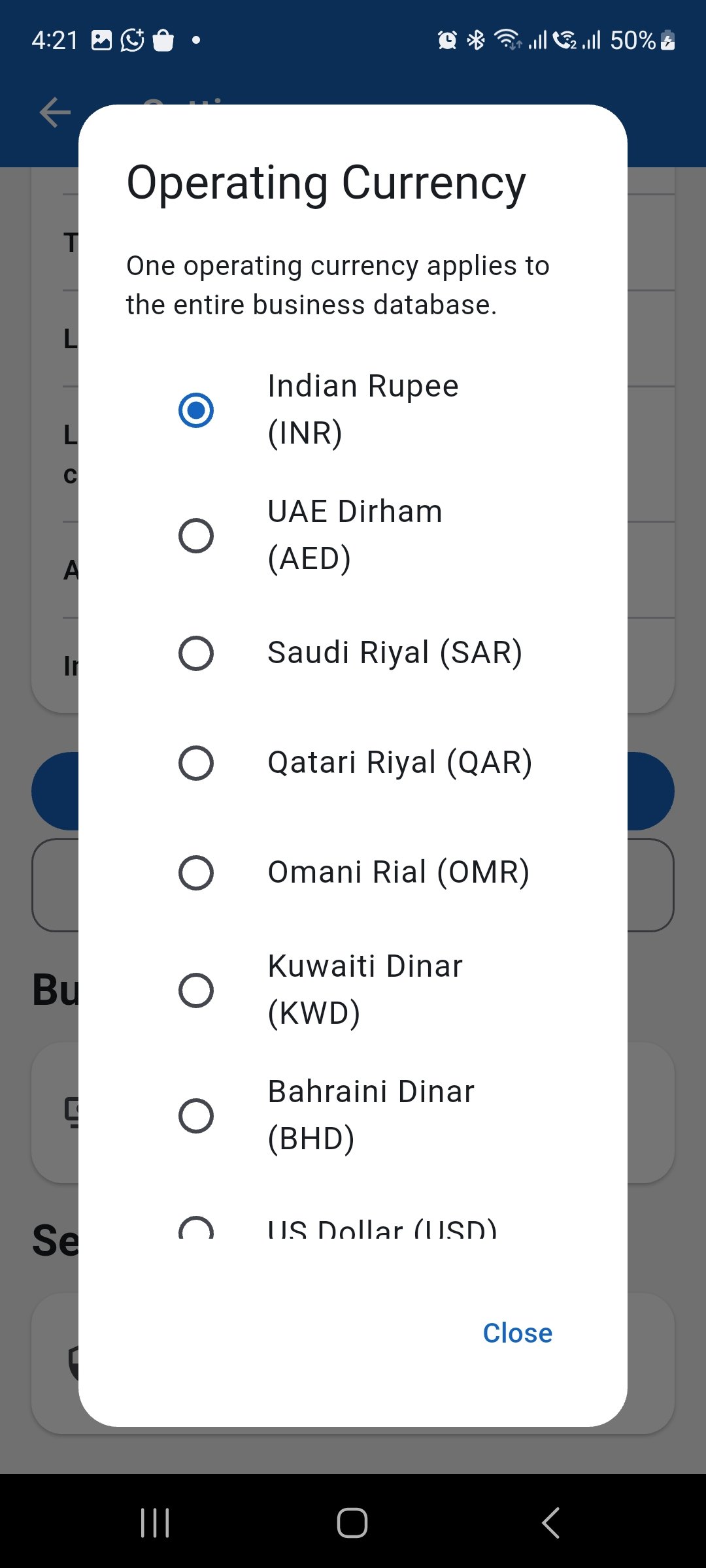
Confirm that the correct operating currency is selected when financial amounts appear unexpected. Check security settings
If WorkLedger locks unexpectedly or access behaves differently than expected, review App Lock, the lock-after-leaving-app period, biometric unlock, and PIN settings before assuming that application data is damaged.
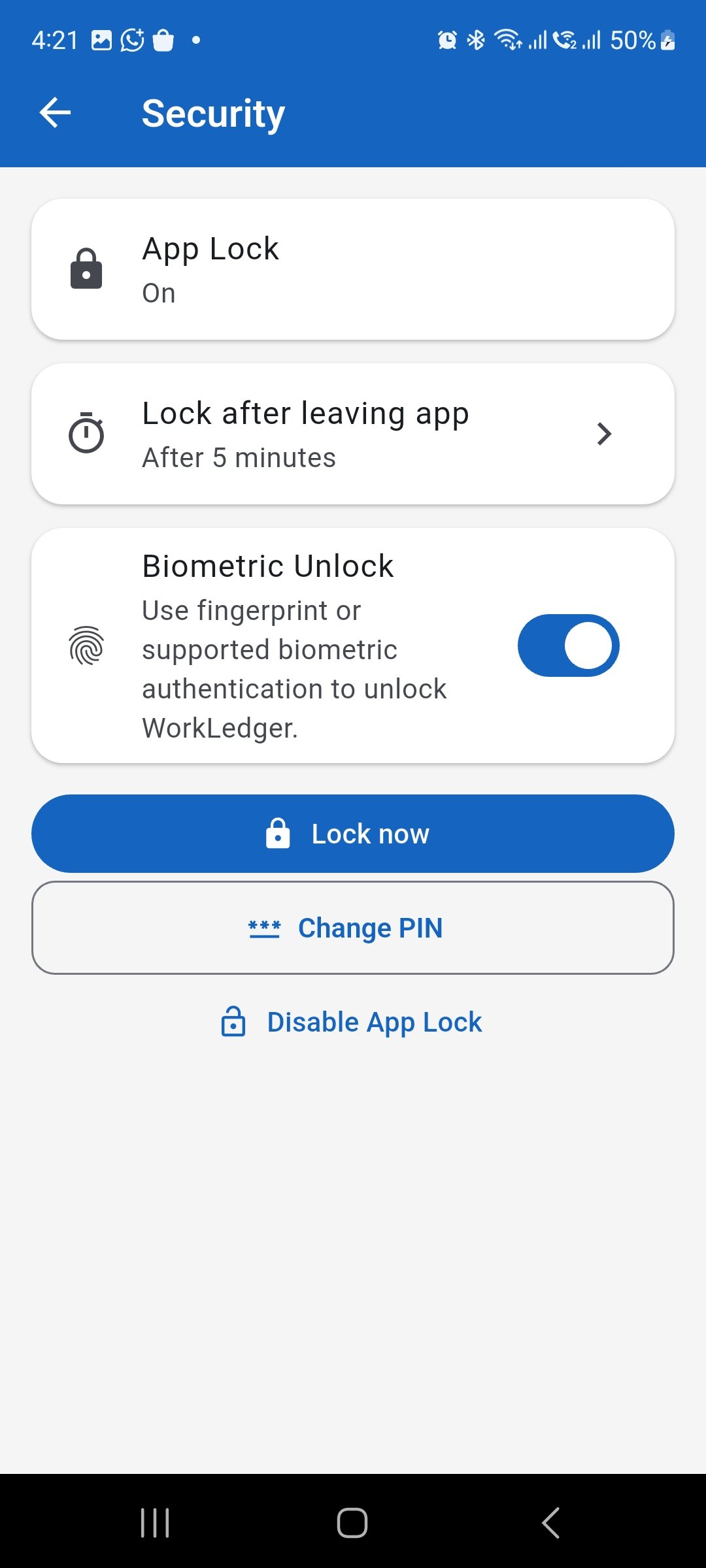
Review App Lock, biometric unlock, and PIN settings when the problem relates to opening or unlocking WorkLedger. Create a backup before corrective changes
Before restoring data or attempting changes that could affect existing records, create a current WorkLedger backup and keep a protected copy. A backup should be made before corrective work, not after data has already been changed.
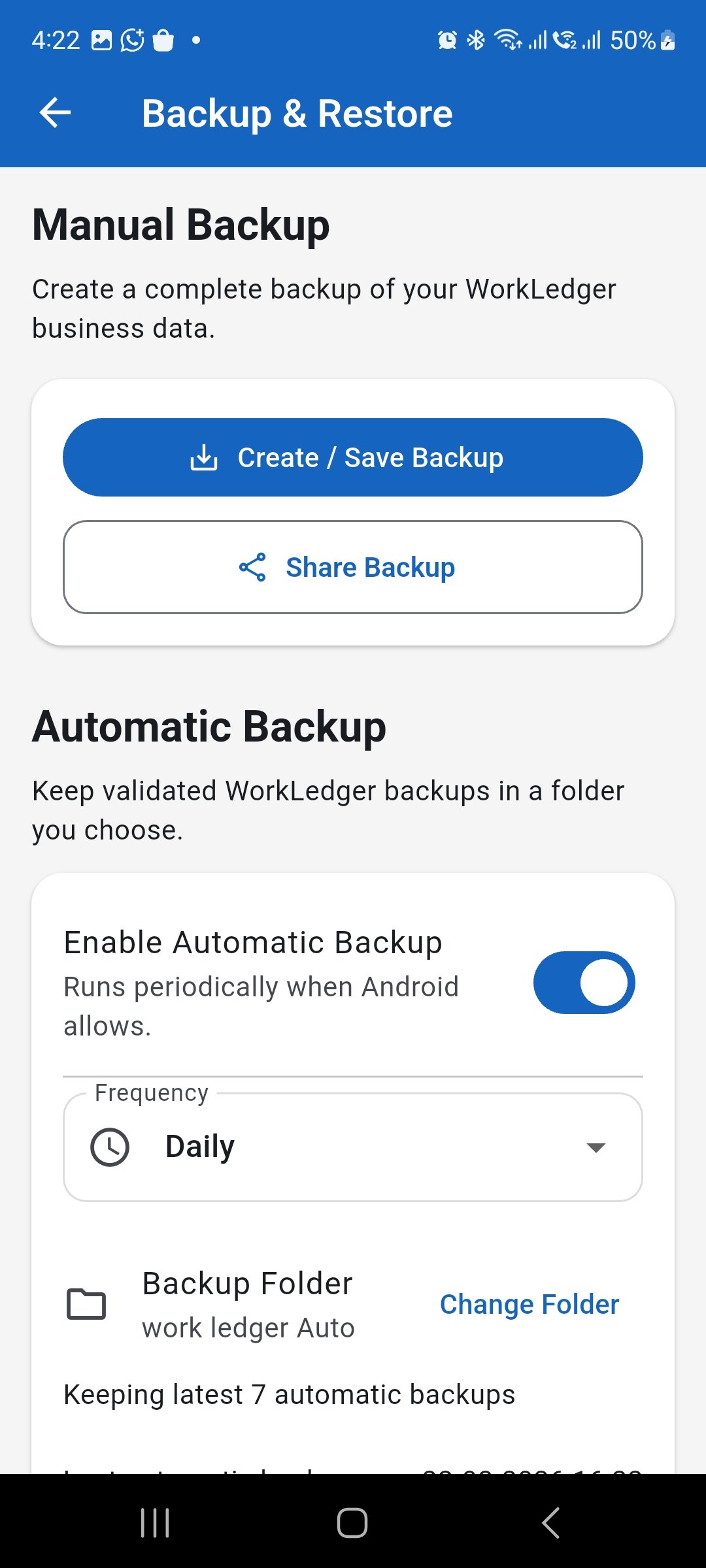
Create a current backup before attempting corrective changes that may affect business data.